How to Bypass Google Lock on Motorola, Samsung, ZTE, LG, and Others
Get a Google "Verify your account" screen on your Android device and don't know how to bypass the lock? Keep on reading to learn the best ways to bypass Google lock on a phone or tablet.

Katrin Gray
Updated on May 14, 2026
Modern Android devices include a powerful security feature called Factory Reset Protection (FRP) — commonly known as Google lock. This feature is designed to protect your data and prevent unauthorized access if your phone or tablet is lost, stolen, or reset without permission. When a Google Lock appears, it requires the Google account username and password that were previously synced on the device to verify identity.
For legitimate owners, you just enter your Google credentials to bypass Google Lock. But when you forget your account information, buy a second-hand device, or reset your phone without signing out of your Google account, FRP can lock you out of your own device.
This article will show you how to bypass Google lock safely on your Samsung Galaxy, Motorola, LG, ZTE, or other Android devices. We focus on official Google account method, helping you recover your Google credentials and regain access to your device.
If it fails, you may resort to a reputable tool called Higospot Android Unlocker, which provides a streamlined solution for bypassing Google Account verification (FRP) on a wide range of Android devices. By connecting the locked device to a computer, users can follow an automated, step-by-step process that eliminates the need for the original Google credentials or complex manual bypass methods like OTG cables or APK flashing.
Table of Contents
Why you search for "Google lock bypass"
When any of following situations occur, the device becomes stuck on the "Verify your account" screen. You cannot proceed with setup, access the home screen, or use the device until the correct Google credentials are entered.
- You forgot your Google account password
- You forgot the email address associated with the device
- You reset the device without removing the Google account
- You purchased a second‑hand phone that still has the previous owner's Google account
- You changed your password recently, and Google temporarily restricts sign-in on reset devices
- You don't have access to the recovery phone number or email
- You cannot verify your identity through Google's automated checks
Why Google lock appears
Google lock (FRP) activates automatically under specific conditions. Understanding these helps you avoid triggering it unintentionally.
1. You performed a factory reset without removing your Google account. If you reset your device through Settings, Recovery mode, or remote reset, FRP will activate unless you removed the Google account beforehand.
2. You forgot your Google account credentials. If you cannot remember the email address, password, recovery phone or email, You will be unable to get past the Google lock verification screen.
3. You changed your Google password recently. Google may block sign‑in on a reset device for 24–72 hours after a password change. This is a security measure to prevent unauthorized resets.
4. You bought a second-hand device. If the previous owner did not remove their Google account, the device will remain locked.
5. You triggered anti-theft protection. If Google detects suspicious activity, it may require full verification.
Related: How to Unlock Android without Password
How Google Lock (FRP) works
FRP is tied to the Google account that was last synced on the device. After a factory reset, the device checks:
- Was a Google account previously logged in?
- Was the account removed before the reset?
- Has the password been changed recently?
- Can the user verify identity through Google's servers?
If the answer is "no," the device displays: This device was reset. To continue, sign in with a Google Account that was previously synced on this device. This prevents unauthorized users from wiping and reusing a stolen device.
How to recover your Google account email
If you forgot the email address of your Google account associated with the locked device, follow these steps:
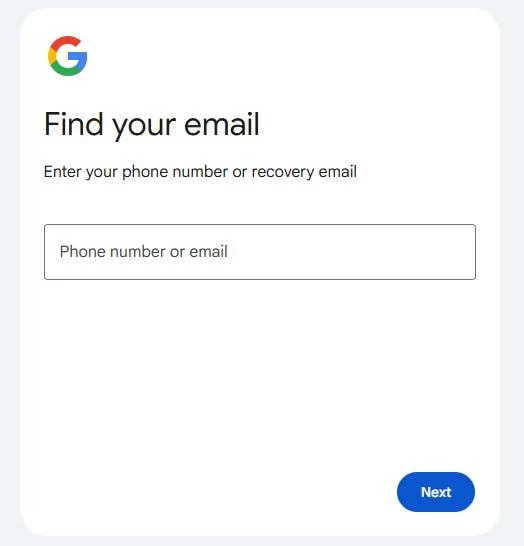
Step 1. Visit https://accounts.google.com/signin/usernamerecovery page.
Step 2. Enter your recovery phone number or email.
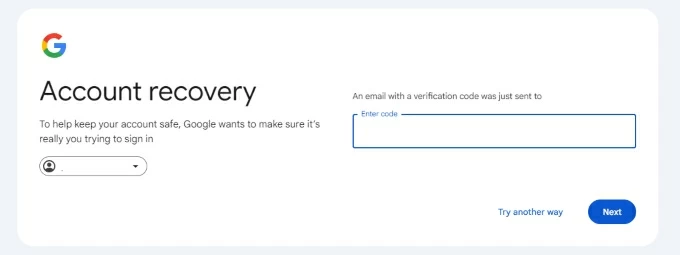
Step 3. Google may send a verification code, a prompt to another device, or a security question to verify your identity.
Step 4. You will see a list of accounts associated with your recovery information.
Step 5. Once you identify the correct email, enter it on the screen to bypass Google lock.
Related: Forgot Samsung Phone PIN
How to recover your Google account password
If you know the email but forgot the password, follow the tips below to reset your Google password.
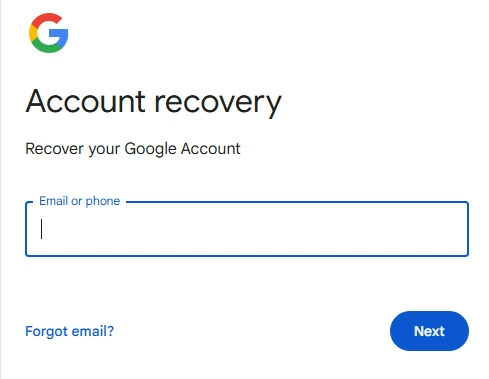
Step 1. Visit https://accounts.google.com/signin/recovery page.
Step 2. Enter your Google email. Google will guide you through verification.
Step 3. Choose a verification method. Depending on your settings, you may see SMS verification, Email verification, Google prompt on another device, backup codes, or security questions.
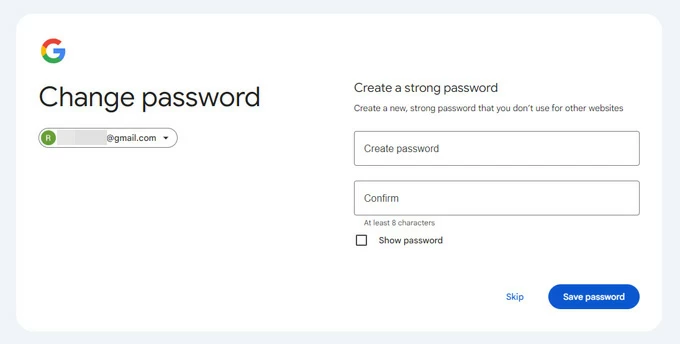
Step 4. After verifying that you're the owner, you'll be asked to create a new password.
Step 5. Sign in to your Android device to bypass a Google lock.
If you changed your password recently, Google may temporarily block sign-in on the reset device. You may need to wait 24–72 hours.
What to do if you can't recover your Google account
If you cannot access your recovery phone, recovery email, or verification methods, try the following:
1. Use a familiar device or location. Google is more likely to approve recovery attempts from a device you used before, a Wi-Fi network you used before, a browser you used before
2. Fill out Google's Account Recovery Form. Google may ask when you created the account, when you last accessed it, frequently used apps, contacts you email often. Provide as much accurate information as possible.
3. Visit an authorized service center. If you have proof of purchase, some manufacturers may assist.
4. For second-hand devices, contact the seller to remove the device from their Google account or provide the correct credentials.
Alternative: Higospot Android Unlocker
Most of the time, you're able to get Google FRP lock bypassed through official recovery route. However, if you're reading this article, you've probably exhausted all your efforts and the device still locks you out. Don't fret, though.
There are many utilities for bypassing Google lock on an Android phone or tablet. These utilities also let you do other things, like the ability to remove all types of screen locks (password, PIN, pattern, fingerprint, face ID) when locked. A good example of such a tool is Higospot Android Unlocker.
The tool simplifies the bypass process into a guided, three-step workflow that requires no technical expertise. Better still, it works for a wide range of manufacturers including Samsung, Motorola, Google Pixel, Xiaomi, OPPO, VIVO, LG, ZTE, Lenovo, and more.
Win Download
Here are steps to bypass FRP google lock on a Motorola, Samsung Galaxy, LG, ZTE, or any other Android device.
Click the link above and download & install the tool on your PC.
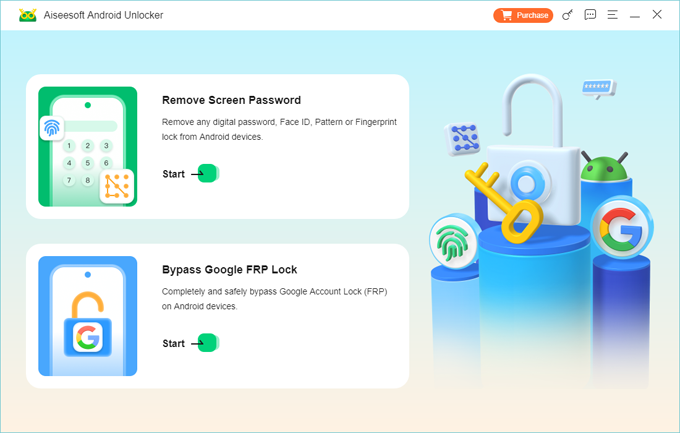
Step 1. Launch Android Unlocker, and choose "Bypass Google FRP Lock" from the main interface.
Related: How to Reset Google Pixel When Locked
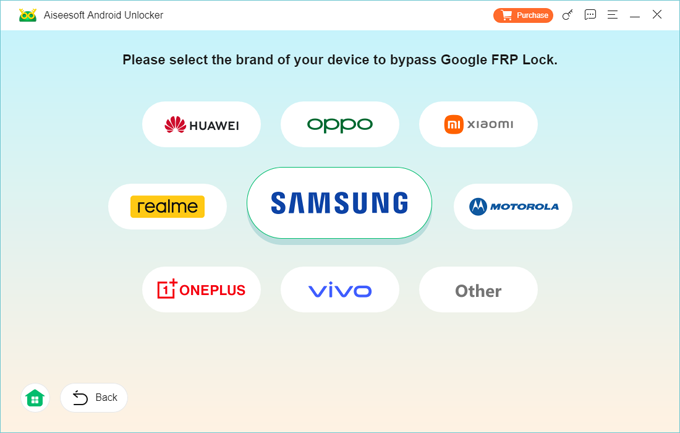
Step 2. Pick your phone brand. For example, if you're bypassing Google lock on Samsung, choose "Samsung" icon from the list.
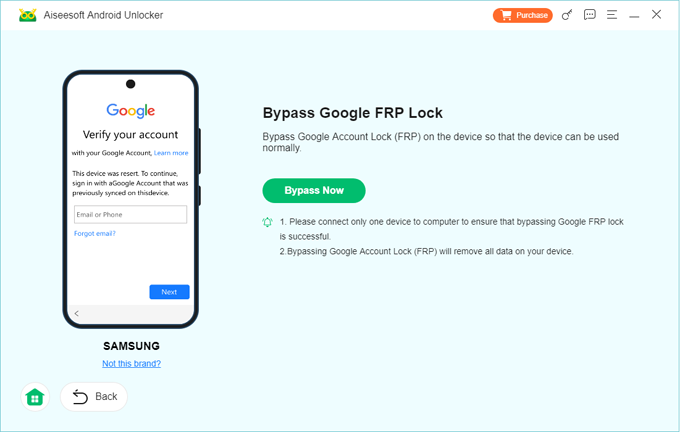
Step 3. Go ahead and press "Bypass Now" button.
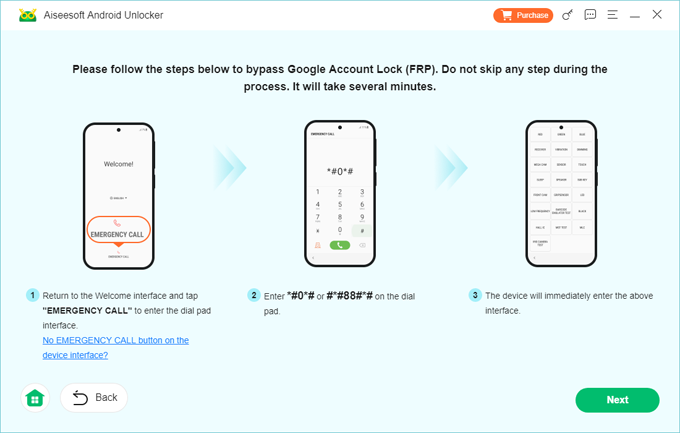
Follow the on-screen prompts to put your phone model into the required mode (usually involving a combination of Volume and Power buttons).
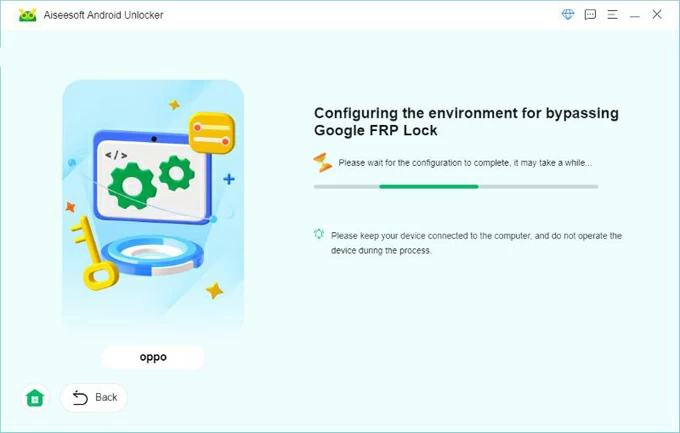
After that, click "Next" button, the tool will detect your device version and download the necessary configuration file. Wait for it to bypass Google FRP lock on your device.
Step 4. When you see "Successfully bypassed Google Account Lock (FRP)" message, disconnect the device from the PC.
Done! You can now sign into your Android device with a new Google Account and enjoy all Google services.
If you're an iPhone user, see How to Bypass iPhone Passcode
Avoid Google account lock bypass in the future
To avoid being locked out by Google lock again, you can remove your Google account before resetting. Simply go to Settings > Accounts > Google > Remove account.
Plus, it's advisable to keep your recovery information updated, including phone number, email, and backup codes. Even if you're stuck at Google lock screen, you can recover your Google account email or password quickly through official recovery page.
If you purchase a second-hand device, always check the device is factory reset and there is no Google account is signed in.
FAQs
- How can I bypass Google activation lock?
- Recover your Google email and password using Google's official recovery tools, verify your identity, and sign in on the locked device. If recovery fails, seek authorized support or use the dedicated third-party tools like Higospot Android Unlocker.
- Can I bypass Google lock without the original Google account?
- Yes. If you can't recover your Google account username or password, there are a lot of third-party tools available to help you out. One of the reputable is Higospot Android Unlocker, which allows non-technical users to regain full access to their Android devices—including the ability to log in with a new Google account.
- How long do I need to wait after changing my Google password?
- Google may block sign‑in on a reset device for 24–72 hours after a password change. This is a security measure to prevent unauthorized resets. After the period, you may use the new password to bypass a Google lock.
- Can a service center remove Google lock for me?
- Some authorized service centers may assist if you provide valid proof of purchase. They cannot perform a Google FRP lock bypass without verifying ownership.
- Can I use Motorola Rescue and Smart Assistant to bypass Google lock?
- No. Motorola Rescue tools can reinstall firmware but cannot remove Google lock.
- Why does Google lock appear on my Samsung phone after a reset?
- Samsung devices activate FRP when a factory reset is performed without removing the Google account. This applies whether the reset is done through Settings or Recovery Mode.
About Katrin Gray
Katrin Gray is the Junior Editor at HigoSpot. With a bachelor's degree in Computer Applications, he has been covering Microsoft Windows, Apple macOS, iOS, Android, Social Media, Gaming, and more as a professional writer for over 5 years.

 iPhone UnlockerRemove iPhone & iPad lock screen
 iPhone Data TransferTransfer and manage your iPhone & iPad data
 Android UnlockerRemove Google FRP lock and bypass screen locks
 iPhone Data RecoveryRecover deleted files from iPhone, iPad
 Location ChangerFake a GPS location easily
 Video DownloaderDownload videos from 1000+ sites