How to Bypass Google Verification Screen on Samsung Phone or Tablet
If you forgot your Google account password and new to Google verification that's appeared on a Samsung phone, here's how to bypass Google verification lock during setup.

Katrin Gray
Updated on Mar 27, 2026
There aren't many things more frustrating than finding a Google verification prompt on your Samsung phone screen to stop you from setting up the device after a factory reset. Maybe you a fresh-start feeling or leave your device in an out-of-box state for the new owner.
If you are the first time to see this Google Verification message and don't know how to bypass the lock on your Samsung phone or tablet, don't fret. Before taking it to a repair center, understand the mechanics of Factory Reset Protection (FRP) and check out the methods outlined below. There's a good chance that you'll bypass Google verification lock on Samsung device within minutes.
To fix the problem quickly, you may use a reputable tool named Higospot Android Unlocker, which gets rid of various screen locks, including Google FRP lock, screen Pattern, PIN, and password.
Understanding the role of FRP
FRP (factory reset protection) is a security method designed to ensure that if a device is lost or stolen, it cannot simply be wiped and resold. On Samsung devices, this is integrated deeply into the hardware-level security (Samsung Knox).
When a Google account is registered on a Samsung device, FRP is automatically activated. If the device is factory reset through untrusted methods with identity verification—such as the recovery menu (hard reset) or via the Find My Device service—the device will prompt for the original Google credentials to get past the lock before it allows any further setup.
If you've forgotten the password to the Google account associated with the Samsung phone while performing a hard reset on it to solve a software glitch or performance issue, follow these methods to bypass Google verification page.
Google Account Recovery path
The first and most recommended step is to utilize official recovery tools. Once you recover your password, you can use it to bypass Google Verification screen and move forward with setup on the Samsung device.
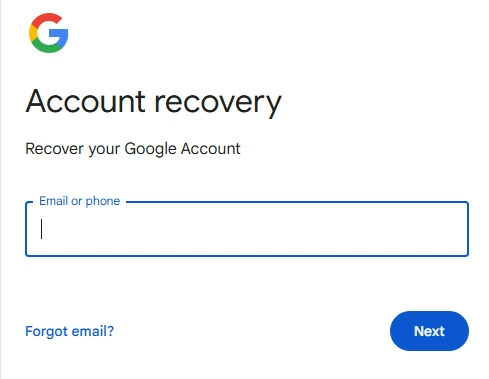
1. Go to the official Google Account Recovery page
2. Enter your email address or the phone number associated with the account
3. Select Forgot password? when prompted for your login credentials.
4. Google will attempt to verify you using the most secure method available first. You may be asked to tap a notification, use a recovery Email/phone, answer security questions, or enter a previous password.
5. If you don't have access to your recovery phone or email, click Try another way to sign in. Google may then ask for a contact email where they can reach you, or put the account under a 48-hour to 7-day security hold.
6. Once verified that it's your account, you'll be prompted to create a new password.
That's it! You can now enter the new created password on your Samsung Google Verification screen to bypass the lock.
Use Higospot Android Unlocker
As the name implies, Higospot Android Unlocker is a dedicated utility designed to bypass Google Factory Reset Protection (FRP) and remove various screen locks on Android devices. It streamlines the FRP bypass process by allowing users to circumvent Google account verification after a factory reset without needing the original credentials. It supports a wide range of Samsung, Motorola, Xiaomi, LG, Vivo, Lenovo, TCL, OPPO models. Beyond bypassing Google verification FRP, the software can remove PINs, patterns, passwords you forget.
Win Download
Using Android Unlocker to bypass Google Verification FRP on a Samsung phone is a streamlined process. Here's how:
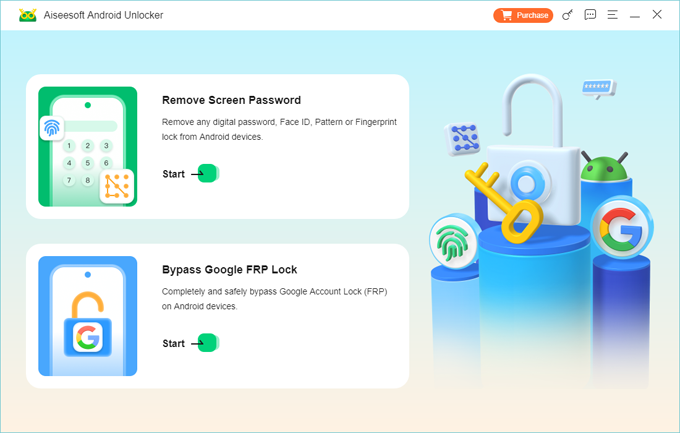
Step 1. Launch Android Unlocker on your computer. On the main interface, select the Bypass Google FRP Lock card.
Plug your Samsung device into the computer using a working USB cable. Ensure the phone is on the Google "Verify your account" screen.
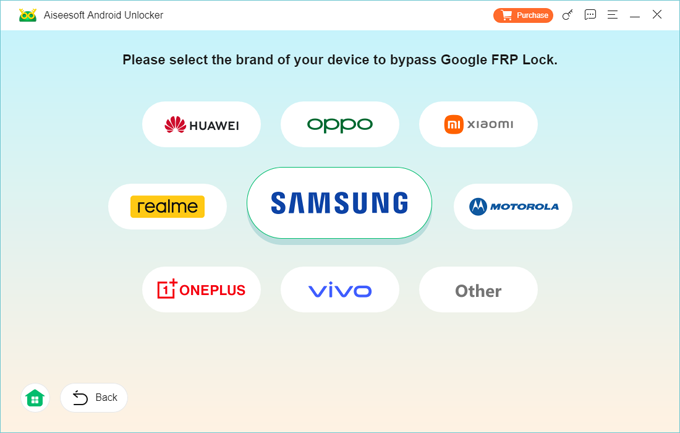
Step 2. The software will usually auto-detect your brand, but you may need to manually select it. Here we pick the big Samsung option in the center.
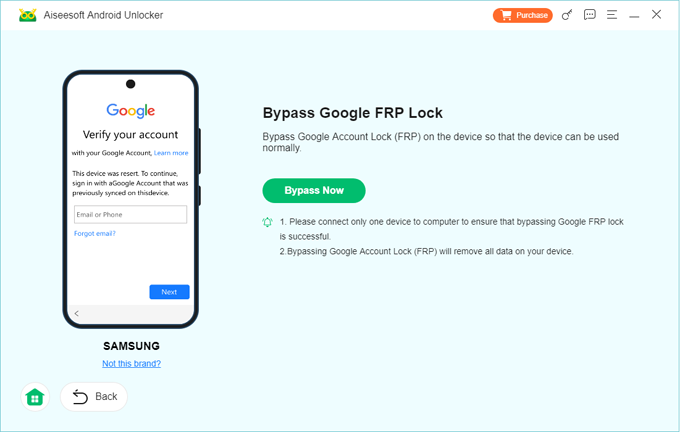
Step 3. Click Bypass Now.
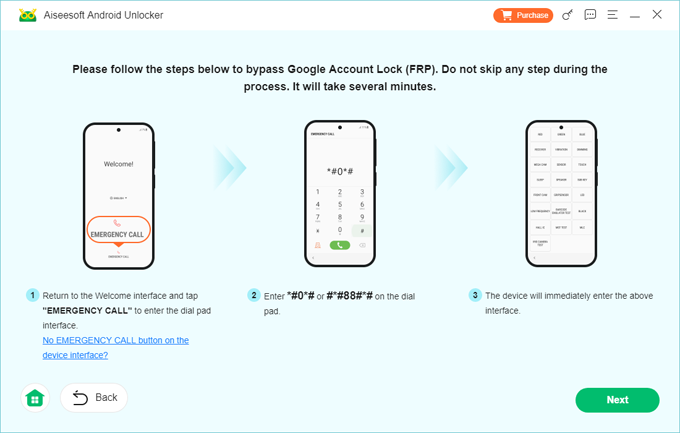
Step 4. The software will guide you through the steps to enter the phone into Emergency mode. On the phone's emergency dialer, enter the code provided by the software (commonly *#0*# or #*#88#*#).
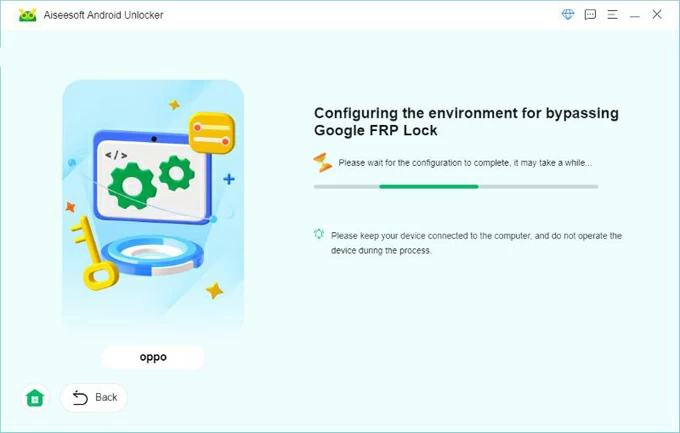
Next, it will configure the bypass environment for you.
After that, Android Unlock will now begin removing the Google Verification lock on your Samsung phone (or tablet). The phone may restart automatically during this phase.
Once the software displays Successfully bypassed Google Account Lock (FRP) your device will reboot one last time.
When you reach the setup screen, you can now skip the Google account sign-in and set up the device as new.
You can also use the "Bypass Google FRP Lock" feature of Android Unlocker to bypass Google lock on a Motorola phone. You will get a similar procedure.
Samsung's "Find My Mobile" service
Samsung offers a unique advantage over other Android manufacturers. If the user had a Samsung Account registered on the device and "Remote Unlock" option enabled in Settings app, you can try to unlock the Samsung phone and, in many cases, bypass the Google Verification status.
1. Visit the Samsung Find My Mobile website.
2. Log in with the same Samsung Account used on the device.
3. Select the Unlock option.
Visit Authorized Service Center
If digital recovery fails, the hardware approach is the next step. Samsung Authorized Service Centers can flash the device's firmware and reset/ bypass the Google Verification screen lock on your Samsung phone if you can provide proof of purchase. This is the most secure way to bypass the lock, as it relies on physical verification of ownership.
Avoid bypassing Google Verification again
The ultimate answer to avoid getting stuck at Google Verification lock on the Samsung device is make a better device management.
If you want to factory reset a Samsung phone, you should always perform it via Settings > General Management > Reset > Factory Data Reset. You will be prompted to enter your lock screen PIN, pattern, or password. If you have a Samsung Account linked, you may also be asked for your Samsung Account password. This path removes FRP automatically.
Before selling or gifting a phone, it's advisable to manually go to Settings > Accounts and Backup > Manage Accounts and remove the Google account.
Another important thing to do is keep physical or secure digital records of the account credentials. It is vital for ensuring access during emergencies, enabling efficient recovery if accounts are hacked, and protecting against data loss.
About Katrin Gray
Katrin Gray is the Junior Editor at HigoSpot. With a bachelor's degree in Computer Applications, he has been covering Microsoft Windows, Apple macOS, iOS, Android, Social Media, Gaming, and more as a professional writer for over 5 years.

 iPhone UnlockerRemove iPhone & iPad lock screen
 iPhone Data TransferTransfer and manage your iPhone & iPad data
 Android UnlockerRemove Google FRP lock and bypass screen locks
 iPhone Data RecoveryRecover deleted files from iPhone, iPad
 Location ChangerFake a GPS location easily
 Video DownloaderDownload videos from 1000+ sites