How to Bypass FRP Lock on an Android Phone and Tablet
How to Bypass FRP Lock on an Android Phone and Tablet

Katrin Gray
Updated on Apr 30, 2026
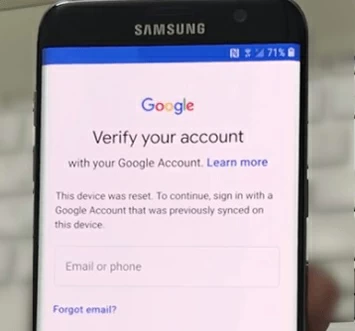
We rarely give a second thought to what's happening under the hood of our Android device—and we don't have to. The only time we think about the device is when something goes wrong like a "verify your account" Google error appearing on the screen after the reset. And that's the case with Google FRP lock.
If your Android phone or tablet is set up as it should, you don't need to think about it. If not, FRP lock may be the culprit. In this article, we'll explain what Google FRP (Factory Reset Protection) is, why it prevents you from setting up the device, and how you can bypass FRP lock on an Android phone or tablet.
For those who need a quick way to get past FRP lock for Android without involving tedious steps, go with Higospot Android Unlocker. It's a reputable tool designed to bypass various screen locks and Google FRP (Factory Reset Protection), allowing users to regain access to their Android devices without a passcode.
Table of Contents
What is Android FRP?
FRP stands for Factory Reset Protection. Introduced by Google with Android 5.1 Lollipop, it is a built-in security layer that automatically activates when a Google Account is registered on a device. Once active, it prevents the device from being used after a factory data reset until the original Google login credentials are provided.
Therefore, FRP lock can be seen as a very import and useful part of Google security protocols. Even if a thief manages to wipe your phone's data, the device remains locked and unusable because it requires to verify the identity of the owner setting it up with Google's servers. However, the downside is that losing access to original Google email or forgetting a password, the owner may end up permanently locked out.
How FRP lock impacts your Android
If you are staring at an Android FRP lock screen, your device's functionality is currently restricted in several ways:
1. After resetting an Android device, while you can connect to Wi-Fi, you cannot use the device for calls or texts until the setup is complete.
2. You cannot reach the home screen, access apps, or use the camera.
3. Without the correct bypass or Google credentials, the phone is essentially a paperweight, as the security partition on the storage remains locked.
4. If you are a seller, an active FRP lock significantly devalues your device because the next owner will be unable to use it.
How to bypass FRP on Android
Factory Reset Protection (FRP) is a powerful security tool that is usually best handled through official Google verification. However, when you have lost your credentials, you may use official route to recover it, or use technical workarounds like OTG installations, or resort to professional desktop utilities to regain access. Keep on reading.
See also: How to reset Android without PIN
The official Google Account verification
The first thing you should do to bypass FRP on your Android device is follow the intended path. Given that you have any access to the original account, things become simple.
1. Ensure the Android device is on a stable network.
2. When you're on Google "Verify your account" screen, input the Gmail address and password.
3. If you remember the email but not the password, use a separate computer or phone to visit the Google Account Recovery page. Reset your password there.
If you're resetting your Google Account password, it may require you to wait 24 hours before those new credentials will work to bypass the FRP screen.
Use professional desktop FRP bypass software
For those who actually forget their Google email or password and the Google Account Recovery path doesn't work, don't fret yet. There are a lot of professional Android FRP bypass tool available out there to get past the "verify your account" screen on your device. Tools like Higospot Android Unlocker are designed to communicate with the device's bootloader or system partition and enable you to remove the factory reset protection lock. The tool also comes with feature to remove screen lock when you forgot PIN, Pattern or password.
Win Download
To bypass FRP for Android tablet or phone, follow these steps:
Step 1. Launch Android Unlocker and connect your device
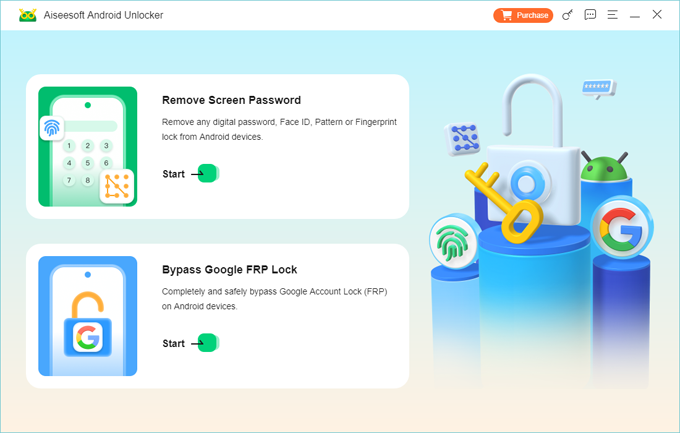
Connect your device to a PC and then open Android Unlocker. You will be presented with two tools for different tasks. To get FRP bypassed on Android, select "Bypass Google FRP Lock" to proceed.
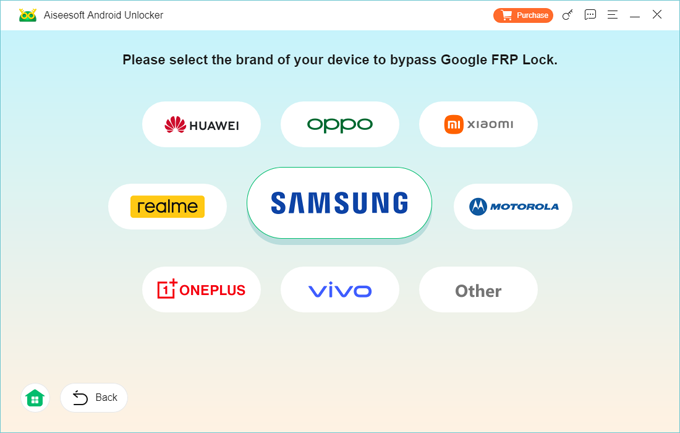
Step 2. Select phone brand
Next, it shows you specific modules for different brands like Samsung, Xiaomi, OPPO, VIVO, or Motorola.
Step 3. Initial FRP bypass process
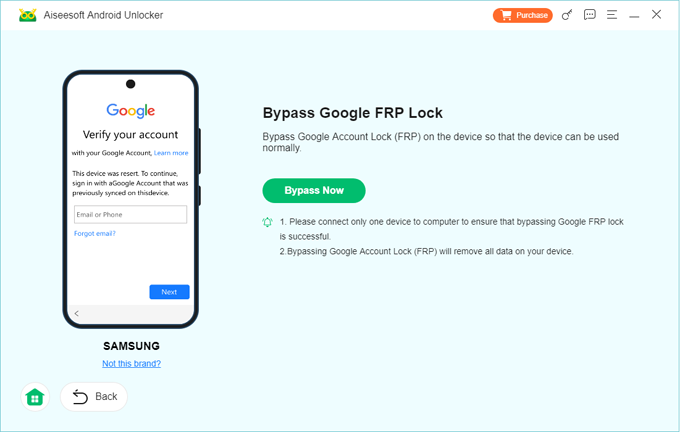
When you're ready, click "Bypass Now" button.
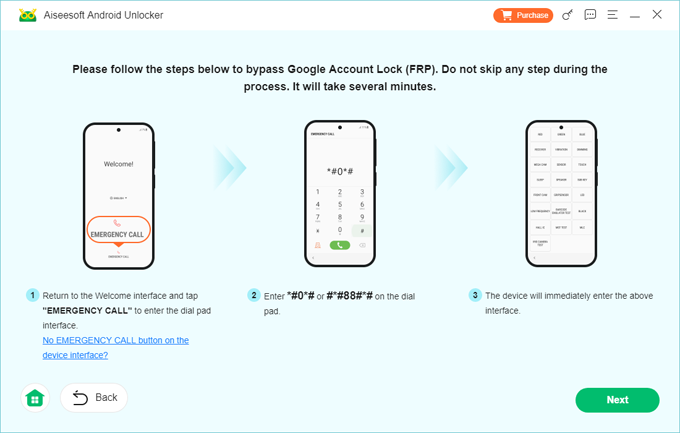
At this point, you will be asked to follow the prompts onscreen to enter the device into Welcome interface and tap the numbers required.
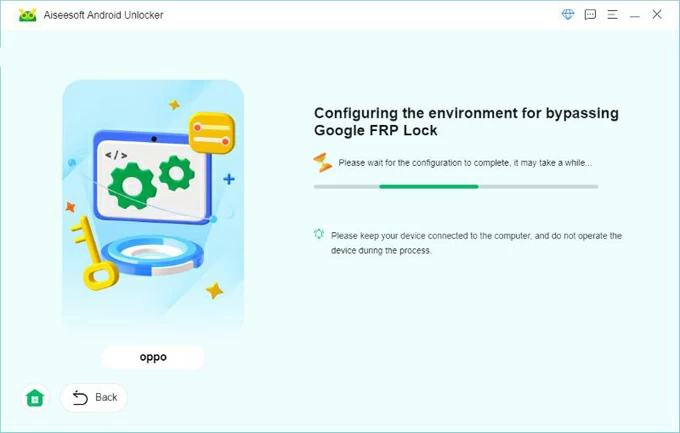
After that, it configures the environment for bypassing Android FRP lock.
Step 4. Wait
It will take a few minutes for Higospot Android Unlocker software to unlock the phone and get past the FRP lock screen. When you're seeing "Successfully bypassed Google Account Lock (FRP) message, it has done its job!
Now, you can proceed with your setup process, install apps, and get back to home screen.
See also: How to fix iPhone Security Lockout error
Samsung-Specific FRP bypass
If you are a Samsung phone user and had previously registered a Samsung Account, you may use official SmartThings Find service to bypass lock FRP for it. Please note, this method only works for some old models.
1. Go to the Samsung SmartThings Find website on another device or computer.
2. Sign in with your Samsung account used on the device.
3. If your device is connected to Wi-Fi, you can select the "Unlock" option.
This action remotely clears all lock screen data and the Google FRP lock, allowing you to set up the phone from scratch.
Using an OTG drive (Samsung and older LG devices)
If your Android device supports USB On-The-Go (OTG), you can use a flash drive to bypass FRP.
1. On a computer, download an FRP bypass APK and save it to a USB flash drive.
2. Use an OTG cable to connect the flash drive to the locked phone that's stuck at "Verify your account" screen.
3. Many Android devices will automatically launch a file explorer app when a USB drive is detected.
4. Navigate to the APK on your drive and install it. You may need to enable "Install from Unknown Sources" in the pop-up prompt.
5. The APK will launch the phone's Settings menu directly.
6. Follow the OEM Unlocking steps to permanently bypass the FRP lock on Android device.
After you access the Settings menu, navigate to Settings > About Phone and tap the "Build Number" seven times to enable Developer Options. From there, turn on OEM Unlocking. Then perform another factory reset from within the Settings menu.
Important: Once you have successfully bypassed the FRP lock, remember to not disable "OEM Unlocking" in your developer settings to prevent a future lockout.
See also: Forgot Samsung tablet password
FAQs
- Does a factory reset remove the Google FRP lock?
- No. In fact, a factory reset is exactly what triggers the FRP lock. To bypass it, you will have to enter the original Google credential to verify your identity. Or use a reputable tool like Higospot Android Unlocker.
- Can I bypass Android FRP without a computer?
- No. in newer Android security updates, Google disables methods like the "TalkBack" or the "Google Keyboard" exploit, which can be operated entirely on the device itself by navigating through hidden system menus.
- Will "Wipe Data/Factory Reset" in Recovery Mode help to bypass FRP?
- No. Wiping the data partition justclears your data, apps and settings, but it does not clear the FRP lock stored in the device's protected partition.
- Is Android bypassing FRP legal?
- If you are the legitimate owner of the device and have simply lost your Google credentials, bypassing FRP lock is perfectly legal.
- How can I prevent FRP from locking me out in the future?
- The best way to prevent an accidental FRP lockout is to go to Settings > Accounts and manually remove your Google Account before performing a factory reset.
About Katrin Gray
Katrin Gray is the Junior Editor at HigoSpot. With a bachelor's degree in Computer Applications, he has been covering Microsoft Windows, Apple macOS, iOS, Android, Social Media, Gaming, and more as a professional writer for over 5 years.

 iPhone UnlockerRemove iPhone & iPad lock screen
 iPhone Data TransferTransfer and manage your iPhone & iPad data
 Android UnlockerRemove Google FRP lock and bypass screen locks
 iPhone Data RecoveryRecover deleted files from iPhone, iPad
 Location ChangerFake a GPS location easily
 Video DownloaderDownload videos from 1000+ sites