iPhone Unavailable: How to Unlock Your iPhone Using iCloud Find My
iCloud integrates with an Find My iPhone feature to help you locate your iPhone and erase it remotely if necessary. Here's how to use iCloud Find My to erase and fix an iPhone saying unavailable.

Katrin Gray
Updated on Dec 19, 2025
Privacy is central to the iPhone's design. By layering security into everything from its software interface to its dedicated hardware, Apple ensures that personal data remains shielded from external threats. One of the most visible manifestations of this security system is the "iPhone Unavailable" message that appears after multiple incorrect passcode attempts.
This message is not a glitch. It is a deliberate security response that prevents brute‑force passcode guessing. When the iPhone detects too many failed attempts, it locks itself temporarily. If incorrect attempts continue, the lockout escalates until the device becomes completely unavailable.
Fortunately, Apple provides official methods to unlock the device. One of the most convenient is iCloud Find My, which allows you to erase and unlock your iPhone remotely. This post will walk you through the steps to unlock an unavailable iPhone through Find My. You can also use a reputable third-party tool like Higospot iPhone Unlocker if iCloud Find My won't work.
Table of Contents
Why "iPhone Unavailable" Becomes a Serious Problem
Seeing "iPhone Unavailable" is more than a minor inconvenience. It can disrupt your entire day, especially if your iPhone is essential for work communication, banking and payments or emergency contacts.
If you forgot your passcode entirely, waiting for the timer won't help. The device will eventually lock permanently. You have to tap the "Forgot Passcode" option appearing on the screen to reset the iPhone to regain access. If this option doesn't respond, or If the iPhone shows "iPhone Unavailable" with no timer, you will have to turn to other workaround to erase it.
This is where iCloud Find My becomes the most flexible and powerful method. It allows you to erase the iPhone remotely, remove the passcode, and regain access—without cables, computers, or button combinations.
How to Fix "iPhone Unavailable" Using iCloud Find My
How can you use iCloud Find My to unlock an iPhone that shows "iPhone Unavailable," and what should you know before doing it?
To answer this, we need to explore:
- What Find My is
- What conditions must be met
- How to use it step-by-step
- What happens after the iPhone is erased
- Advantages of using iCloud Find My
Below is a complete, detailed guide to unlocking your iPhone that says unavailable using iCloud Find My.
Related: How to Factory Reset iPad without Passcode
Understanding iCloud Find My
Find My is Apple's cloud-based device management system. It allows you to locate your iPhone, play a sound, mark it as lost, and erase it remotely. When you erase the iPhone using Find My, the passcode is removed. This is why it is one of the most effective ways to fix "iPhone Unavailable."
However, Find My must have been enabled before the lockout. If it was not, this method will not work.
Requirements for using iCloud Find My
Before you begin, ensure the following conditions are met:
1. Find My iPhone is enabled. Most users enable this during setup.
2. The iPhone is connected to Wi-Fi or cellular data
3. You know the Apple ID and password linked to the phone. This is essential for both erasing and reactivating the iPhone.
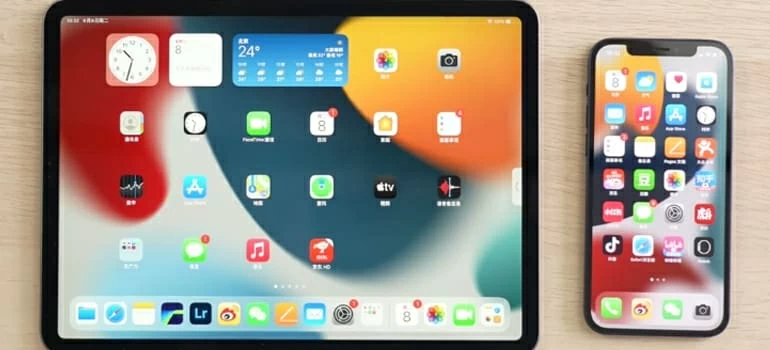
4. You have access to another device (phone, tablet, or computer). You will use this device to log into iCloud.
If all these conditions are met, you can proceed.
Steps to fix "iPhone Unavailable" using iCloud Find My
Here're detailed steps to sign into iCloud and use Find My to unlock your unavailable iPhone.
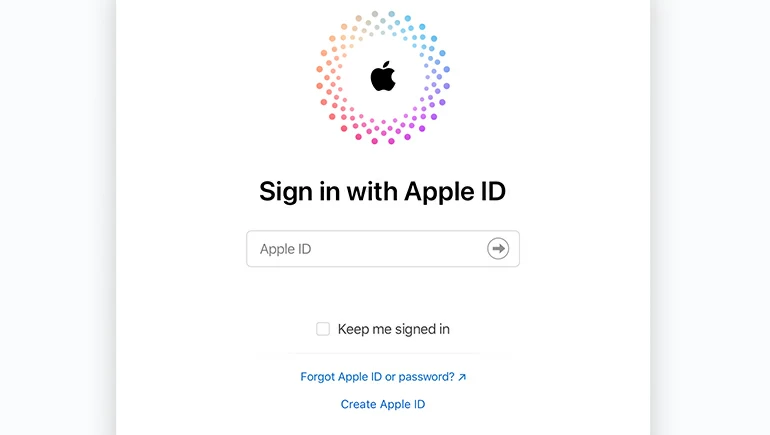
Step 1. On any device, open https://www.icloud.com, sign in using the Apple ID associated with the locked iPhone.
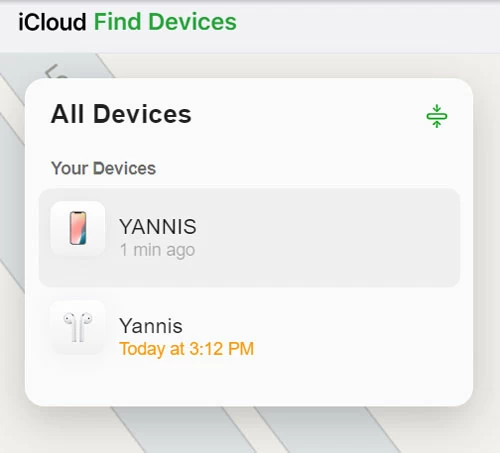
Step 2. Click Find Devices (or Find iPhone on older versions).
Step 3. A map will appear showing all devices linked to your Apple ID. Select the unavailable iPhone from the list.
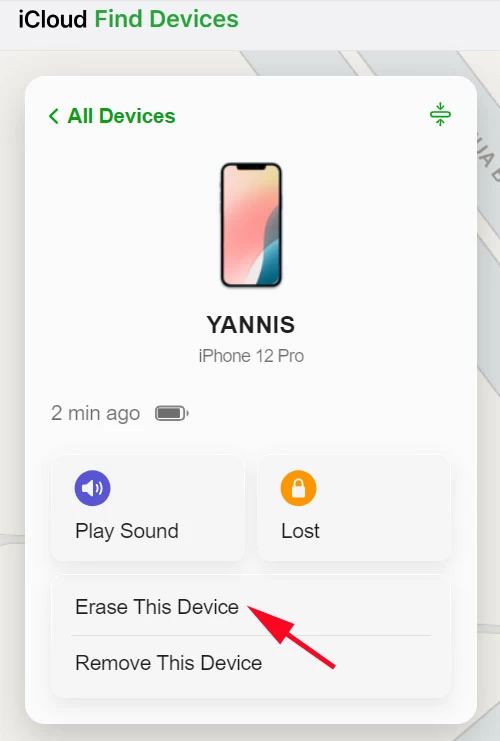
Step 4. Click Erase This Device. Enter your Apple ID password again if prompted. This command erases the passcode, all data, and settings.
Step 5. Wait for the erase to complete. If the iPhone is online, the erase begins immediately.
Step 6. After the erase, the iPhone restarts and displays the setup screen. You will need to select language and region, connect to Wi-Fi, and sign in with your Apple ID. If you have a backup, you can restore it from iCloud, iTunes/Finder, or another device backup.
If you do not have a backup, the iPhone will be set up as new.
Related: What Does support.apple.com/passcode Mean
What happens after erasing the iPhone?
Using iCloud Find My to fix "iPhone Unavailable" message has several consequences:
1. All data is erased. This includes apps, photos, messages, and settings.
2. Activation Lock remains. You will be required to enter your original Apple ID and password to remove it.
3. The passcode is removed. Once erased, the iPhone no longer has a lock screen passcode.
4. You can set up a new passcode. During setup, you can create a new passcode or enable Face ID/Touch ID.
Advantages of using iCloud Find My
1. No computer required. You don't need a Mac or PC.
2. You can erase the iPhone that's unavailable remotely even if it's not physically with you.
3. The interface of iCloud Find My is clean and easy to navigate.
4. No need to press hardware buttons, which involves if you use Recovery mode.
5. This method is fully supported by Apple.
Alternative: Higospot iPhone Unlocker App
If iCloud Find My doesn't work for unlocking your iPhone that's saying unavailable because your device is offline or the remote erase process won't proceed, don't fret. You can run a dedicated screen unlocking tool like Higospot iPhone Unlocker on your computer to remove the lock screen while connecting the device.
As the name suggests, Higospot iPhone Unlocker is a comprehensive, all-in-one mobile toolkit that allows Apple users to remove traditional 4-digit and 6-digit passcodes, as well as biometric locks like Face ID and Touch ID, making it an essential solution for forgotten passwords or unavailable iPhone or iPad.
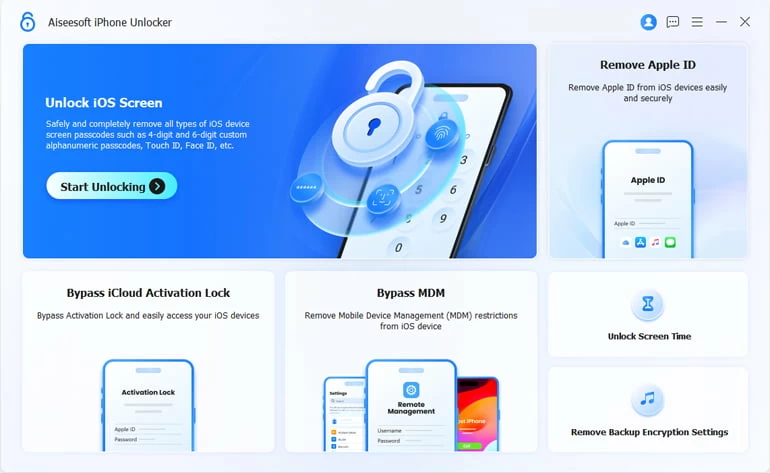
Beyond basic screen locks, it features advanced capabilities to remove Apple IDs, disable Screen Time passcodes, strip away MDM (Mobile Device Management) restrictions, and even unlock SIM locks.
Win Download Mac Download
Here, we'll show you step-by-step how to fix an iPhone that says Unavailable message with Higospot iPhone Unlocker. Download and Install it on your either PC or Mac.
Step 1. When you first start iPhone Unlocker, you will see this screen. The first step is choosing what task you want to do. Here, we select "Unlock iOS Screen" to proceed.
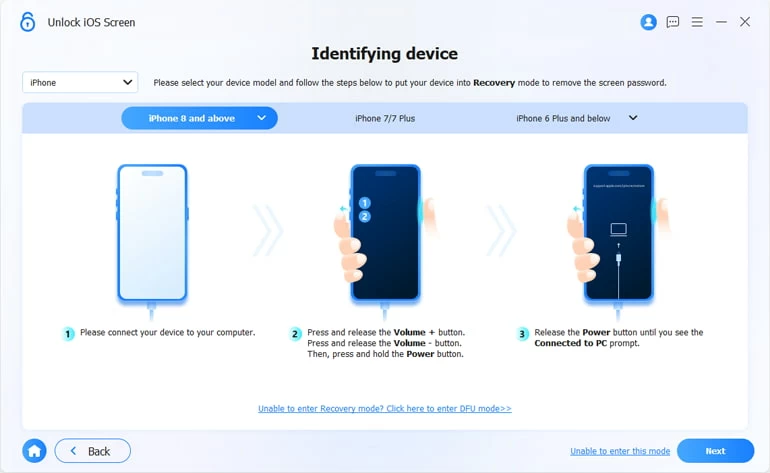
Step 2. Plug your iPhone into the computer, then follow the onscreen prompts to enter recovery mode if prompted.
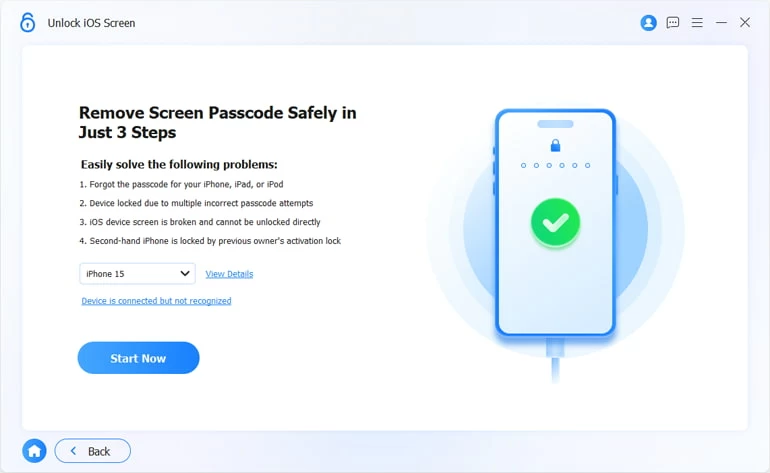
Step 3. After it detects your device, confirm it and press "Start Now" to continue.
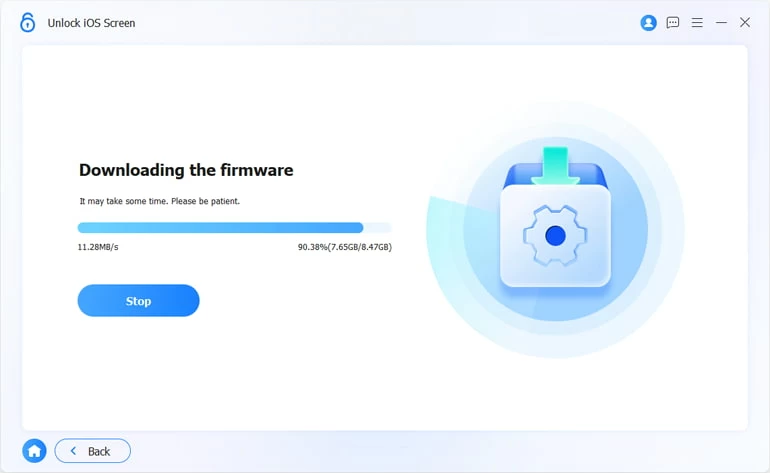
Step 4. The software begins downloading appropriate firmware for your iPhone model. This may take a few minutes.
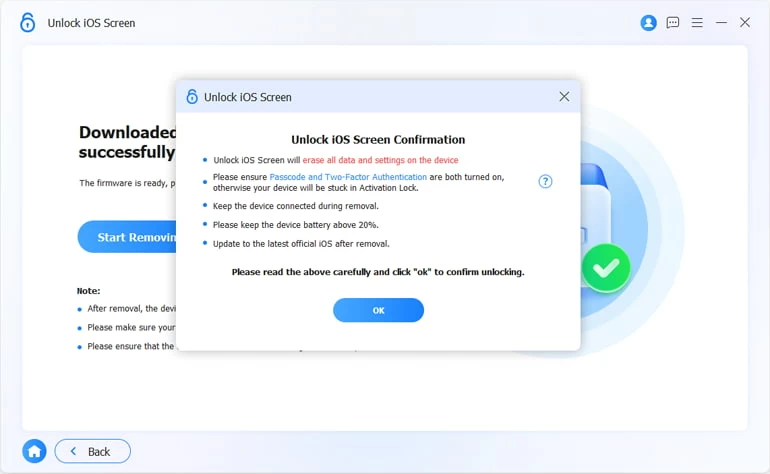
Step 5. When everything is ready, click "Start Removing" button. Review the messages in pop-up dialog, followed by "OK." Let the software unlock the iPhone that's unavailable.
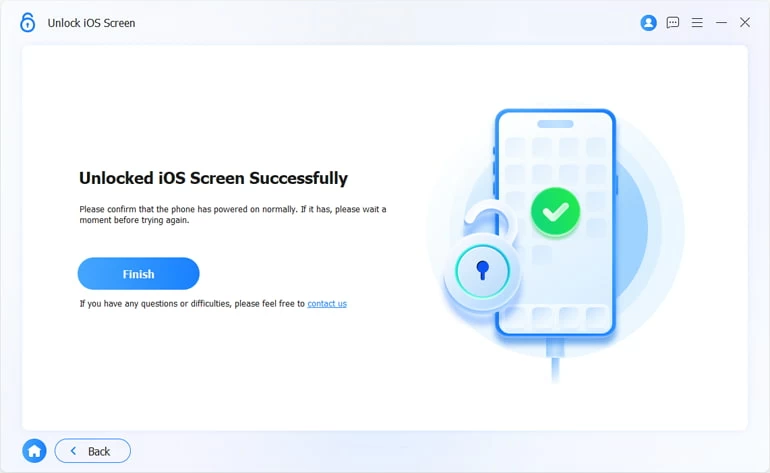
Once the process is done, you will be informed with a "Unlocked iOS Screen Successfully" message on the screen.
Well done! You just unlock your iPhone saying unavailable with Higospot iPhone Unlocker!
Related: How to Recover Permanently Deleted Photos on iPhone without Backup
Tips to Avoid Future "iPhone Unavailable" Lockouts
To avoid the "iPhone Unavailable" or "Security Lockout" screen in the future, you should enable Find My iPhone. This is your best protection against lockouts. Use a memorable passcode, which avoids overly complex combinations unless you store them safely. Also, you should enable Face ID or Touch ID to reduce the need to enter your passcode frequently.
It's important to note here that once you're locked out of your device, you will have to reset it completely and lose everything. It's highly advisable to enable iCloud backup, and upgrade your iCloud+ plan if necessary. This ensures you never lose data again.
Conclusion
"iPhone Unavailable" is a frustrating but solvable problem. Apple's security system is designed to protect your data, and when you're locked out, iCloud Find My provides the most convenient, and user-friendly method to unlock your device.
While the process erases all data, it ensures that your iPhone remains secure and protected from unauthorized access. With proper backups and Apple ID management, you can regain access quickly and safely.
About Katrin Gray
Katrin Gray is the Junior Editor at HigoSpot. With a bachelor's degree in Computer Applications, he has been covering Microsoft Windows, Apple macOS, iOS, Android, Social Media, Gaming, and more as a professional writer for over 5 years.

 iPhone UnlockerRemove iPhone & iPad lock screen
 iPhone Data TransferTransfer and manage your iPhone & iPad data
 Android UnlockerRemove Google FRP lock and bypass screen locks
 iPhone Data RecoveryRecover deleted files from iPhone, iPad
 Location ChangerFake a GPS location easily
 Video DownloaderDownload videos from 1000+ sites