How to Bypass iPad Lock Screen When You Forgot Passcode
It doesn't matter you have forgotten lock screen passcode or screen time password, or get stuck at remote management screen, you have options to bypass the screen to regain access.

Katrin Gray
Updated on Dec 19, 2025
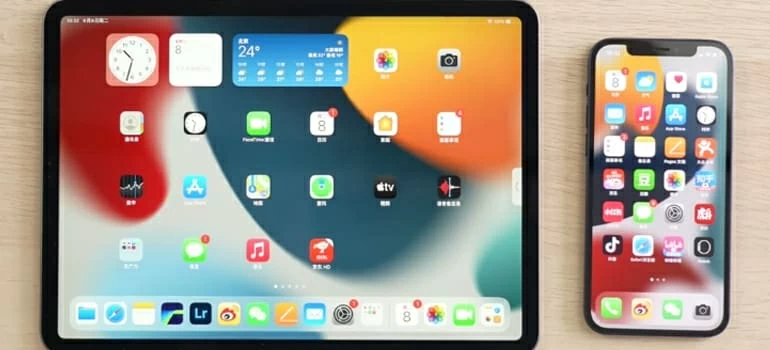
If you are anything like me, you may set a passcode, Face ID, or Touch ID on your iPad's lock screen to ensure that sensitive data—photos, emails, documents, and even payment information—remains private. However, the same lock screen can become a barrier when you forget the passcode or inherit a device without knowing its credentials. In such cases, bypassing the iPad lock screen becomes a necessity, not a convenience.
Apple's ecosystem is intentionally strict. Unlike some Android devices, there is no universal lock screen bypass trick for iPad. The company prioritizes data protection, meaning that bypassing iPad lock screen requires official methods—primarily Recovery Mode or the "Forgot Passcode" option.
In this article, we will show you how to bypass lock screen on iPad with different ways, including the reputable third-party tools like Higospot iPhone Unlocker if official routes fail. The program also comes with features to bypass remote management screen on iPad, as well as bypass iPad screen time passcode.
Ways of iPad bypass lock screen
Recovery Mode – A process that restores the iPad using iTunes or Finder, erasing the device and its passcode.
Forgot Passcode Option – A newer feature in iPadOS that allows users to reset passcode directly from the lock screen, provided certain conditions are met.
Higospot iPhone Unlocker – A reliable tool designed for unlocking Apple iPhones and iPads, including the ability to bypass iPad lock screen
iCloud Find My – A handy Apple's service, accessible via the Find My app or iCloud webpage, to remotely erase data and device, allowing to set the device up and use it again, no more lock screen.
Using Recovery Mode
Recovery Mode is Apple's official solution for users who cannot remember their passcode. It essentially resets the iPad to factory settings. If you have a computer nearby, you can simply connect the iPad to the machine, enter the device into recovery mode, then erase the iPad to bypass screen lock.
Just one note – All data on the iPad will be erased unless previously backed up to iCloud or a computer. If the iPad is linked to an Apple Account, you'll need the original credentials to reactivate it after restoration.
Related: How to Recover iMessages on iPhone without Backup
Steps to ese Recovery Mode to bypass screen lock on iPad.
1. You'll need a Mac with Finder or a PC with iTunes installed.
2. Press and hold the Top and either the Volume Up or Down button until the power-off slider appears, then slide to turn off. For older modes, press and hold the Top button (or Side button) instead.
3. Depending on the model you have, the way to enter recovery mode varies slightly.
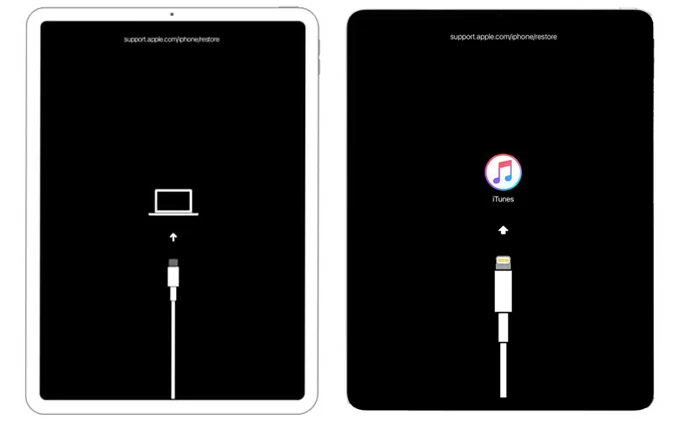
For iPads with Face ID: Press and hold the Top button while connecting the iPad to the computer until the recovery mode screen appears.
For iPads with Home Button: Press and hold the Home button while connecting the iPad until the recovery mode screen appears.
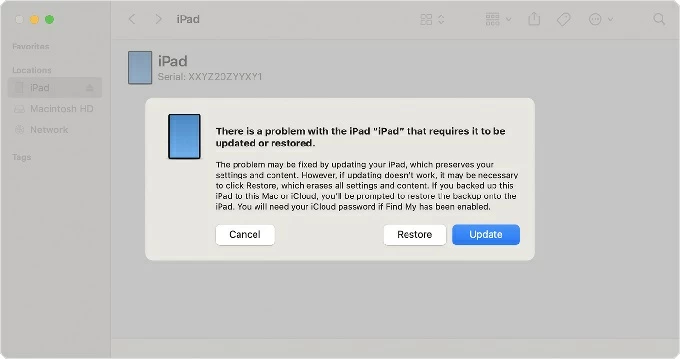
4. After entering recovery mode, open Finder or iTunes and select the iPad.
5. When prompted, select Restore. This erases the device, including the passcode, and reinstalls the latest iPadOS.
6. As soon as you see the device shows a Hello screen, disconnect it from your computer. You've reset the iPad and bypass lock screen successfully. The left things to do is set the iPad up again.
Use Higospot iPhone Unlocker
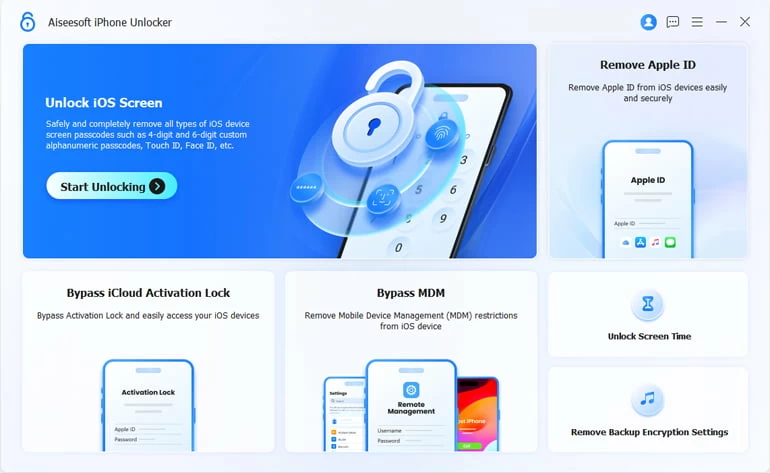
Despite the name, Higospot iPhone Unlocker offers a seamless solution for users to unlock Apple iPhones and iPads. It can remove various security layers including 4-/ 6-digit passcodes, Touch ID, Face ID, and even Screen Time restrictions or remote management (MDM) profiles with just a few clicks. The software is engineered for accessibility, featuring a straightforward workflow that automates the firmware matching process, making it an essential tool for regaining access to locked devices without a passcode.
If Recovery mode doesn't work for you, or iTunes won't detect your iPad, check out Higospot iPhone Unlocker.
Free Download Free Download
Follow these steps to bypass an iPad lock screen.
Step 1. Download and install the software on your either Mac or PC. Run it and then select "Unlock iOS Screen" from its interface.
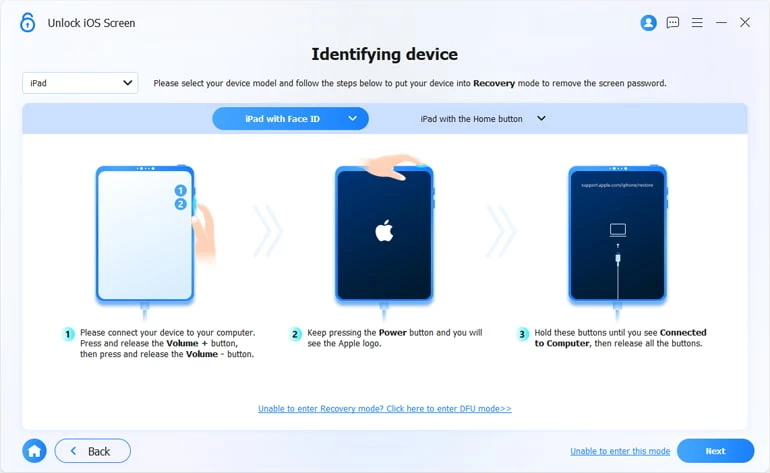
Step 2. Connect your iPad into the computer, follow the onscreen prompts to get the device recognized by the software if prompted.
Step 3. Once recognized, click "Start Now" to proceed.
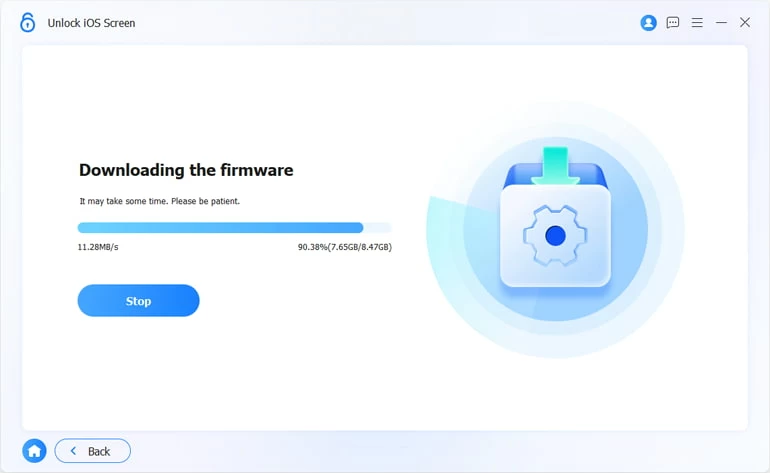
Step 4. Wait for it to download proper firmware for your device model.
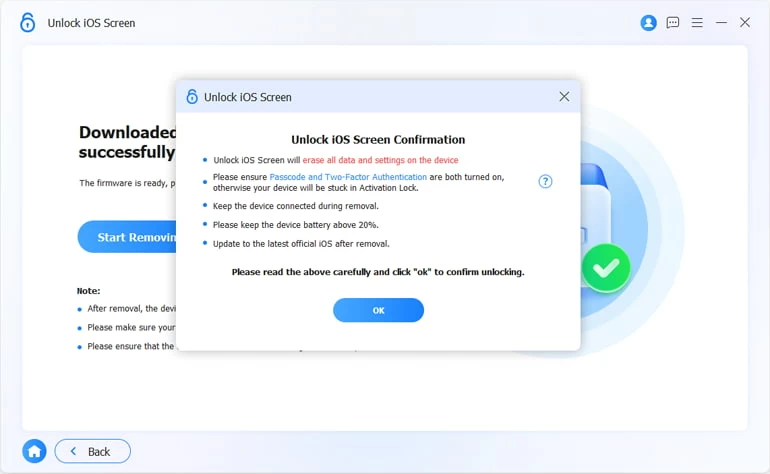
Step 5. When you're ready, click "Start Removing" button on the screen. At this point, you should get a confirmation dialog. Review it carefully, followed by "OK."
Sit back and relax. Let the software reset the iPad and restore it to its factory settings. Progress bar will show the status of process.
After that, you're ready to use your iPad again.
Related: How to Unlock Android without Password
Using the "Forgot Passcode" option
Apple introduced the "Forgot Passcode" option in newer versions of iPadOS. This feature appears directly on the lock screen after multiple failed attempts. After tapping the option, you can go through the factory reset process without using PC, allowing you to bypass the iPad screen lock and use it again.
If your iPad supports the "Forgot Passcode" option, it may save you time compared to Recovery Mode. Here's how to how to bypass screen lock on Apple iPad:
1. Make sure your iPad is running iPadOS 17 or later, and you know the Apple Account credentials used on the device.
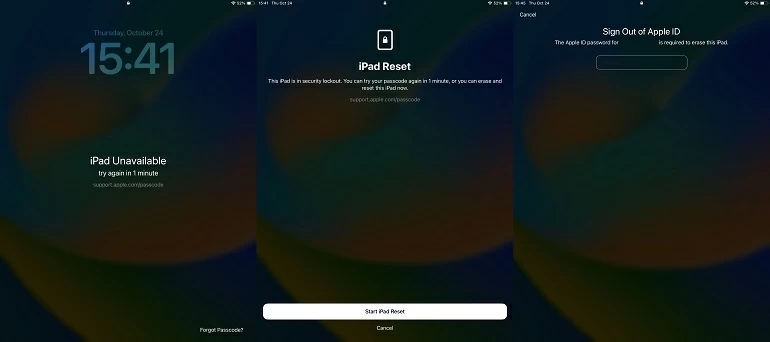
2. After several incorrect passcode entries, the iPad will display iPad Unavailable or Security Lockout.
3. Select Forgot Passcode at the bottom.
4. Tap Start iPad Reset when prompted.
5. Provide the Apple ID and password associated with the iPad. This will sign out of the account.
6. Follow the on-screen instructions to erase the device and reset the passcode.
After your iPad has been unlocked and reset, use iCloud or iTunes to back up your device regularly. This minimizes data loss if you ever need to perform a full reset.
Related: iPhone Says Unavailable
Use iCloud Find My
Another convenience way to bypass a forgotten lock screen on iPad is to remotely erase the device. This process deletes all data—including the forgotten passcode—allowing you to set up the iPad as if it were new.
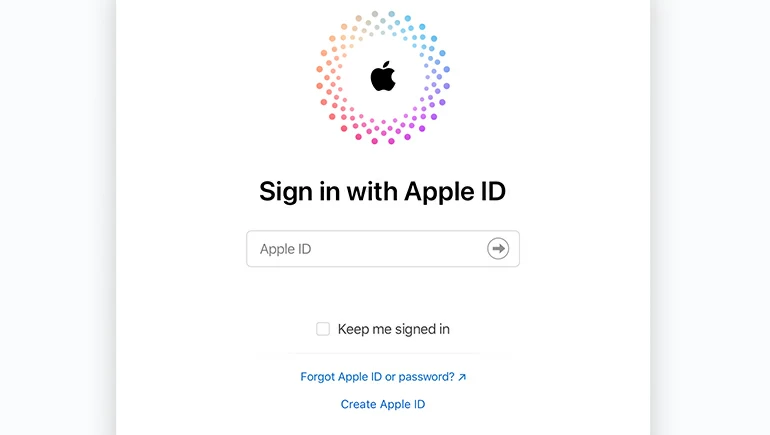
1. Open a web browser and go to iCloud.com/find.
2. Sign in with your Apple Account credentials.
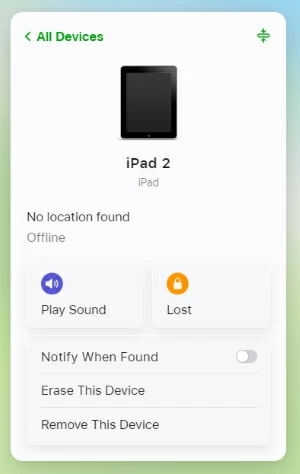
3. Click on All Devices at the top of the screen (or the list icon on mobile).
4. Select the iPad that you are currently locked out of.
5. A menu will appear with options like "Play Sound," "Lost," and "Erase This Device." Select Erase This Device.
6. Confirm the action. You may be asked to re-enter your Apple ID password for security.
7. Your iPad will receive the command and begin to wipe all data. This effectively removes the lock screen passcode.
FAQs
- Can you bypass an iPad lock screen?
- Yes, you can do this through Apple's official methods: Recovery Mode or the "Forgot Passcode" option, or use third-party tools like Higospot iPhone Unlocker. They all erase the device and require Apple ID credentials to reactivate.
- What is the "Forgot Passcode" option on iPad?
- On newer iPadOS versions, after multiple failed attempts, the lock screen shows Forgot Passcode. By entering your Apple ID and password, you can reset the passcode. This also erases all data.
- Will bypassing the iPad lock screen erase my data?
- Yes. No matter what method you use to bypass the lock screen, it erases all data on the iPad. If you have backups in iCloud or iTunes, you can restore them afterward.
- Can I bypass iPad screen lock without Apple ID?
- No. Apple's security requires the Apple ID linked to the device. Without it, the iPad remains locked due to Activation Lock.
- Does every iPad have the "Forgot Passcode" option?
- No. This feature is available only on iPadOS 17 or later versions. Older devices must use Recovery Mode or use third-party tools like Higospot iPhone Unlocker, which unlocks iPhone and iPad instantly.
- How long does it take to bypass an iPad lock screen?
- The process can take anywhere from 15 minutes to over an hour, depending on internet speed, device condition, and whether you're restoring from backup.
About Katrin Gray
Katrin Gray is the Junior Editor at HigoSpot. With a bachelor's degree in Computer Applications, he has been covering Microsoft Windows, Apple macOS, iOS, Android, Social Media, Gaming, and more as a professional writer for over 5 years.

 iPhone UnlockerRemove iPhone & iPad lock screen
 iPhone Data TransferTransfer and manage your iPhone & iPad data
 Android UnlockerRemove Google FRP lock and bypass screen locks
 iPhone Data RecoveryRecover deleted files from iPhone, iPad
 Location ChangerFake a GPS location easily
 Video DownloaderDownload videos from 1000+ sites