How to Unlock Android Without Google Account or Password
Can't access your Android phone or tablet because you forgot the lock screen PIN, password, pattern, or Google account credentials? Here is how to unlock Android with different ways.

Katrin Gray
Updated on May 14, 2026
Android devices are designed with multiple layers of security to protect user data. Whether you use a PIN, password, pattern, fingerprint, or face unlock, the system ensures that only the rightful owner can access the phone. On top of that, Google adds an additional protection layer called Factory Reset Protection (FRP), which prevents unauthorized access after a factory reset.
The question is, if you get locked out, how can you unlock the Android phone without Google account or password? Maybe you changed your password (or PIN, pattern) and forgot it. Or maybe you reset your device and suddenly hit the FRP lock screen asking for a Google account you no longer remember.
This article will break down the problem clearly and guide you through every possible scenario so that you can unlock Android without Google account or lock screen password. If you need a quick way to regain access, consider using Higospot Android Unlocker, which supports lock screen unlocking, and Google account lock bypass —all from a single console.
Table of Contents
Why you need to unlock Android without Google account
The challenge is that Android security is intentionally strict. Depending on the type of lock you're facing, the solution varies dramatically:
You forgot your screen lock (PIN, password, or pattern)
This is the most common reason why you want to unlock an Android device without Google account or password. Android doesn't offer a universal "Forgot PIN" button, and many devices require a full reset if you can't unlock the screen.
You see the FRP lock after a factory reset
This is more complicated. FRP (Factory Reset Protection) activates automatically when a Google account is signed in, and the device is reset without removing the account.
After the reset, the phone demands the previously synced Google account. If you don't remember it — or if the phone belonged to someone else — you're stuck on the Google verification screen.
You want to activate or reset an Android without a Google account
Some users want to bypass Google entirely — maybe they don't remember the login, or maybe they simply don't want to use Google services. But Android's setup process is built around Google verification, especially after a reset.
Android security is designed to prevent exactly what you're trying to do — unlock the phone without the Google account, but that doesn't mean it's impossible.
Below is a complete, structured guide covering every situation where someone needs to unlock an Android phone without a Google account.
Related: How To Unlock iPhone Without Passcode
Part 1. Unlocking Android When You Forget PIN, Password, or Pattern
If you can't unlock your Android phone due to a forgotten PIN, pattern, or password, there is no way to regain access unless erasing it. The process will erase all data stored on your phone, such as photos, messages, apps, music, and settings and typically involve a factory reset. Then you can set the device up again and set a new screen lock to protect it.
Option 1. Factory Reset Android phone without Password via Recovery Mode
This is the official method recommended by Google and manufacturers if you can't unlock Android if you don't have password.
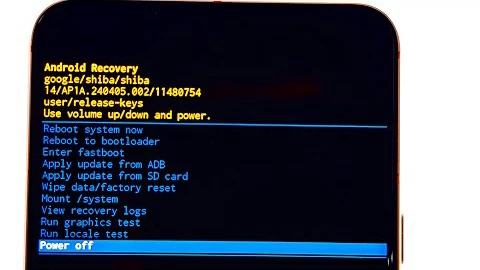
1. Turn the phone off. If you're using a Samsung Galaxy device, be sure one end of your USB cable is plugged into a PC, and another end is plugged into the device. You used to be able to do this without the USB Cable, but recent changes made you require to plug it into the computer.
2. Press Power + Volume Up or Power + Volume Down (depending on your brand and model) for about 15-20 seconds and you should enter the recovery screen.
3. In the Recovery Mode menu, use the Volume buttons to navigate the menu and Power button to confirm.
4. To reset an Android device, select the Wipe data/factory reset option.
5. Confirm the action when the next screen says Factory data reset or Yes. The phone will reset to its original factory settings.
6. Once the reset is complete, select Reboot system now.
The whole process removes the screen lock but activates FRP if a Google account was previously signed in. You then need to enter your credentials to verify it's you.
Tip: To activate the Android phone without Google account, refer to Part 2 of this article.
Option 2. Unlock the Android Device Without Password via Android Unlocker Tool
If recovery mode fails to solve the "unlock Android without a password" problem, the next option is to use dedicated third-party tools, something like Higospot Android Unlocker. It's a reputable Android-oriented utility designed for users to remove Android screen locks and bypass Google FRP verification across major brands including Samsung, Motorola, Xiaomi/Redmi, VIVO, OPPO, Realme, OnePlus, Huawei, Lenovo, LG, ZTE, and more.
What separate it from the rest is that is its user-friendly interface, offering step-by-step workflows to regain access to your locked Android device quickly and securely.
Win Download
Before you start the actual process of unlocking your Android without password with Higospot Android Unlocker, download it and install on your Windows computer, then prepare a working USB cable.
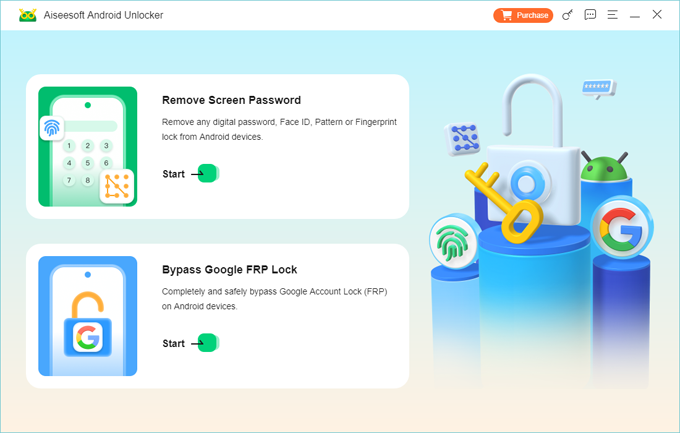
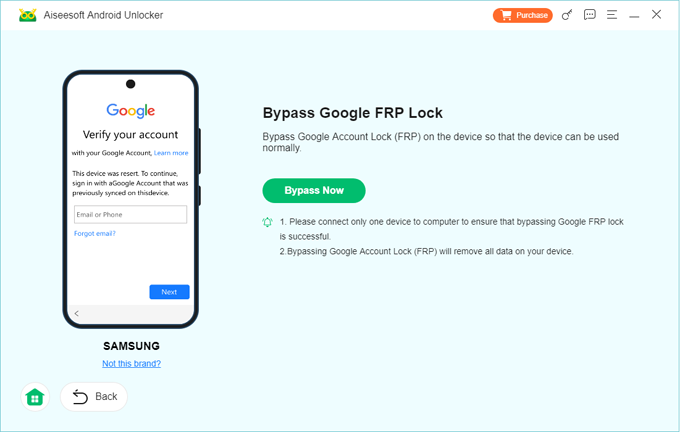
Step 1. Run Android Unlocker on your Windows PC. On its main interface, you will see options for removing lock screen and bypass Google account lock. Choose Bypass Google FRP Lock.
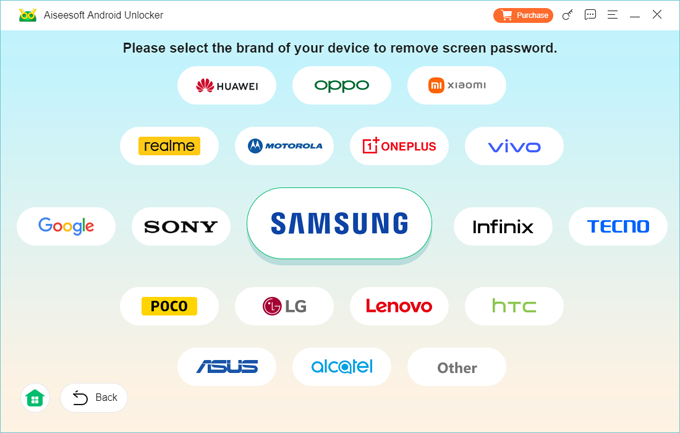
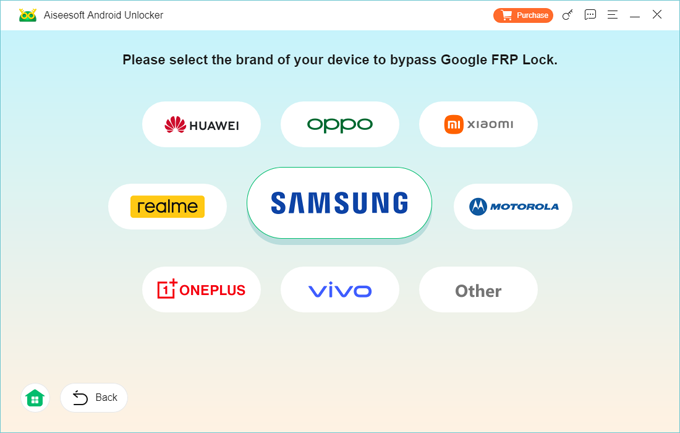
Step 2. Select the correct device brand and model from the list. For example, if you want to unlock a Samsung phone when forgetting password, select "Samsung" there. This ensures the correct recovery package is downloaded later.
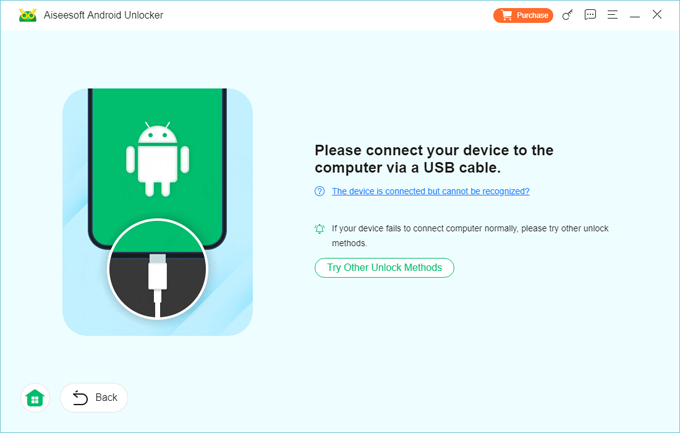
Step 3. Connect your Android device into the computer, and enter it into Download Mode by clicking "The device is connected but cannot be recognized?" The software will show on-screen instructions. This step prepares the device for safe lock removal.
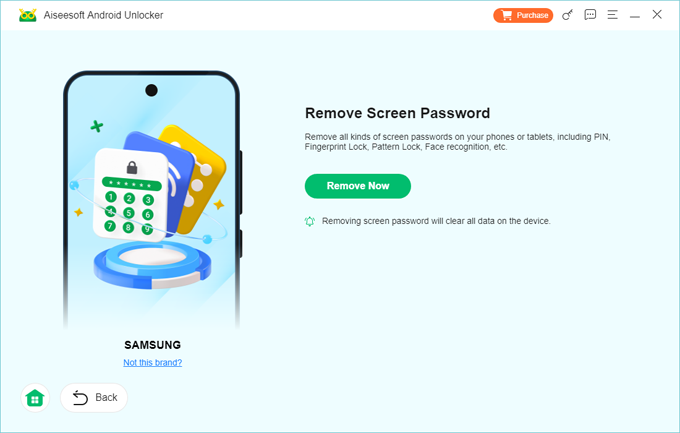
Step 4. Once you're ready, press Remove Now button. Higospot Android Unlocker begins removing the screen lock. Do not disconnect the device during this process.
When the process finishes, your device will reboot. You've unlocked Android without password successfully. You can now access your phone without entering any password.
Related: Forgot Android Pattern
Part 2. Unlocking Android When You See FRP Lock but Forgot Google Account
This is the most difficult scenario. You get stuck at a Google FRP verification screen after a reset asking you to enter original username/phone number and password. But there are legitimate reasons to unlock Android phone without Google account:
- You forgot your Google account
- You bought a used phone
- You reset your phone after a long time
- You changed your Google password recently
- You don't have access to the recovery email or phone number
To help unlock an Android device without Google account, there are a few options to choose from.
Option 1. Recover the Google Account
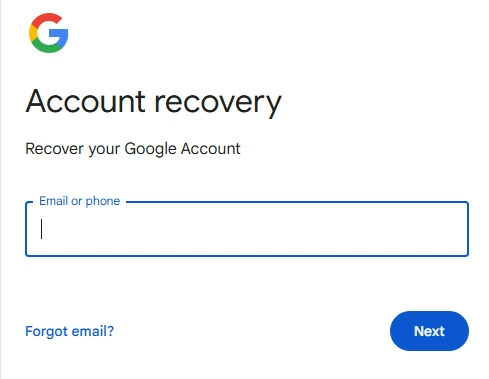
Before bypassing FRP, try to recover your Google account credentials. Google understands how painful you forgot the login information, and provides you with official route to recover your either email or password.
To recover your Google account email, visit https://accounts.google.com/signin/usernamerecovery page.
To recover Google account password, visit https://accounts.google.com/signin/recovery page
During the recovery process, you may be prompted to enter the recovery phone number or email that you set previously to verify your identity.
After you have recovered the account successfully, you can unlock the phone with Google account normally.
Note, if you recently changed your Google password, FRP will block you for up to 72 hours. After the waiting period, you can log in normally.
If you bought the phone used, ask the seller to remove the device from their Google account. They can do this remotely via Google's Find Hub network.
Option 2. Unlock Android Without Google Account Using Higospot Android Unlocker
Higospot Android Unlocker is an all-in-one toolkit that helps Android users to remove Android screen locks—including pattern, PIN, password, and fingerprint if forgotten—and supports Google FRP lock removal for Samsung, Xiaomi, Motorola, OPPO, Vivo, ZTE, Honor, and other Android brands, allowing you to activate the phone without Google account.
Below is the full step-by-step process of unlocking Android without Google account.
Win Download
Step 1. Open Android Unlocker. On its main interface, select Bypass Google FRP Lock.
Step 2. In this stage, you will see a list of supported brands. Choose the correct brand for your device. The software supports FRP removal on Samsung, Motorola, Xiaomi, Redmi, OPPO, Realme, Vivo, Huawei, POCO, OnePlus, Honor, and more.
It provides brand-specific Google FRP bypass workflows because each manufacturer uses different security layers.
Step 3. Connect the Android phone to your computer using a USB cable. Then click Bypass Now button.
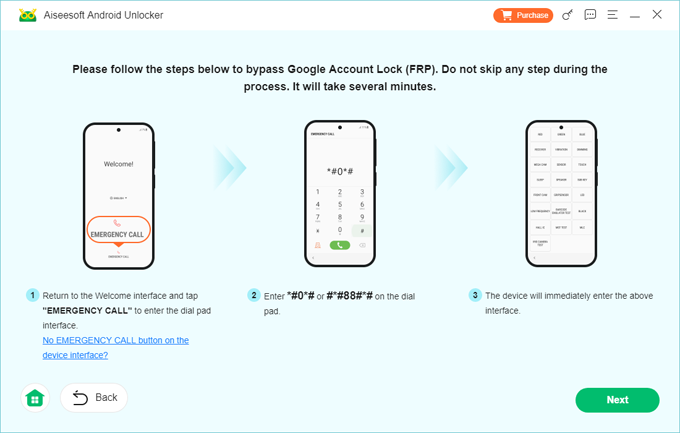
The software will detect the device and load the correct FRP bypass method. Follow the on-screen instructions for your device type.
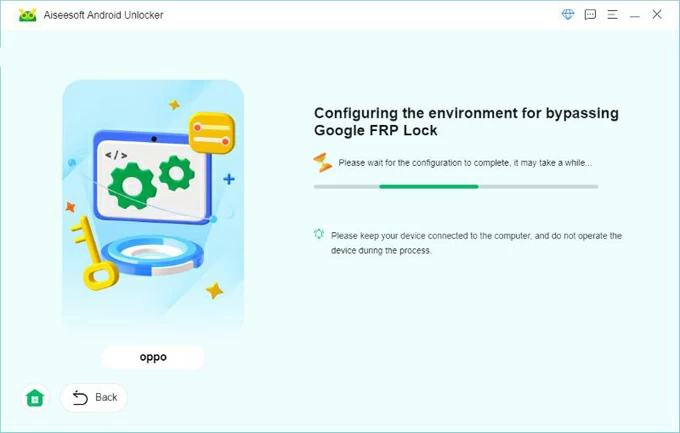
Step 4. After that, press Next button. Wait for Higospot Android Unlocker to download the required configuration package and then bypassing Google lock for you.
As soon as you see "Successfully bypassed Google Account Lock (FRP)" message on the screen, you're done!
That's all there is to it. After your Android device has been unlocked without Google account, you can set it up again and sign in with a new Google account later.
Related: Factory Reset Android Tablet without Password
Final Thoughts
Unlocking an Android phone without a Google account is absolutely possible — but the method depends on the type of lock you're facing. If you have forgotten screen lock, you can do this through a recovery mode (also known as hard reset), or use Higospot Android Unlocker. For those who are facing a FRP lock and want to unlock Android without Google account, you can try recovering your credentials through Google's Recovery page, or use Higospot Android Unlocker's "Remove Google FRP Lock" feature.
FAQs
- Can I unlock my Android phone if forgot both the screen password and the Google account?
- Yes. You can unlock it using methods like factory reset, Google Account Recovery path, or third‑party unlocking software like Higospot Android Unlocker, even if you don't remember the Google account
- Is it legal to unlock a phone without a Google account?
- Yes—if you are the owner of the device. Bypassing FRP on a stolen or unverified device is illegal. Most guides emphasize using these methods only on devices you own.
- Does hard resetting an Android phone remove the Google account?
- No. A factory reset activates FRP if a Google account was previously signed in. You will still need to enter the original Google account crdentials to activate the device, or use an FRP bypass tool like Higospot Android Unlocker to bypass the lock.
- Will unlocking an Android without Google account erase my data?
- Yes. For security consideration, unlocking Android phone without knowing original Google login information involves a factory reset, which will erase all data on the device.
- What should I do if none of the unlocking methods work?
- If all software methods fail, the final options are: contacting the device manufacturer, visiting an authorized service center, providing proof of purchase for official unlocking.
About Katrin Gray
Katrin Gray is the Junior Editor at HigoSpot. With a bachelor's degree in Computer Applications, he has been covering Microsoft Windows, Apple macOS, iOS, Android, Social Media, Gaming, and more as a professional writer for over 5 years.

 iPhone UnlockerRemove iPhone & iPad lock screen
 iPhone Data TransferTransfer and manage your iPhone & iPad data
 Android UnlockerRemove Google FRP lock and bypass screen locks
 iPhone Data RecoveryRecover deleted files from iPhone, iPad
 Location ChangerFake a GPS location easily
 Video DownloaderDownload videos from 1000+ sites