Forgot Motorola Phone Password? 3 Easy Ways to Unlock
Forgot password to your Motorola phone? Discover 3 proven ways to reset Motorola phone to unlock the forgotten password, and whether you can do it without losing data.

Katrin Gray
Updated on Jun 26, 2026
Forgetting your password, PIN, or pattern on a Motorola phone can instantly lock you out of everything—photos, messages, apps, and even work files. Hope is no lost. You can still regain access, and the only way to unlock the forgotten Motorola password is to perform a factory reset.
Whether it's a Moto G Power, G Stylus, Edge, or Razr, there're a few ways to reset the device when you can't remember the lock screen password. In this Motorola unlock guide, we'll explore what to do if you forgot password for Motorola device, ensuring that you can bypass the security locks and get back in again.
To simplify the process of unlocking a Motorola phone when the password is forgotten, try Higospot Android Unlocker, which can help unlock locked Android phones without password, PIN or pattern by means of a full reset or erase of the screen locks.
Table of Contents
The reality of modern Motorola password lock
Motorola phone runs on Android, and since Android 6.0, it uses strong encryption tied to your lock screen password. This means your password isn't just for access—it's used to decrypt your data. In case you have forgotten your password for your Moto device, the system blocks entry entirely.
The only official way to regain access to a locked device if you have forgotten the Motorola screen's password involves resetting the phone rather than recovering the password itself. This factory data reset process clears the screen lock but also erases all data on the internal storage to start fresh.
Tip: A factory reset can unlock Motorola device's password you cannot remember, but may cause data loss if you don't have any previous backup. After the reset, the setup assistant will give you option to restore data from a backup by logging into Google account.
What to do if forgotten the password on a Motorola phone - 3 proven ways
Depending on your settings, there are several verified solutions to execute a complete reset for a forgotten Motorola password and get full access back.
1: Android Recovery Mode - the manual hardware method
The first method to unlock a Motorola phone with a forgotten password is to use the physical hardware buttons to enter Recovery Mode for a factory reset, which is built into Android system and works if your phone is offline or you cannot access your Google account.
Here's how to reset forgotten password on a locked Motorola device using Recovery Mode so you can get past the lock screen effectively.
1. Shut down the Motorola phone completely.
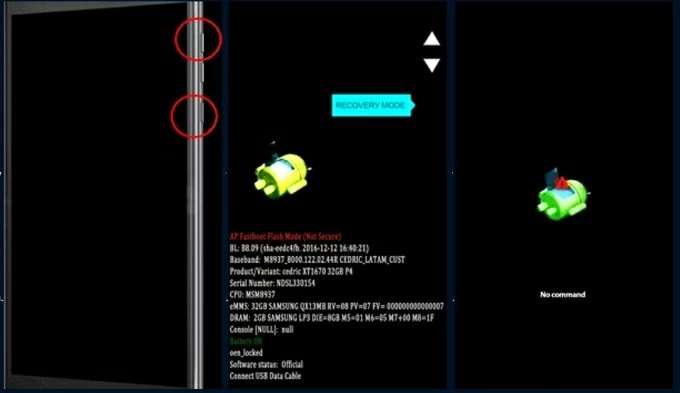
2. Press and hold both Volume Down and Power buttons for a few seconds until the Fastboot menu appears, then release both buttons.
3. Use Volume Down/Up button to navigate to Recovery mode and press Power button to select it.
4. When you see "No command" screen, press and hold Power, then press Volume Up once and release both. This guides you to the Recovery menu on many Motorola devices.
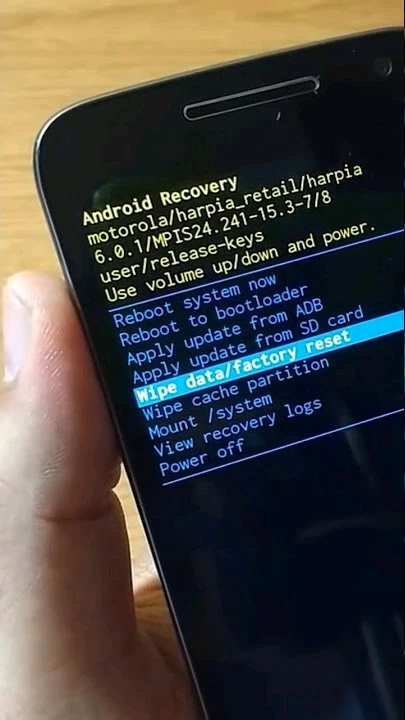
5. Press the Volume keys to highlight Wipe data/factory reset and press Power button to confirm.
6. Select Factory data reset and press the Power button to initiate the resetting process, erasing your forgotten Moto phone password as well as any other content & settings.
7. When the clean wipe is done, choose Reboot system now and wait for your phone to restart as new.
Follow the onscreen prompts to set up the device from the scratch and restore any backed up data. If your phone is previously linked to a Google account, make sure to sign back in to bypass Google FRP lock on Motorola for full control.
2: Higospot Android Unlocker
If you find Android Recovery Mode reset confusing, powerful yet simple software like Higospot Android Unlocker offers a streamlined, guided experience even after forgetting a password to the Motorola device.
The tool is specifically designed to handle various screen lock types (password, PIN, Pattern, Fingerprint, Face Recognition) across a wide range of Android phone models, and unlock Motorola, Samsung, OnePlus, Pixel, Xiaomi, Huawei, Vivo, OPPO, etc., without needing the password. It can also remove Factory Reset Protection lock without Google account or password.
Win Download
Whether you're locked out of your Motorola device due to forgotten password, or you bought a second-hand device without knowing the previous owner's password, Appgeeker Android Unlocker can fix the lockout in a few minutes. Follow the detailed steps on how to unlock Motorola forgotten password efficiently.
Step 1. Once installed, launch Android Unlocker program on your computer.
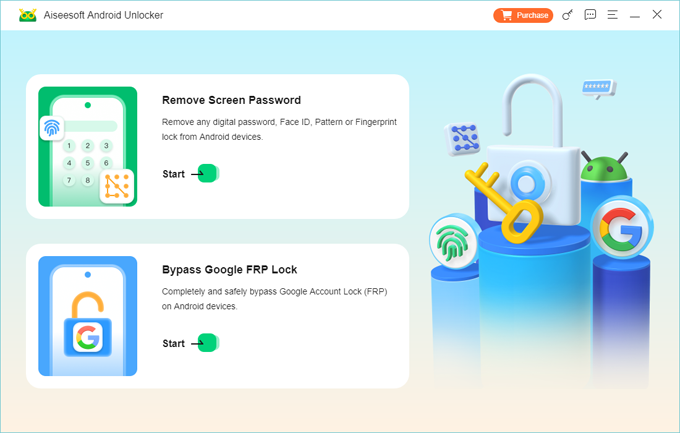
Step 2. From the main interface, choose Remove Screen Password mode.
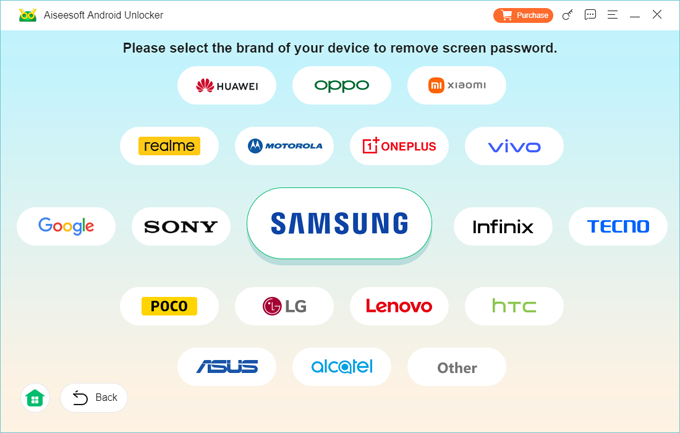
Step 3. Choose MOTOROLA to match your device.
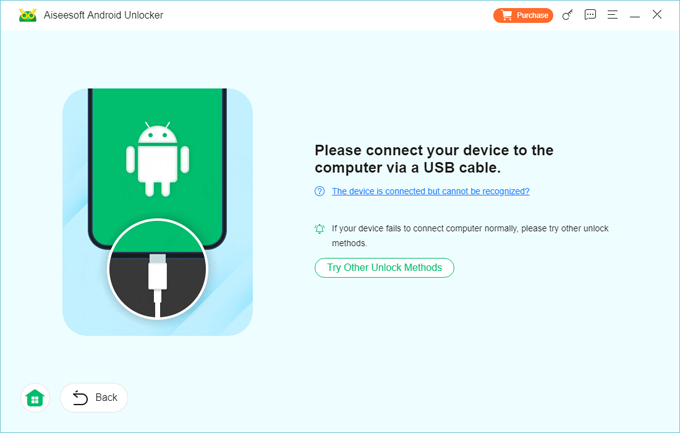
Plug your phone into the computer via a USB cable. If it cannot be detected, you'll be guided to enter recovery mode.
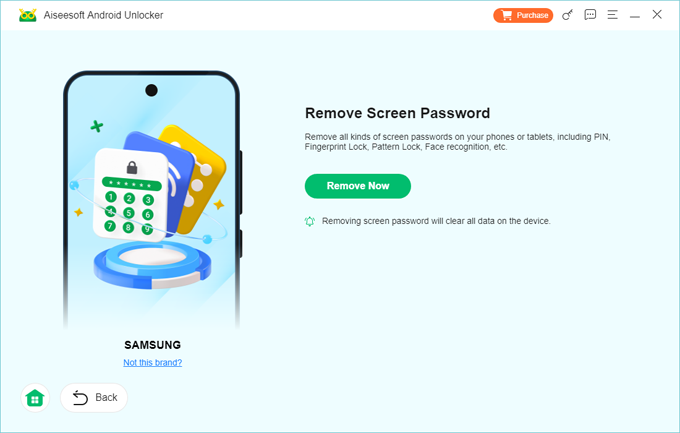
Step 4. When ready, hit Remove Now button to kick off factory resetting Moto phone and deleting the screen lock password completely.
After the password you forgot to unlock Motorola has been removed successfully, your phone should reboot, letting you get in without any password barrier. Simply set up the device as new or restore from an available backup.
3: Google Find Hub - Remote reset with Google account
If your Motorola phone you forgot the password to is previously logged into a Google account and has Find Hub (formerly Find My Device) enabled, this is often the fastest way to remotely reset your device from a computer or another smartphone and remove the screen locks.
Unlike Android Recovery Mode, Google Find Hub service works for a remote reset through Wi-Fi connection without handling the physical buttons in a specific sequence. Take this simple guide to remotely erase your locked Motorola with Google account and get rid of the forgotten password.
1- Go to Google Find Hub website on a computer or another accessible phone.
2- Log in with the exact Google credentials currently active on your locked Motorola phone.
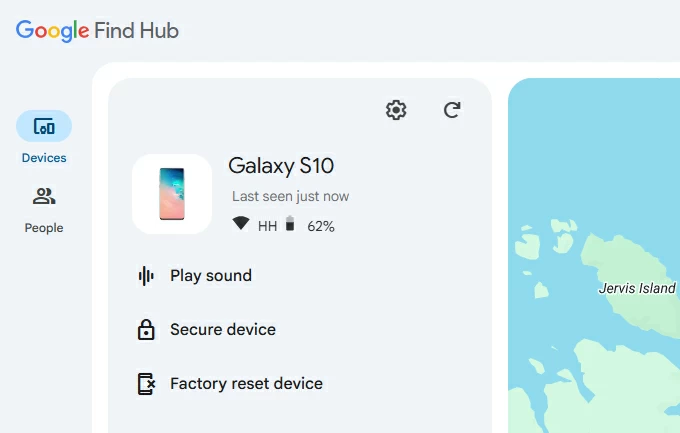
3- At the top left, click Devices and choose your Moto device. You will see three options: Play sound, Secure device, and Factory reset device.
4- To fix a forgotten password for Motorola, click on Factory reset device to continue.
5- When prompted, enter your Google account password for identity verification.
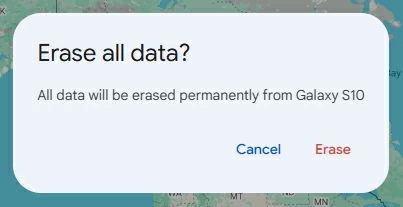
6- Click Erase to confirm that you're sure to erase all data including the Motorola screen password and start the process. As soon as your phone connects to the internet, the factory reset begins instantly.
When done, sign in with original Google ID and password previously synced to the device to finish the setup. If you have also forgotten your Google password, you will need to reset the password via Google Account Recovery page before you can bypass FRP and use the phone again.
Also: How to factory reset Android phone without password
Is it possible to unlock forgotten Motorola password without factory reset?
The answer: No.
For almost all modern Motorola smartphones (running Android 6.0 and above), it is not possible to remove forgotten Moto phone's password without resetting or losing data—due to advanced security feature and encryption.
If you're running earlier Android firmware, you could be able to unlock your forgotten password on Motorola without factory reset, keeping all data and settings safe.
- Forgot Password in Android 4.4 or lower. The option appears after several failed attempts that allows you to unlock via your Google credentials without a reset when you forget the password, pattern or PIN code.
- Android Device Manager (ADM). This is the original version of Google Find Hub. It works to use Google account to set up a new screen lock when you need to get into a locked Motorola phone after forgetting the password, bypassing the need of factory reset the whole device.
- Android Debug Bridge (ADB). If you had USB Debugging enabled before you're locked out, you can run ADB tools on your computer to execute technical command: adb shell rm /data/system/gesture.key and remove the password file, effectively unlocking the device without wiping data.
About Katrin Gray
Katrin Gray is the Junior Editor at HigoSpot. With a bachelor's degree in Computer Applications, he has been covering Microsoft Windows, Apple macOS, iOS, Android, Social Media, Gaming, and more as a professional writer for over 5 years.

 iPhone UnlockerRemove iPhone & iPad lock screen
 iPhone Data TransferTransfer and manage your iPhone & iPad data
 Android UnlockerRemove Google FRP lock and bypass screen locks
 iPhone Data RecoveryRecover deleted files from iPhone, iPad
 Location ChangerFake a GPS location easily
 Video DownloaderDownload videos from 1000+ sites