How to Factory Reset Android Tablet Without Password: A Full Guide
Forgetting your tablet password isn't the end of the world. There are several ways to help you factory reset a tablet when you don't have the password. Here's everything you will want to know.

Katrin Gray
Updated on Apr 14, 2026
Quick answer: The most reliable way to factory reset a tablet without password is to use the device's Recovery Mode (a hardware-button reset). This wipes the device to factory settings but will erase all data and may trigger FRP lock, which requires the original Google account to reactivate the tablet. You can also use Google's Find Hub, SmartThings Find (Galaxy Tab series only), or a dedicated tool like Higospot Android Unlocker.
Note that the instructions on how to reset tablet when you forget password vary depending on the model and brand of your device.
Before resetting tablet without password
If you enter your tablet's passcode wrongly too many times and get locked out with a "too many attempts - try again in 24hrs" message (or similar), or you don't know your passcode, you will have to factory reset your tablet and completely erases all local data and settings. If you have your data backed up to Google account, it won't be a problem as you can restore it to your tablet while setting it up.
Another thing to note, if the device is registered with a Google or Samsung accounts (Galaxy Tab tablets only) before, you will be prompted to sign into the same Google or Samsung account after reset to set up your tablet and create a new password. You will only not be able to complete setup if you sign into an account the device was not registered to.
Why would you need to factory reset a tablet?
A factory reset completely wipes your tablet, returning it to its original state. This measure is necessary to maintain the integrity of your personal information, especially under the following circumstances:
- Forgot PIN, pattern, or password
- You want to sell your old tablet or trade it in for a new device
- Give your tablet to a friend or someone else
- You are experiencing a performance issue, such as a frozen screen, software crash, overheats.
Related: How to Bypass FRP on Motorola Phone
Factory reset Android tablet without password via Recovery mode
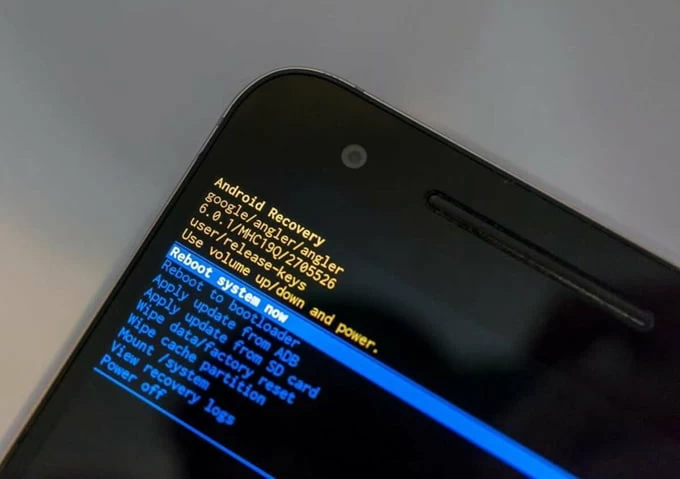
Recovery Mode is a low-level Android environment accessible via a hardware key combination (varies by brand). From Recovery Mode you choose Wipe data/factory reset, confirm, and the system erases user data and returns the tablet to its out‑of‑box state
Here're steps you take to enter recovery mode and then reset the Android tablet without password. Accessing the recovery menu requires a device-specific set of button presses.
Prerequisite:
- Back up your tablet first if possible. This will ensure you won't lose your important photos, videos, and other files.
- Make sure you know the Google account and password tied to the tablet; otherwise FRP may block reuse
- Ensure at least 50% battery or keep the tablet plugged in during the reset.
- Key combinations and menu labels vary by brand—check the manufacturer's guide to avoid accidental bricking
Detailed steps:
1. Power off the tablet completely.
2. Press and hold the correct key combo (commonly Volume Up + Power, Volume Down + Power, or Volume Up + Home + Power) simultaneously until the boot logo or recovery menu appears (usually within 10-15 seconds).
3. When the recovery menu comes up, use the Volume keys to navigate and the Power key to select.
4. Choose Wipe data/factory reset.
5. Confirm Yes — erase all user data to confirm the factory reset and wait for the process to finish.
6. Select Reboot system now when the wipe completes. The tablet will restart as a fresh device.
If the tablet boots into the regular OS instead of Recovery Mode, power off and retry the key combo; consult the manufacturer's support page for the exact sequence.
After the tablet has been reset without a password, it will run initial setup. If FRP is active, you'll be prompted to sign in with the Google account previously associated with the device; without those credentials you cannot complete setup.
How to factory reset a tablet without password using Android Unlocker tool
If you can't boot the tablet from recovery mode and complete the factory reset process, don't worry. There are a lot of third-party screen unlocking tool available to use for performing a reset.
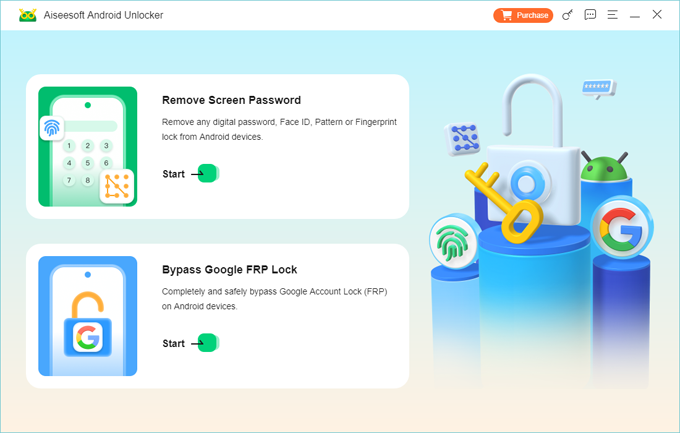
Higospot Android Unlocker is a highly rated third-party screen unlocking tool that is favored by many people. It sports an intuitive interface and is designed to unlock Android phones and tablets in just a few steps when you've forgotten password, PIN or pattern. The tool also offers option to get rid of Factory Reset Protection (FRP) lock on a device without knowing the original Google or Samsung credentials, making it an excellent screen unlocking solution for Android users.
Win Download
Use Android Unlock to perform factory reset on tablet without password:
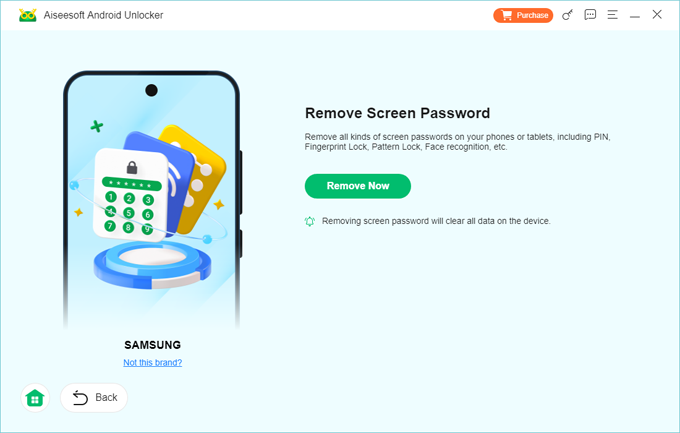
Step 1. Once you have installed the Android Unlocker on your computer, run it. From its main interface, for the purpose of resetting tablet without password, select "Remove Screen Password" to start.
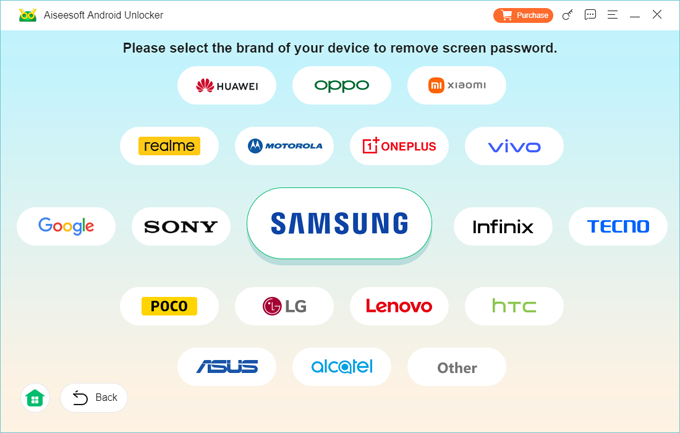
Next, select what brand of your tablet is. For example, if you're using a Samsung Galaxy Tab S, here pick "Samsung."
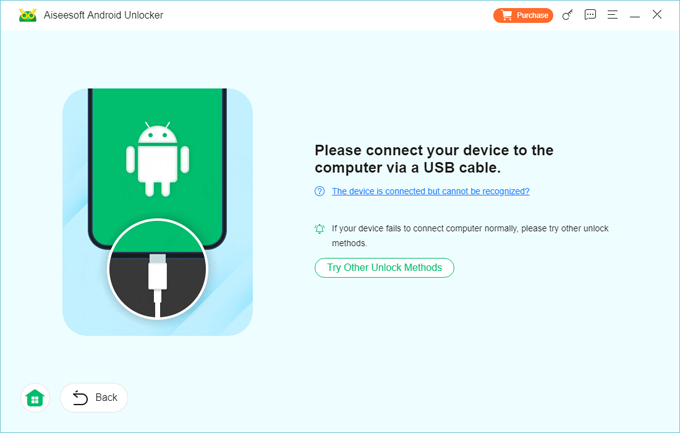
Step 2. Go ahead and plug your Android tablet into the computer. If it isn't detected, click "The device is connected but cannot be recognized" and it will walk you through the steps to build connection between your tablet and computer.
Step 3. After connection, press "Remove Now" and you're good to go. The Android Unlocker will begin doing its task: resetting the Android tablet to its factory settings and removing the screen password. During the process, your personal data and files will be deleted permanently, as well.
After the reset, you can now set the tablet up and use it again. If necessary, set a new password to secure it through Settings app. For iPhone users, see a full guide about how to reset iPhone without passcode.
Factory reset Android tablet without password with Google's Find Hub
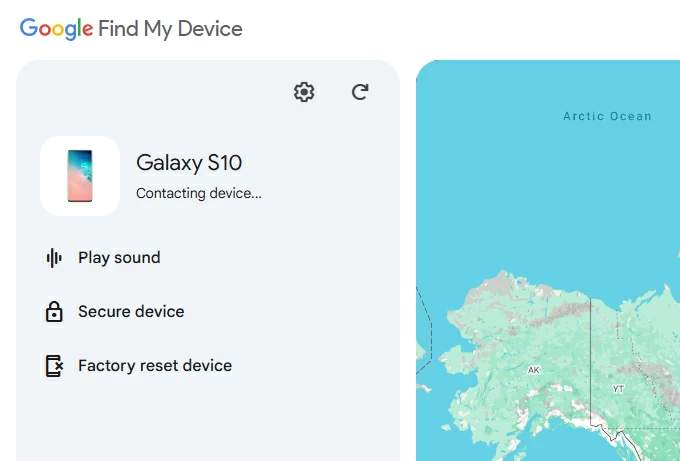
Find Hub is Google's built-in service that lets you erase an Android tablet or phone even you don't have the password. It's intended for lost or stolen devices but is also the most user-friendly option when you can't unlock a tablet and you have access to the Google account that's registered on it.
Use this method when:
- You cannot unlock the tablet and you can sign in to the same Google account from another device or browser.
- The tablet is connected to the internet (Wi‑Fi or mobile data)
- You accept that all local data will be erased
When the tablet is offline, the erase command will run as soon as it reconnects to the internet.
Note, like other methods mentioned in this article, Android tablet factory reset without password through Google's Find My will perform a full factory wipe and may trigger FRP; the original Google credentials is required to bypass Google account protection.
Follow these steps to learn how to reset an Android tablet without password you forget.
1. Charge the tablet or keep it plugged in. Ensure at least 50% battery or connect to power to avoid interruption.
2. On a computer, phone, or tablet, open a browser and sign in to Find Hub website with your Google account that is linked to the locked tablet.
3. Select the tablet from the device list.
4. Choose Factory reset device.
5. Confirm the action. Google will warn that the device will be erased and that you may not be able to use it without the original account. Approve to send the remote wipe command.
6. If the tablet is online, the factory reset process begins immediately.
Related: How to Unlock iPad When Forgot Passcode
How to reset a Samsung tablet without password through SmartThings Find
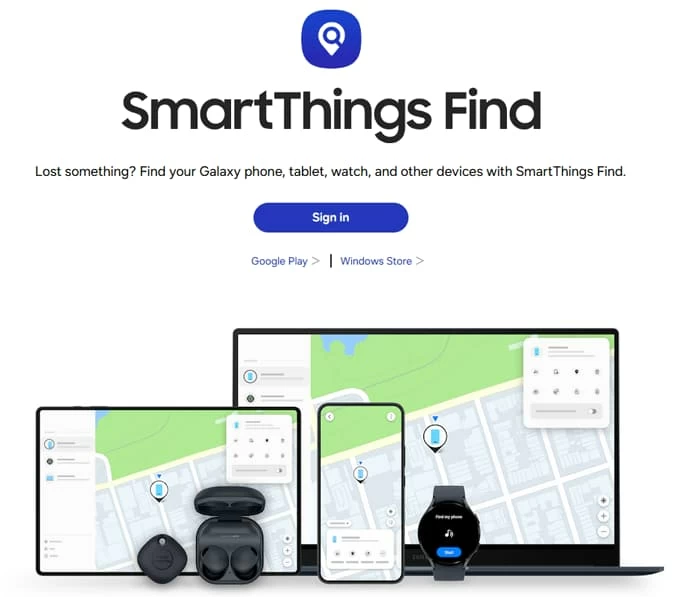
Samsung tablet (Galaxy Tab S, Tab A) holders can also use Samsung's own remote erase service - SmartThings Find if you've lost the screen password. It works similarly as Google's Find Hub: log in to access features that allow you to completely reset the device.
To factory reset a Samsung galaxy tablet without password, do the following:
1. Confirm the tablet is registered with your Samsung account (SmartThings Find shows registered devices)
2. Visit https://smartthingsfind.samsung.com/login on your computer or another mobile phone, then enter your Samsung account information.
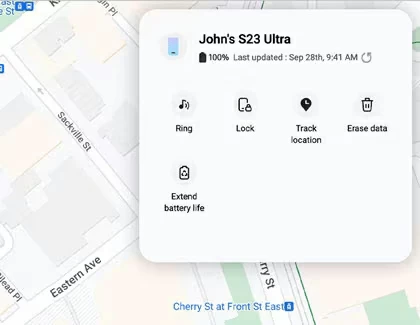
3. In SmartThings Find, select the tablet from your device list.
4. Select the Erase data option to erase or factory reset the device. SmartThings will warn you that this action will delete all data and may require account reactivation. Confirm to send the command.
5. Wait for SmartThings Find to perform a Samsung Android tablet password reset for you. It will also erase all content on the tablet.
6. After the wipe the tablet restarts to the initial setup screen. If FRP or Samsung reactivation is active, you'll be prompted to sign in with the original account to proceed.
Contact tablet manufacturer
By following the methods outlined above, you can factory reset an Android tablet without password on your own. However, if you find yourself unable to, get touch with your manufacturer and provide your document proof of purchase. The technician will assist you in resetting the tablet.
FAQs
- Can I back up data if I'm locked out of my tablet before resetting?
- Only if you previously set automatic backups on the Android tablet. Ensure that your device is charged and on Wi-Fi for regular backups to Google's servers. A reset on tablet without password will permanently delete local files.
- How do I use Recovery Mode to factory reset a tablet without a password?
- Power off, press the device‑specific key combo (commonly Volume Up + Power or Volume Down + Power), choose Wipe data/factory reset from the recovery menu, confirm, then reboot. Exact keys vary by model, so check the manufacturer guide.
- Can I erase an Android tablet without password if I can't access it physically?
- Yes — if the tablet is linked to your Google or Samsung account and is online, you can send a remote erase command via Find My Device or SmartThings Find; the command runs immediately if online or when the device next connects.
- Is it legal to reset a tablet I bought second‑hand?
- If you own it or have explicit permission, you can hard reset Android tablet without password, or use other options outlined in this article.
- What if I can't remember my Google account and locked out of tablet?
- Try Higospot Android Unlocker. It supports unlock of Android tablet and phone when you don't have the password. It even gets rid of FRP locks.
- How can I avoid this problem in the future?
- Forgetting password to your Android tablet can be a disaster. To avoid this, you may write the password on a paper and place it in a safe place. At the same time, keep account credentials current, enable cloud backups, and register the device with Find Hub/SmartThings.
About Katrin Gray
Katrin Gray is the Junior Editor at HigoSpot. With a bachelor's degree in Computer Applications, he has been covering Microsoft Windows, Apple macOS, iOS, Android, Social Media, Gaming, and more as a professional writer for over 5 years.

 iPhone UnlockerRemove iPhone & iPad lock screen
 iPhone Data TransferTransfer and manage your iPhone & iPad data
 Android UnlockerRemove Google FRP lock and bypass screen locks
 iPhone Data RecoveryRecover deleted files from iPhone, iPad
 Location ChangerFake a GPS location easily
 Video DownloaderDownload videos from 1000+ sites