How to Factory Reset Android without PIN in Minutes
Forgot your Android PIN lock? Discover the proven ways to reset Android phone when locked without PIN, remove the lock screen and regain full access.

Ajay Walmsley
Updated on Jun 5, 2026
We've all had experienced the Android lockout after forgetting the PIN code. When you can't remember the Android PIN on your own phone (that hasn't used for a long time) or on a second-hand device that's still locked, you might be looking for a way to skip the lock screen. Here's the truth: On modern Android devices (Android 6.0 and higher), doing a factory reset on Android is the only viable option to bypass a PIN lock—which involves wiping your entire phone to set it up again.
Below, we share no-fuss tips on how to factory reset Android phone without PIN safely and effectively – so you can get on with your life. This covers Android utilities as well as a dedicated third-party tool - Higospot Android Unlocker, making the factory data reset without an Android PIN a simple task.
Table of Contents
Why Android forces a reset if you forget the PIN
In Android 4.4 or earlier, the lockout system once allowed users to trigger a recovery email after several failed attempts at entering PIN, password or pattern, bypassing the need to reset the Android phone when the PIN is forgotten. Unfortunately, Google has removed this convenient fallback.
Modern Android's security is notoriously tight. When you enter a PIN on the lock screen, the security mechanism verifies it, and intentionally prevents the access if the code is wrong or your biometrics are not working especially after a reboot.
Forgotten PIN to an Android device? The trick to getting back into the hardware is factory resetting Android —without requiring the unlocking PIN to access the Reset option within device's Settings.
Quick solutions to factory reset an Android without a PIN
I'll start with quick tips, but if you need detailed instructions, just scroll down.
Android phone linked to Google Account — Sign into Google Find Hub and choose "Factory reset device" for a remote wipe of the PIN and security bypass.
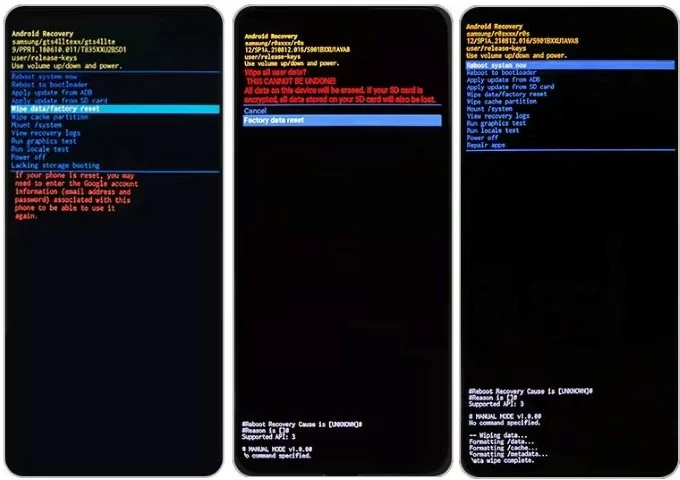
No Google Account linked — Restart in Recovery Mode to factory reset Android with buttons by going to Wipe data/factory reset > Factory data reset > Reboot system now
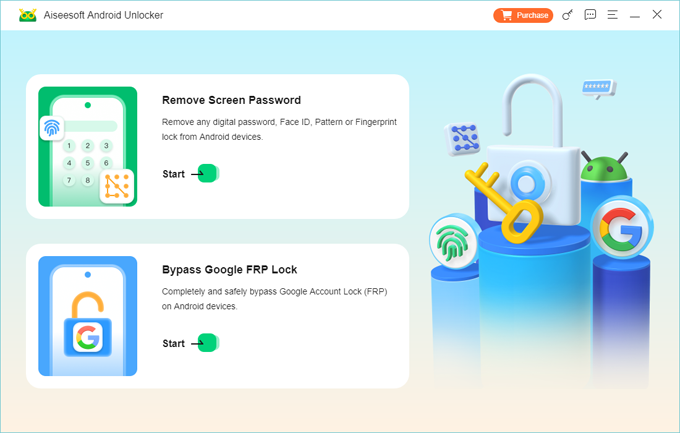
Android locked with PIN and Google Account — Run the professional Higospot Android Unlocker on a computer to reset your phone without a PIN or Google account, and remove any screen locks.
After your Android smartphone is reset to factory settings, it should revert to a clean slate, letting you set it up as new or from a backup if you have one made previously. Make sure to create a new password, PIN or pattern you won't forget for safety.
Remember, if your phone is already logged into Google account, factory resetting Android without password, pattern or PIN will trigger Factory Reset Protection (Google FRP). Just sign back in with the associated Google login credentials.
Way 1- Android Recovery Mode
This is the most universal method when it comes to how to reset an Android if you forgot the PIN and works on almost all Android devices. Recovery Mode is a hidden Android hard reset tool tuck away in the recovery partition that lets you perform a complete factory reset to delete the PIN from the lock screen and reclaim your device.
Despite the strong encryption and security protocols, you can use certain physical buttons (based on your model) to access the Recovery menu, resetting your Android's PIN effectively.
Steps to factory reset your locked Android smartphone without knowing the PIN:
1. Shut down your device completely. If it keeps asking for the PIN, you have to wait the battery to run out.
2. Connect the phone to a computer through a data cable. This is an essential step particularly for Android 11.
3. Boot into recovery mode using buttons, which differs from different device manufacturers.
- Power + Volume Up for Samsung Galaxy S20, S21, S22, S23, S24, S25 or later, Z Flip, Fold, Note10, Note20, Huawei, Vivo, Xiaomi, etc.
- Power + Volume Down for Google Pixel, OnePlus, Motorola, TCL, LG, Lenovo, Realme, OPPO, etc.
- Power + Volume Up + Bixby for Samsung Galaxy S8, S9, S10, etc.
- Power + Volume Up + Home for Samsung Galaxy S6, Galaxy S7, etc.
- Power + Home for older devices that have a physical Home button.
4. Use Volume Down button to navigate to Wipe data/factory reset or Delete all user data, and press Power button to confirm your choice.
5. On the next screen, select Factory data reset or Yes, Yes - delete all user data. Your phone begins resetting itself without asking you to verify the PIN code, and deleting all data permanently including the lock screen info.
6. Once the wipe is done, choose Reboot system now to finalize the process.
Sit back and wait the device restart to Welcome screen, then continue to finish the initial setup to use it again.
Way 2- Higospot Android Unlocker (PIN & Google lock removed)
If Recovery Mode feels too techy for Android PIN reset or you're stuck on the FRP lock after the reset, professional yet easy-to-use software like Higospot Android Unlocker is the go-to solution. It uses specialized protocol to communicate with phone's firmware via a wired USB connection, automating the factory reset on an Android when completely locked out and bypassing the lock screen.
Featured with a beginner-friendly interface, you will find it easier to reset any Android phones if you forgot the PIN, password or pattern, are locked with the previously synced Google account, or the biometrics aren't working, so you can unlock the screen for full access.
Win Download
Whether you don't remember the screen PIN for your phone or don't know it at all on a preowned device, you don't need to worry about how to factory reset your Android phone without needing a PIN lock or a Google account. See how Higospot Android Unlocker works for a full wipe of your device and its security PIN.
Step 1. Launch Android Unlocker on your Windows computer (desktop & laptop)
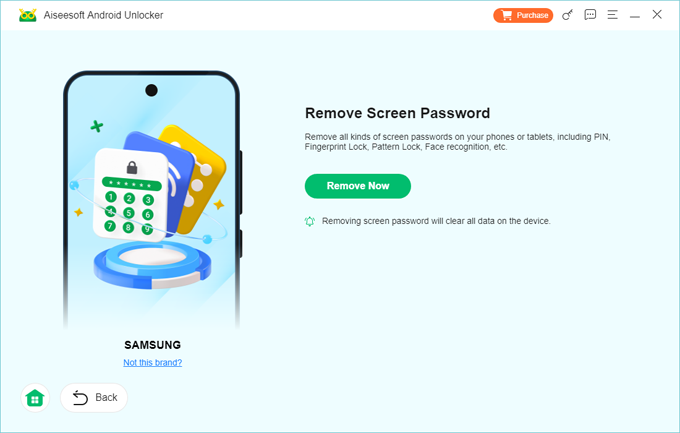
Step 2. On the main interface, choose Remove Screen Password module.
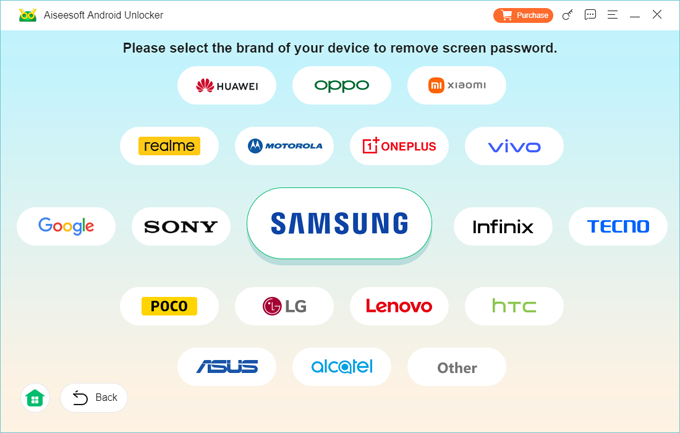
Step 3. Depending on the kind of Android phone you have, choose Samsung, Motorola, OnePlus, Google Pixel, etc.
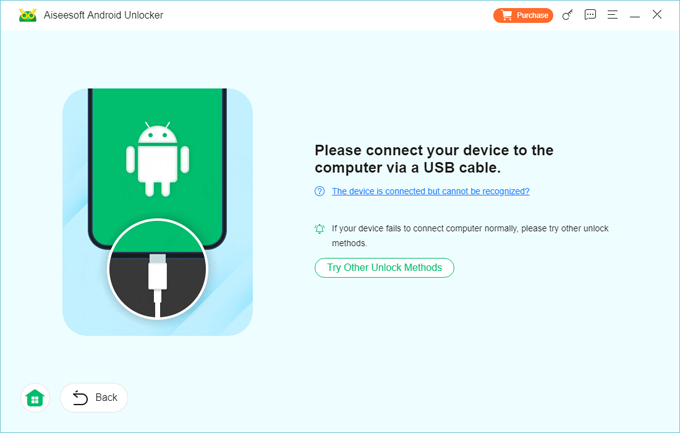
Step 4. Plug your device into your computer via a functional USB cable.
If it's not recognized, the software should prompt you to enter recovery mode and access the Android reset tool.
Step 5. When ready, click Remove Now button. The software starts resetting the Android phone to its factory defaults. This deletes all data and settings, and removes any screen locks including PIN, password, pattern lock, fingerprint, and face recognition, in a way to unlock your device.
Once the reset process is done, your device reboots, allowing you set up and open it again - no PIN is required.
Stuck on Google account verification after Android factory reset?
- Log back in with the previously synced Google account and password if you still remember them.
- Forgot the Google password but know the email? Go to Google Recovery page to recover your credentials if you have set up a recovery email or phone number
- Have no access to Google account at all? Try the inbuilt "Bypass Google FRP Lock" function from Higospot Android Unlocker to remove the Google lock entirely without identity verification.
Way 3- Google Find Hub (no cable needed)
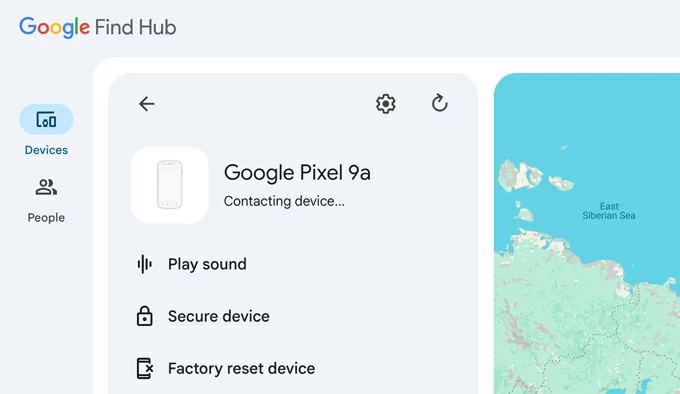
Another solution is to factory reset Android that you forgot the PIN to using Google Find Hub (formerly Google Find My Device). Ideally, you'll have linked your Google account on your Android phone, which will make it possible to remotely reset your PIN on a locked Android phone without a computer or with it.
For this remote reset to work with Google Find Hub online, make sure that your phone is connected to the internet, as well as "Find Hub" has already been enabled before the lockout. Then, follow these steps to erase the Android mobile completely and remove the PIN lock along with all stored data.
1- Visit Google Find Hub website on a computer or another available phone (Android or iOS).
2- Sign in to your Google account tied to your PIN-locked Android phone.
3- Click Devices from the sidebar and choose [your device] waiting for reset.
4- Choose Factory reset device option.
5- When prompted, enter your Google account password to verify your identity.
6- Click Reset > Erase. The factory reset begins, remotely wiping your Android phone clean and removing the lock screen PIN that you forget completely. Note that if your phone is offline, Google Find Hub won't be able to process the device reset.
After resetting PIN, follow the setup prompts, which include signing in with your Google ID, creating a new screen lock, and restoring data from a previous backup if you have one. Enjoy your Android life!
What happens after a factory reset on Android
While Android's security measures prevent easy bypassing, the methods in this guide give you reliable ways to do an Android factory reset due to a forgotten PIN and regain control. A clean reset for Android PIN removal is successful when you see the Welcome or Hello setup screen.
PIN on the lock screen is removed
Resetting Android phone to factory setting even without PIN will help removing all screen locks, letting you unlock your device again without security barrier.
All data is permanently deleted
Unless you had Google One or Samsung Cloud backups enabled, your local data (photos, local files) is gone. However, once you sign in, your contacts, emails, and apps will automatically redownload from the Play Store.
Factory Reset Protection (FRP) may be enabled
FRP is a built-in security feature since Android 5.1 designed to prevent unauthorized use after a reset. After resetting, the device may ask you to Sign in with the linked Google account.
If you don't remember the Google credentials, you may be locked out again—even after resetting. To get past the Google verification without password, consider using Higospot Android Unlocker which ships with "Bypass Google FRP Lock" feature enabling you to delete Google account quickly and get back into your freshly reset Android phone.
FAQs
- Can I reset Android without a PIN or without losing data?
- No, unless you've backed up your Android phone before it's locked down. If you've forgotten your PIN, resetting Android will erase anything, including screen locks, photos, videos, contacts, messages, app data, documents, and more.
- Can I use my Google account to unlock Android phone when forgotten the PIN?
- For Android 4.4 KitKat and earlier versions, when you forget the PIN for unlocking Android, try multiple wrong attempts to trigger the Forgot PIN option, and then enter the associated Google account to reset the PIN code by creating a new one without factory resetting the entire device.
- However, for unlocking a forgotten PIN on newer devices with the Google account, use Google Find Hub to fully reset Android, deleting the lock.
About Ajay Walmsley
Ajay Walmsley has 6 years of experience writing and editing for tech publications, as well as in the tech startup world. She loves to help more users solve various types of issues related to iOS, Android, Windows, macOS.

 iPhone UnlockerRemove iPhone & iPad lock screen
 iPhone Data TransferTransfer and manage your iPhone & iPad data
 Android UnlockerRemove Google FRP lock and bypass screen locks
 iPhone Data RecoveryRecover deleted files from iPhone, iPad
 Location ChangerFake a GPS location easily
 Video DownloaderDownload videos from 1000+ sites