How to Bypass Android Lock Screen without Reset (or with Reset)
Getting locked out and forgotten Android password, PIN or pattern? Follow this step-by-step guide to bypass the lock screen without resetting or deleting data, so you can regain full access to your phone.

Katrin Gray
Updated on Mar 31, 2026
Forgetting your password, PIN, or pattern to bypass the lock screen on Android can instantly cut you off from your data. While modern Android security is designed to be nearly impenetrable, there are specific scenarios where you can get access back without performing a factory reset for an Android lock screen bypass—depending on your Android device's model and software version.
Here's a guide on how to bypass Android lock screen without reset in different ways using some form of authentications. In case you don't have any associated information - especially when you bought a second-hand device that's still locked, there're still reliable reset-based solutions to bypass the screen locks without password, pattern or PIN code, and one of an effective tools that help unlocking a locked Android screen and getting past the security lock is Higospot Android Unlocker.
Table of Contents
Can you bypass Android lock screen without reset?
The short answer is YES. Only under specific conditions can you bypass the need to factory reset your Android phone to remove the lock screen when you forgot the password.
If your device runs older Android versions
Android version 4.4 and below lacked the robust encryption standards found in modern smartphones, and allowed for a Google Account login bypass, making it relatively simple when it comes to bypassing a lock screen without losing data.
If you're using a Samsung device with One UI 6.1 or later
This is the only official way to bypass a lock screen without a factory reset on modern Samsung phones. It is designed for those who just changed their PIN, Pattern, or Password in the past 72 hours.
Part 1. How to bypass lock screen without resetting Android - No data loss
Below are the possible solutions to bypass the lock screen and unlock Android phone without a reset or data loss, even if you can't remember your Android password or inherited a preowned device linked to the previous owner.
1. "Forgot Pattern/ Password/ PIN" method (Android 4.4 or earlier)
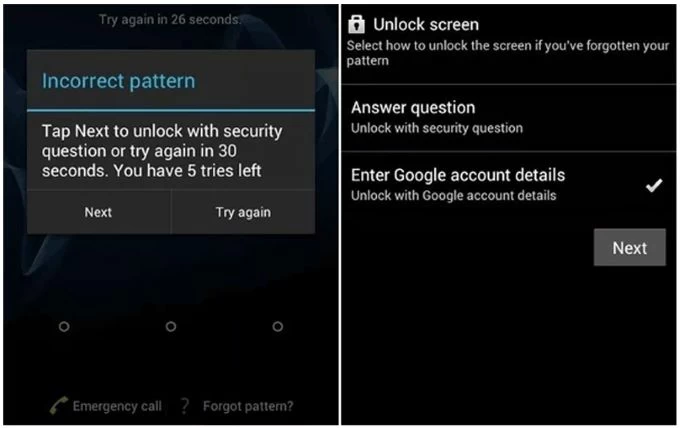
If you are using an older device running Android 4.4 or earlier, Google included a native backdoor for users who forgot their credentials for bypassing the screen lock password, PIN or pattern with no need of a full reset. After five unsuccessful attempts, a "Forgot Pattern" button will appear, letting you enter the linked Google account & password to create a new unlock method for getting past the Android lockout system rather than wiping the hardware entirely.
1- On your Android phone, input the password incorrectly several times until you see Forgot Password? (or Forgot Pattern or Forgot PIN) at the bottom.
2. Tap on Forgot Password.
3. Choose Enter Google account details option.
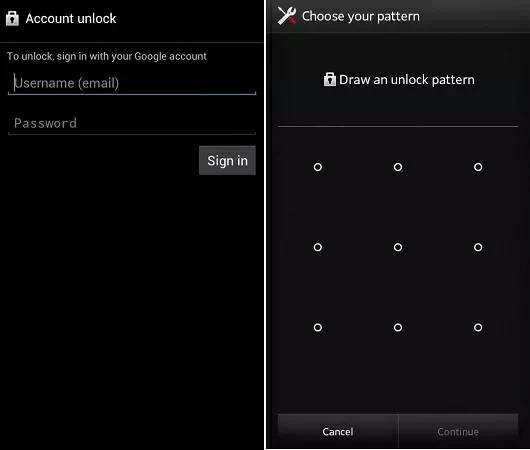
4. Type in your credentials tied to your device and click Sign in.
5. Once verified, set up a new screen lock code to unlock your Android phone.
2. Samsung's "Forgot PIN" method (One UI 6.1 and higher)
For Samsung Galaxy users, the transition to One UI 6.1 has streamlined how the locked device is unlocked without password, PIN or pattern. If you change your screen lock and immediately forget the new one, you'll have 72 hours to bypass the lock screen directly without resetting the phone by using the previously used screen lock.
Here're the steps to reset the password you've forgotten and bypass the locked screen instantly, no hard reset is required.
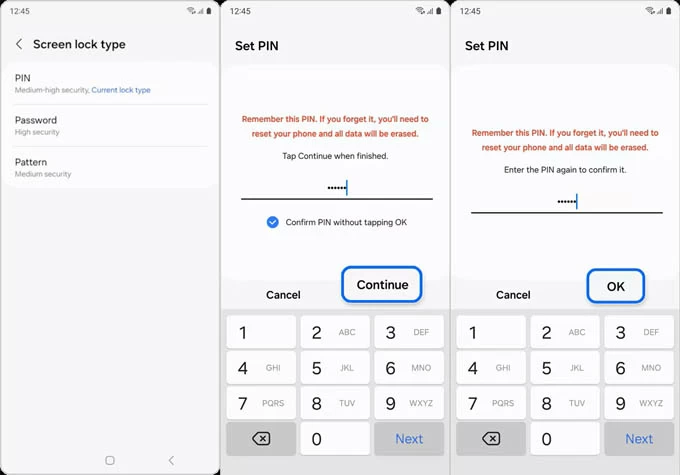
1. After the 5th failed attempt, the Forgot PIN option should show up.
2. Tap on Forgot PIN link to enter "Reset with previous screen lock" screen.
3. Enter the old PIN you use before and click OK.
4. Choose a screen lock type and create a new one.
Done! You can now skip the lock screen with the new unlock code and get into your phone again, while preserving all data.
Part 2. Bypass Android locks via a factory reset - Data loss if no backup
If the non-reset routes do not work to have Android bypass the forgotten password due to advanced security updates, a factory reset is only viable option to regain access, which erases all data and settings including the screen locks (password, pattern, PIN, biometrics).
The tools to reset an Android phone when locked for the bypass of screen locks include Android Recovery Mode, Higospot Android Unlocker, Google Find Hub, and Extend Unlock.
1. Higospot Android Unlocker
Higospot Android Unlocker serves as a comprehensive tool for bypassing locks when you're locked out of your Android phone without knowing the PIN lock, password or pattern. While it generally requires a factory reset for most modern phones, it provides a highly structured interface that guides you through the process, ensuring you can unlock your Android phone effectively.
Win Download
Whether you completely forgot the Android password or acquired a second-hand device that's locked, here's how to get past Android lock screen with a factory data reset using Higospot Android Unlocker. After the device's lockout is removed, the phone will start fresh, allowing you to set up from the scratch or restore from a previous backup so you won't lose data.
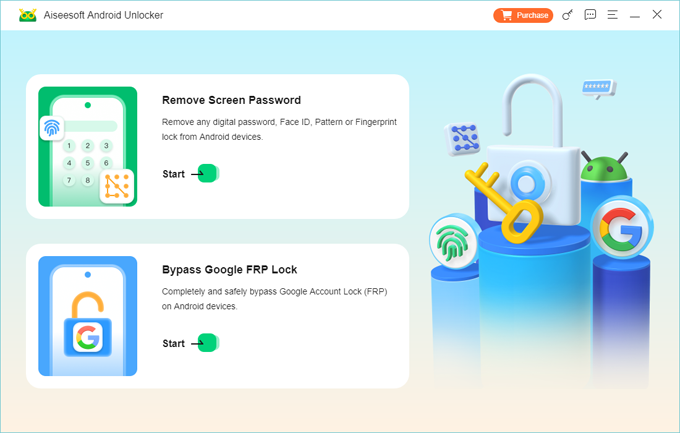
Step 1. Launch Android Unlocker on your computer.
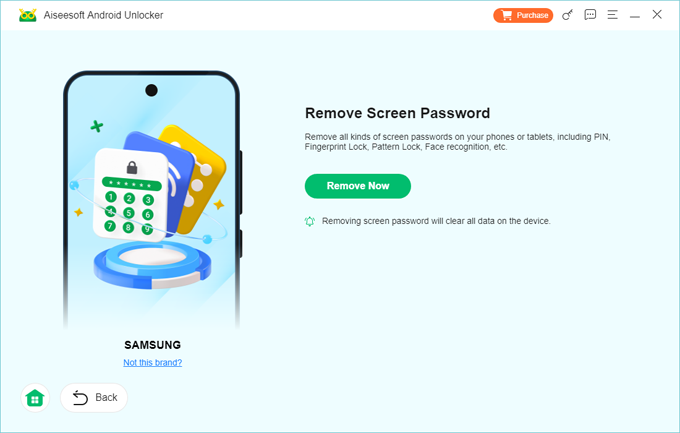
Step 2. Choose Remove Screen Password mode from its main interface.
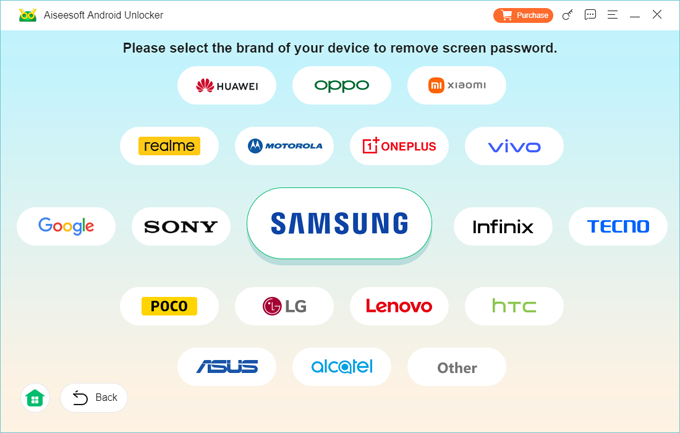
Step 3. Based on your Android phone's brand, choose Samsung, Google, OnePlus, Motorola, etc.
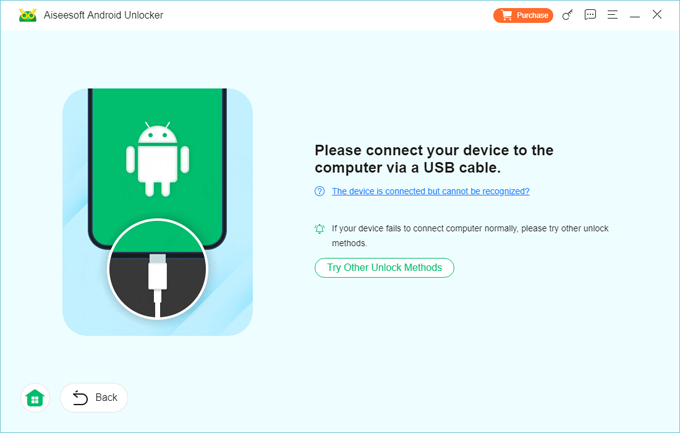
Step 4. Grab your locked Android device and connect it to your computer through a USB cable.
Tip: If it can be recognized, the software will guide you to enter the recovery mode.
Step 5. When ready, hit Remove Now button to begin factory resetting the locked Android phone, which removes the lock screen and any content.
Once the process is done, your Android device reboots, letting you bypass the screen locks with no password needed.
Important! If your device is previously logged in with a Google account, Android's Factory Reset Protection will require you to sign back in to bypass Google FRP lock for full access. Any data backed up in Google server before will be downloaded and restored as well. In the event that you don't know any of Google credentials, Higospot Android Unlocker provides "Bypass Google FRP Lock" function that you can use to unlock Google locks without identity verification.
2. Android Recovery Mode
Another option to help with Android screen lock bypass is the hardware-level Recovery Mode, which works to reset the Android phone with buttons, and delete the device data including the lock screen info you forgot or don't know at all.
Steps to factory reset an Android phone without password using Recovery Mode and skip the lock screen easily:
1- Power off your device completely. If you're asked for the password to trigger the shutdown, you have to wait for the battery to run out.
2- Optional. Samsung phone needs to be plugged into a computer.
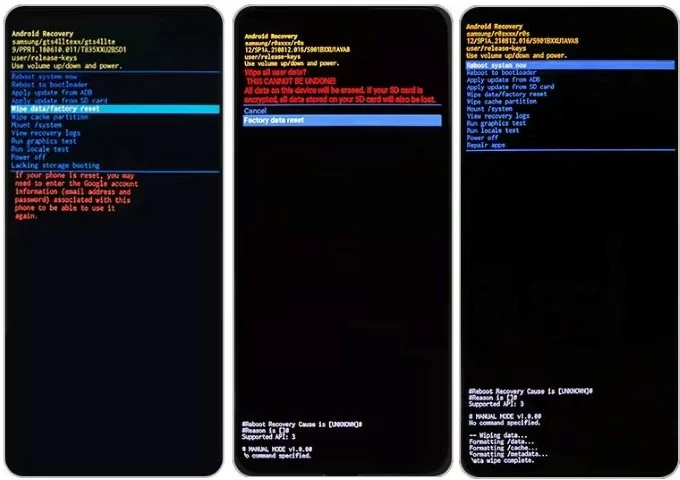
3- Use the model-specific key combination to boot into recovery mode. Common combos are Volume Up + Power, Volume Down + Power, or Volume Up + Bixby + Power on some Samsung devices). Release keys when the Android Recovery menu appears.
4- Press the Volume key to navigate to Wipe data/ Factory reset option, and press the Power button to confirm.
5. Choose Factory data reset. This will bypass the locked screen and reset your Android phone instantly.
6. When you see the "Data wipe complete" string at the bottom, select Reboot system now to start your smartphone fresh new.
7. Once the phone restarts, follow the onscreen instructions to set up the phone, create a new password, and restore your data if you have backup available. If FRP locks activated, log in with the associated Google account & password.
3. Google Find Hub (formerly Find My Device)
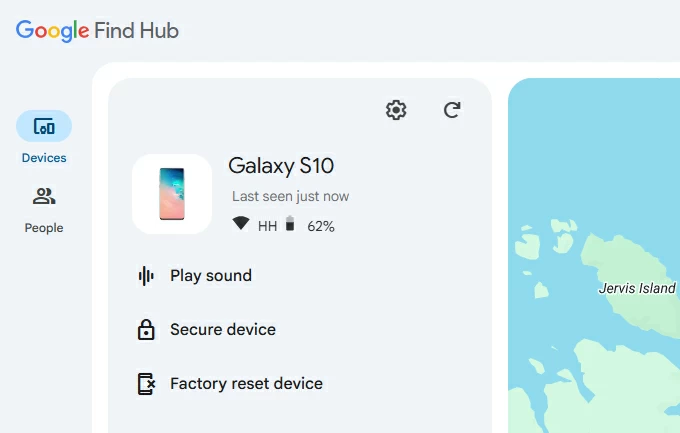
If your Android phone is linked to your Google account, and Google Find Hub has been enabled before the lockout, you can bypass Android phone's lock screen by wiping it remotely from any web browser with or without a computer. This is the most reliable way to regain use of a lost or locked device without needing physical access to the volume/power buttons.
Google Find Hub website works by a remote reset, making Android bypass the screen lock when forgotten a password pretty straightforward. Here's how you can do that.
1- Make sure your phone is connected to an active network for the remote device erase to work.
2- On a PC, go to android.com/find and sign in with the same Google Account used on the locked device. Or visit the dedicated Find Hub app on another mobile.
3- Once logged in, click on your Android smartphone from the left sidebar.
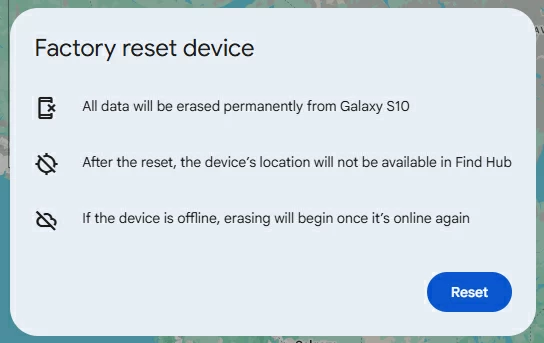
4- Choose Factory reset device option which is designed to erase the device and its password from the lock screen.
5- When prompted, enter your Google account again to confirm the factory reset, and hit Reset.
As long as your phone is online, it will reset itself to factory defaults.
Tip: Google Find My Device once included a Remote Unlock feature to let users directly bypass the lock screen on Android devices with no need to reset the whole device; and unfortunately, Android has already removed this feature, leaving factory reset the only option to unlock a locked phone screen.
4- Extend Unlock
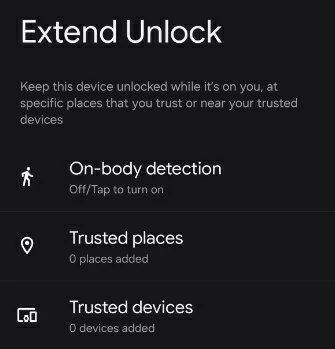
Extend Unlock (formerly known as Smart Lock) acts as a situational screen lock bypass for Android rather than a permanent password reset. When it was active before getting locked out, it simply ignores the lock screen requirement, and keeps your device unlocked under specific trusted conditions you set up beforehand.
However, Extend Unlock doesn't actually know your forgotten Android password, or will not let you change or remove your password without doing a factory reset. Provided that you truly forgot the password and can't unlock Android, Extend Unlock quickly bypasses the lock screen to get you back in, letting you back up your data and then force your Android device to reset in an attempt to fully erase the locks without deleting all of your data.
FAQs
- Can Android master code unlock any phone without deleting data?
- No. Android doesn't have any universal code that unlocks the device without resetting. The secret codes like *2767*3855# or ##7780## will trigger a factory reset to delete all data when you forgot the lock screen password to Android.
- Is it possible to bypass forgotten password without factory reset?
- Yes. Older Android 4.4 or earlier offered a "Forgot Password" option by which to bypass the lock screen password using Google account and create a new one. Samsung Galaxy S24 or devices running One UI 6.1 also allows you to use the previous screen lock to reset the password you forgot without having to wipe data.
About Katrin Gray
Katrin Gray is the Junior Editor at HigoSpot. With a bachelor's degree in Computer Applications, he has been covering Microsoft Windows, Apple macOS, iOS, Android, Social Media, Gaming, and more as a professional writer for over 5 years.

 iPhone UnlockerRemove iPhone & iPad lock screen
 iPhone Data TransferTransfer and manage your iPhone & iPad data
 Android UnlockerRemove Google FRP lock and bypass screen locks
 iPhone Data RecoveryRecover deleted files from iPhone, iPad
 Location ChangerFake a GPS location easily
 Video DownloaderDownload videos from 1000+ sites