How to Bypass Lock Screen on Samsung Phone or Tablet: 5 Options
Being blocked outside by a Samsung lock screen is not a good experience. Before you take it to a local certified service center, learn how to bypass lock screen on a Samsung tablet or phone.

Katrin Gray
Updated on Jun 26, 2026
Like most modern smartphones, Samsung devices use lock screens as the first line of defense. Whether you choose a password, PIN, pattern, or biometric option, the lock screen ensures that only owner or authorized users can access the device.
Yet, there are times when the very feature designed to protect us becomes a barrier. If you forget Samsung password, or inherit a second-hand device without knowing the PIN code or pattern, you're probably wondering how you can bypass the lock screen to regain access.
Fortunately, there are a few ways you can take to bypass Samsung lock screen, regardless of a phone or tablet. If you're lucky enough, you can unlock your device without losing your data. Third-party tools like Higospot Android Unlocker can also help you out when official routes fail. It supports removal of different lock screens in an easy manner.
Table of Contents
Things to know
A Samsung device's lock screen is the initial barrier protecting your device, requiring you to authenticate with a PIN, password, pattern, or biometrics (fingerprint/face) to gain access to apps and data. In most cases, if you're locked out of the device without knowing the codes, you will have to factory reset the device to regain control of it.
Any photos, contacts, or data not synced to your Google Account or Samsung Account will be permanently deleted during the reset and cannot be recovered
Extend Unlock: unlocking through trusted environments
Samsung's Extend Unlock (formerly Smart Lock) is designed to reduce friction in everyday use. Instead of constantly entering a PIN or password, Extend Unlock lets you define trusted conditions under which the phone unlocks automatically. But it will only work if you've set up the feature in Settings beforehand.
If Extend Unlock is available, it will save you lots of frustration and anxiety. Here's how to use it to bypass lock screen on Samsung device, no data loss.
Extend v offers several modes:
Trusted Devices: Connect your phone to a Bluetooth device (like a smartwatch, car system, or wireless headphones). When paired, the phone unlocks automatically.
Trusted Places: Use GPS to define safe zones (like your home or office). Within these areas, the phone remains unlocked.
Trusted Face/Voice: Biometric recognition that supplements traditional security.
On-Body Detection: Keeps the phone unlocked while it's being carried.
Related: How to Bypass FRP on Motorola
Setting up Extend Unlock:
1. Go to Settings > Lock Screen and AOD > Extend Unlock.
2. Enter your current PIN, password, or pattern.
3. Choose an Extend Unlock option (Trusted Devices, Places, etc.).
4. Configure the trusted condition.
Note: You must enter pattern, PIN, or password you set to unlock the screen if the device has been idle for 4 hours or has just been powered on.
Using Extend Unlock to bypass Samsung lock screen free
If you've forgotten your password but previously set up Extend Unlock:
Move into your trusted place (e.g., home), connect to your trusted device (e.g., smartwatch). The phone should unlock automatically. Please note that this method only bypasses the lock screen; it won't allow you to change or update your security credentials.
Extend Unlock provides a built-in workaround for Samsung lock screen bypass without losing data, which feels seamless once configured.
Higospot Android Unlocker: reset the screen lock on PC
When Extend Lock isn't available, you still have other options to bypass the lock screen, and one of the easiest ways is use Higospot Android Unlocker. As the name implies, the tool is designed to help users regain access to locked Android devices by bypassing various security hurdles, including PINs, patterns, passwords, and biometric locks. Beyond simple lock screen bypassing, the tool is capable of getting rid of Google's Factory Reset Protection (FRP), allowing users to remove a linked Google account after a reset without needing the original credentials.
New to Android Unlocker? Don't worry, the whole process of bypassing lock screen on Samsung tablet or phone is straightforward and simple. Here's how.
Win Download
First of all, download the tool and install it on your Windows computer. The installation process is straightforward and functions perfectly using the default settings, so no manual configuration is required
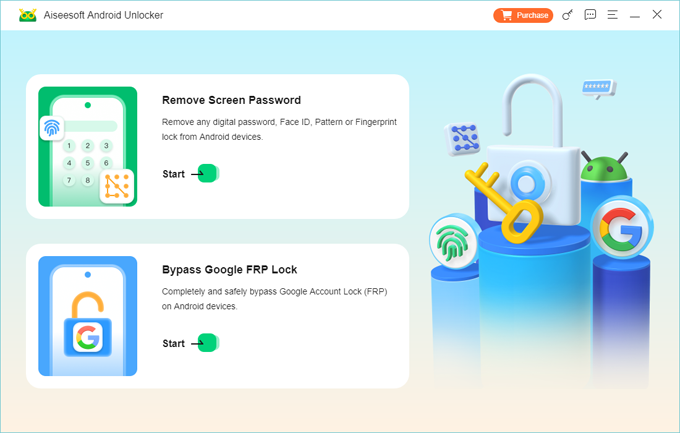
Step 1. Run Higospot Android Unlocker. You will see its main interface like the image shown below. To bypass lock screen on Android Samsung device, pick "Remove Screen Password" mode.
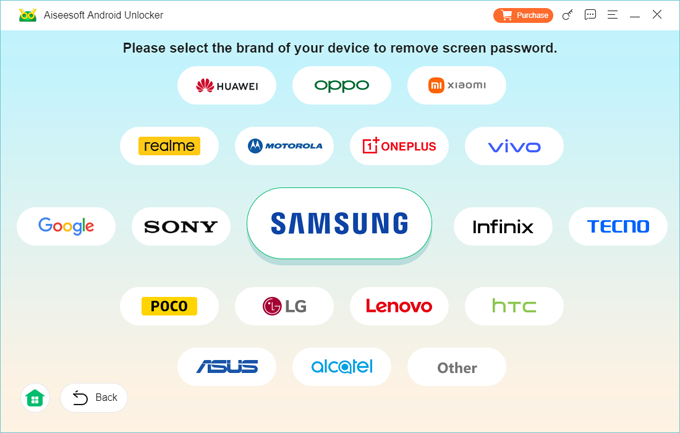
Step 2. Next, select "Samsung" brand.
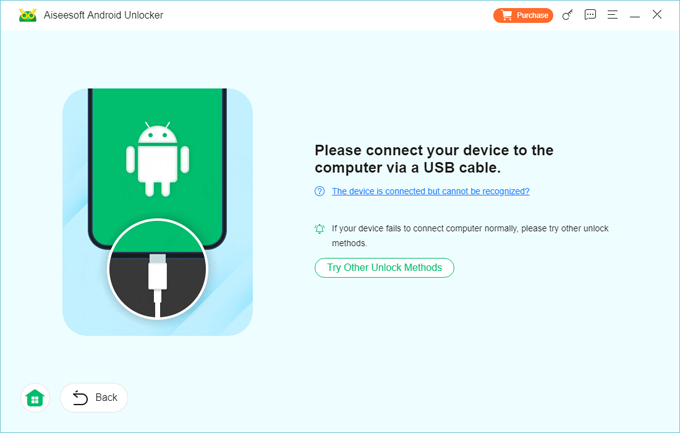
Step 3. Plug your Samsung phone or tablet. This software should detect it instantly. If not, click "The device is connected but cannot be recognized" and follow the onscreen prompts to enter recovery mode.
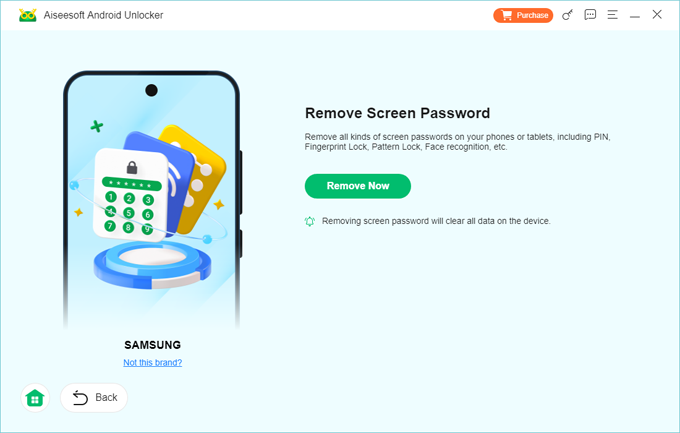
Step 4. Now, simply press "Remove Now" button to begin bypassing Samsung screen lock.
The process typically completes within minutes; however, it can occasionally take significantly longer. Be patient.
Related: How to Unlock iPhone Passcode
Recovery mode: factory reset the Samsung device
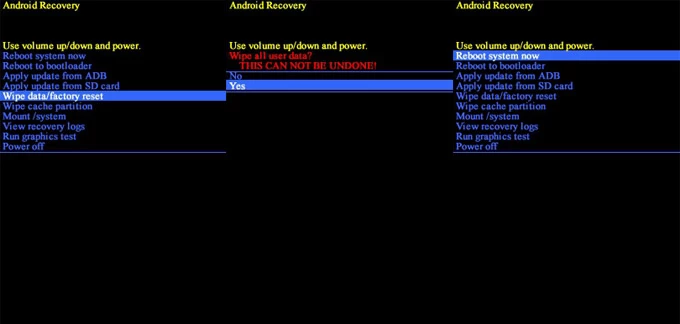
Want to bypass Samsung pin lock screen without relying on any extra tools? Recovery Mode is a hidden environment built into Samsung devices that allows users to perform system-level operations, including the ability to restore the phone to its factory settings and erase all data, allowing to set the device up and use it again.
Entering recovery mode involves button combination. The required procedure varies significantly based on your specific device mode. Follow these steps to bypass a screen lock on a Samsung Galaxy device with recovery mode.
1. Charge your Samsung phone or tablet to at least 50%.
2. Power off the device completely.
3. Connect it to your computer with a USB cable.
Tip: Newer models require being connected to a PC for the button combination to trigger recovery mode.
4. Press and hold Volume Up + Power buttons at the same time for a while. Some older models may require to use Volume Up + Power + Bixby or Volume Up + Home + Power buttons.
5. When you see the Samsung logo or Recovery screen, let go of all buttons.
Tip: If you see the regular Android logo and it boots up, you've missed the window. Try the button combination again.
6. Use Volume Up/Down to move through the recovery menu until you see Wipe data/factory reset, then use Power to confirm.
7. Select Yes to confirm that you want to factory reset the Samsung device.
9. After the reset, select Reboot system now to restart your phone.
Done! You've successfully bypassed screen lock for Samsung. You're ready to set your device up again.
Recovery mode is the nuclear option. It will erase all your personal data, so back up everything important first if possible. You might need your Google account login (email/password) to verify your identity due to Factory Reset Protection (FRP) during setup.
Related: How to Unlock Google Pixel without PIN
SmartThings Find: remotely erase lock screen
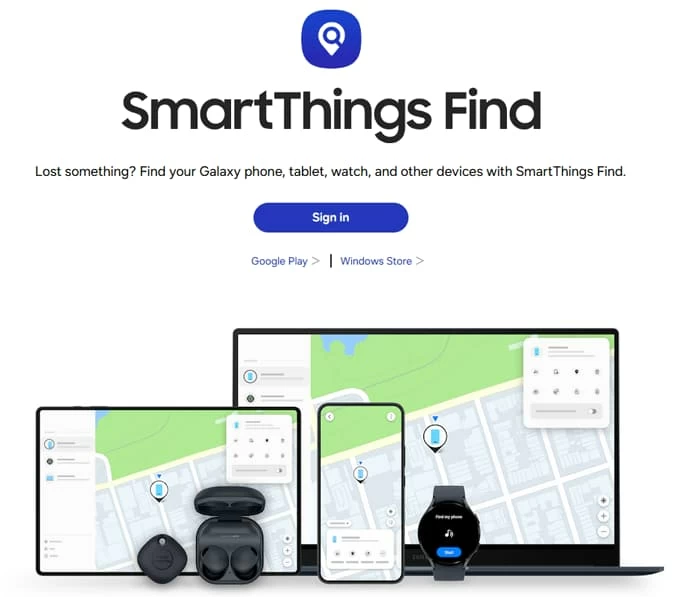
If the "Remote controls" or "Allow this phone to be found" option have been turned on in your device settings before it's locked — this is usually enabled by default when you sign into a Samsung account, you're able to perform a remote factory reset on your Samsung device using SmartThings Find (formerly Find My Mobile), This way, you can bypass lock screen on your Samsung tablet or phone, along with data loss, though.
Steps to remotely erase a Samsung device to bypass lock screen:
1. Make sure the Samsung is turned on and connected to Wi-Fi or mobile data, and you have a Samsung Account registered with it.
2. Open a web browser and go to the official SmartThings Find website. Sign in with the same Samsung Account credentials.
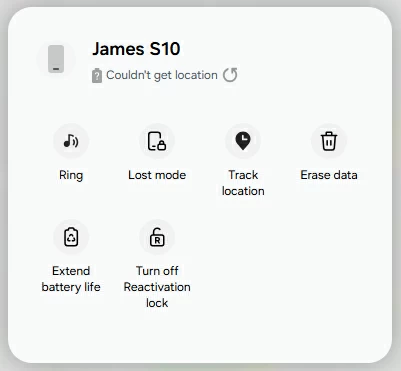
3. Find your device in the list on the left-hand side of the screen.
4. On the control panel that appears (usually on the right), click the Erase data button.
5. Confirm the reset and finally press Erase button when prompted.
FAQs
- Can I bypass lock screen Samsung without data loss?
- Yes, it is possible to bypass the lock screen on a Samsung phone without losing data, if you have preconfigured Extend Unlock in Settings.
- Why do some websites claim I can bypass the lock without data loss?
- Most of these sites are referring to older Samsung models (like the Galaxy S4, S5, or S6) or Note 4/5. On those specific older devices, software vulnerabilities allowed tools to remove the lock screen file without touching the user data partition.
- Is it possible to bypass Samsung lock screen without a PC?
- Yes. Extend Unlock can work without a computer. Recovery Mode also doesn't require a PC for older Samsung models.
- Is bypassing the Samsung lock screen safe?
- It'''s safe if you use official methods (Extend Unlock, Recovery Mode, SmartThings Find). If you decide to try using Third‑party tool, make sure it has a good reputation in the market.
- What's the best method if I want to keep my data?
- The best options are Extend Unlock (if pre‑enabled) or SmartThings Find. If all fail, third-party tool like Higospot Android Unlocker is also worth trying before resorting to a Recovery mode.
- Will a "Wipe Cache Partition" in Recovery Mode bypass lock screen?
- No. Wiping the cache partition only removes temporary system files. It is often used to fix glitches or speed up the phone, but it will not remove your PIN, pattern, or biometric locks.
About Katrin Gray
Katrin Gray is the Junior Editor at HigoSpot. With a bachelor's degree in Computer Applications, he has been covering Microsoft Windows, Apple macOS, iOS, Android, Social Media, Gaming, and more as a professional writer for over 5 years.

 iPhone UnlockerRemove iPhone & iPad lock screen
 iPhone Data TransferTransfer and manage your iPhone & iPad data
 Android UnlockerRemove Google FRP lock and bypass screen locks
 iPhone Data RecoveryRecover deleted files from iPhone, iPad
 Location ChangerFake a GPS location easily
 Video DownloaderDownload videos from 1000+ sites