Forgot Android Password? Here's How to Unlock Android Device When Locked
Forget the Android password but have no idea where to start to unlock the device? We teach you how to unlock a locked Android device, no matter you have a computer nearby or not.

Katrin Gray
Updated on Jun 5, 2026
Since Android 5.0, when you forgot your Android password, there is no longer a "Forgot Password" button on the lock screen that lets you reset your PIN via email. If there were, a thief could simply reset your password and steal your identity in minutes.
Instead, if you forgot the password, you will need to reset the Android device to factory settings to regain access. While a factory reset will bring you back into that device, it traditionally wipes every single byte of local data—photos, messages, and settings—unless they were synced to your Google account. All the data that is not backed, will be lost and there is nothing else you can do about it.
This brings us to the central dilemma: If you've forgotten your credentials and biometrics have failed, how do you perform this factory reset to make the phone usable again? Specifically, can you do it from the comfort of a laptop, or do you have to perform a series of hardware button presses?
In this article, we are going to look at the three most effective methods for regaining access to a locked Android phone or tablet when you have forgotten password. For a quick solution, check out Higospot Android Unlocker, which shines for its ease of use along with tools for resetting forgotten PIN, password, or Pattern, and getting past over Google FRP lock.
Reset Android with Google Find Hub
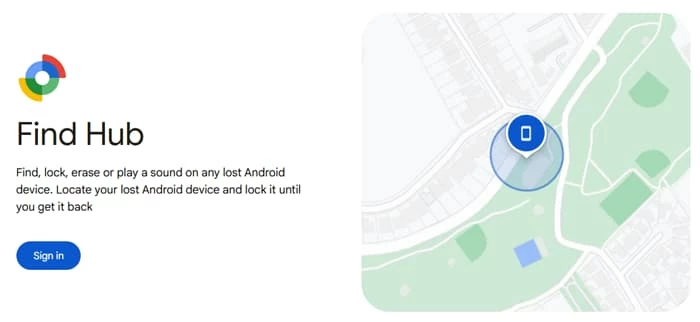
If your Android phone is currently turned on and connected to the internet (via Wi-Fi or mobile data), this is by far the easiest method. Google's Find Hub (often referred to as the Find My Device in older versions) allows you to erase it remotely from any web browser.
Before you attempt to reset the Android password, ensure the following are true:
1. The device is powered on.
2. It has an active internet connection.
3. You have a Google Account signed into the device.
4. Find My Device option was enabled in the settings
Steps to reset Android when you forget the password, PIN, or pattern:
1. On a computer or another mobile device, go to Google Find Hub webpage.
2. Log in using the exact same Google Account that is currently locked on your Android. If you have multiple accounts, this won't work unless you use the primary one.
If you've forgotten the Google Account password, you'll need to recover your Google Account first.
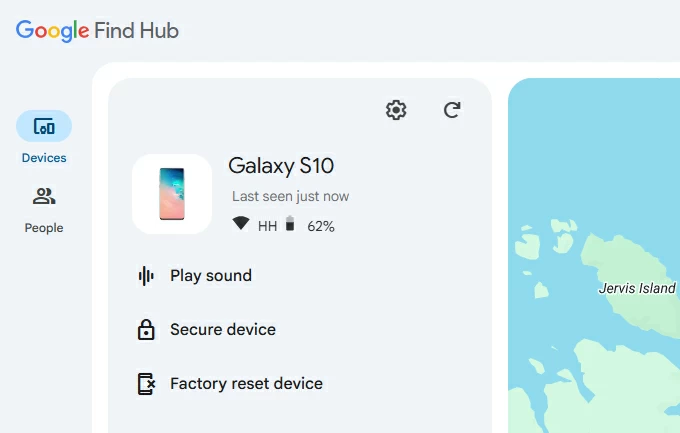
3. On the top left-hand sidebar menu, you will see a list of devices associated with your account. Click on the icon for the phone you are locked out of.
4. The map will attempt to locate your phone. Even if it can't find the exact GPS coordinates, as long as it says Online, you can proceed.
5. Click on Factory reset device.
6. You will be warned that this will permanently erase all data on the phone. Click Erase again to confirm.
7. Your phone will receive a signal from Google's servers. It will immediately reboot and begin the factory reset process.
After the Android device is reset, you will see welcome screen again on it. Follow the onscreen prompts to set the device up again, and set a new screen lock password.
When you've forgotten password for Android device, regardless of manufacturers, Google Find Hub offers a clean and remote way to help you regain access, bypassing the need to memorize complex button combinations.
Reset Android with Higospot Android Unlocker
What if your phone is offline? Maybe you turned off the Wi-Fi before you got locked out, or perhaps you're in a dead zone. It doesn't matter, though. You can resort to a reputable tool named Higospot Android Unlocker to unlock the device and regain control of it.
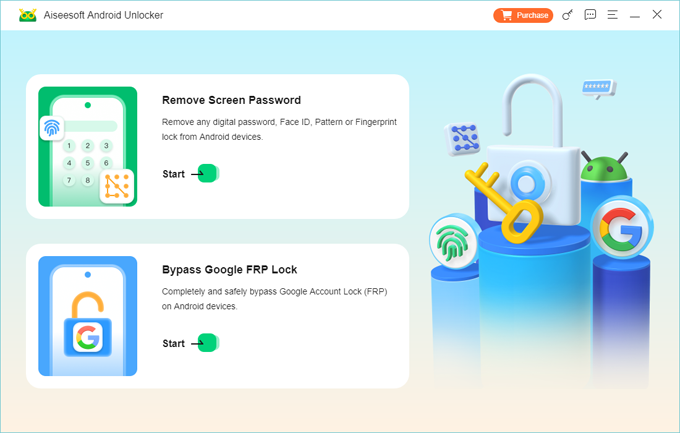
It's a dedicated Android-oriented software application designed to bail you out when you're locked out of your device, offering a streamlined way to remove PINs, patterns, passwords, and biometric locks like fingerprints or facial recognition. Beyond simple screen bypasses, it specializes in skipping the notorious Google Factory Reset Protection (FRP) lock—a common headache for second-hand phone owners or anyone who has forgotten their account credentials after a reset.
Win Download
The software supports over 6,000 Android models from major brands like Samsung, Motorola, Xiaomi, and OPPO, and while it features a beginner-friendly click-and-wait interface.
This method is best if you want a guided interface that walks you through the recovery process when you forget Android password. Keep in mind that this will also erase all data on the device.
Step 1. Launch Android Unlocker on your PC. Select the Remove Screen Password feature.
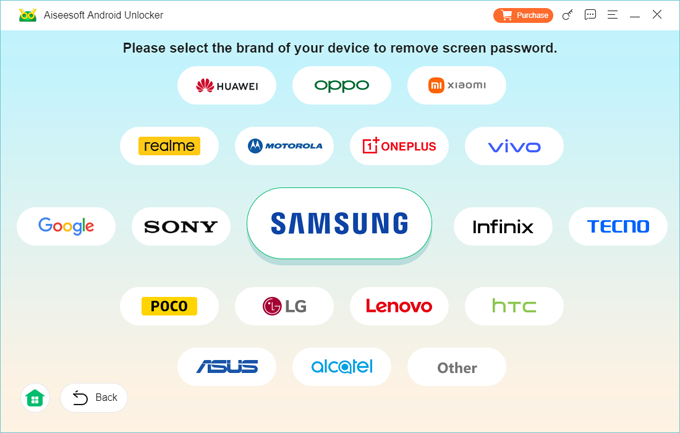
Step 2. Go ahead and select what brand you device is. For example, if you forgot Samsung phone password, pick "Samsung" here.
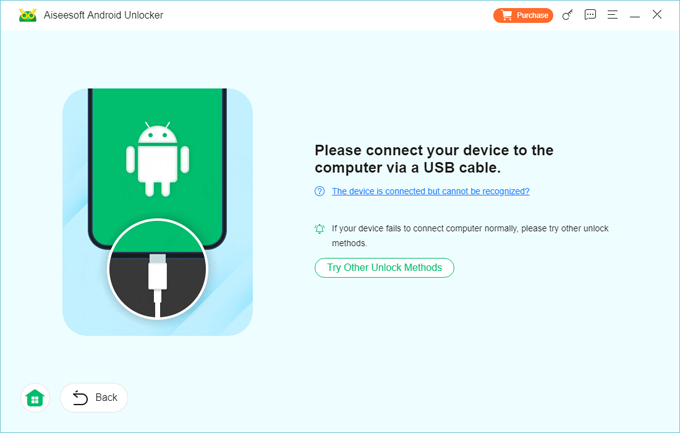
Step 3. Plug your Android phone into the computer using a USB cable. If it isn't detected, click "The device is connected but cannot be recognized?" link on the screen. The software will show you a visual guide on how to put your specific phone into download mode.
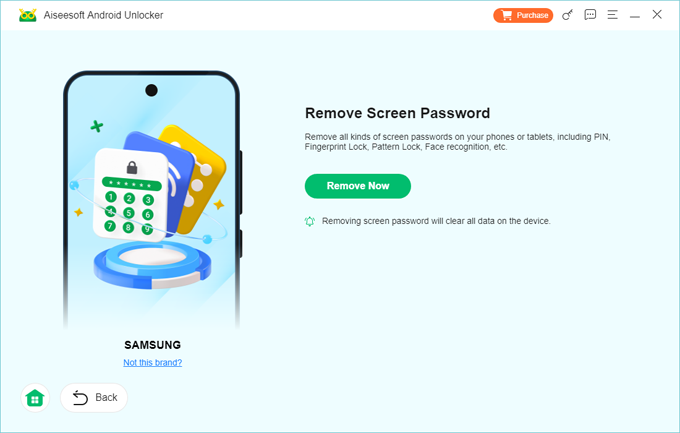
Step 4. When you're ready, click Remove Now. A pop-up will appear stating that removing the screen lock password will erase all data on the device, confirm it.
The software will begin removing the internal lock configuration. A progress bar will appear; do not unplug the phone during this time.
After the Android is reset, it will restart to the initial "Welcome" setup screen. The left thing to do is rebuild your phone and restore data that's been backed up with Google Account.
See also: Motorola FRP Bypass
Reset Android with Recovery mode
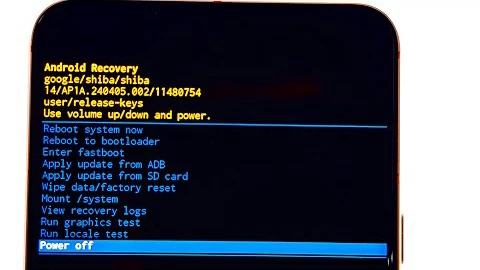
Every Android device has a hidden partition called Recovery Mode. This is a text-based environment that loads before the main Android OS. If you have forgotten password to Android device, you can enter Recovery Mode menu and issue a "Wipe Data" command that ignores the lock screen entirely.
Note, navigating to Recovery Mode involves holding specific physical buttons while the phone is turning on. Here is how to use it to solve "forgot Android password" problem.
1. Turn off your phone completely.
2. Press and hold the Volume Up + Power buttons simultaneously. Release them when the manufacturer logo appears.
For Samsung devices, it requires to connect the device into a computer, then press and hold the Volume Down + Power buttons.
3. Use the Volume Buttons to scroll through the black/blue menu. Highlight "Wipe data/factory reset" and press Power to select it.
4. Select Factory data reset and wait for the "Data wipe complete" message at the bottom.
5. Select Reboot system now. Your phone will restart as if it were brand new.
After resetting Android
Even after you successfully wipe the phone using either method above when you forgot password on Android, the phone will reach a screen during the initial setup that says: "This device was reset. To continue, sign in with a Google Account that was previously synced on this device."
If you don't know the email and password for the Google Account that was on the phone before the reset, you will need to recover your Google account first. Or, use Higospot Android Unlocker to bypass this Google lock.
See also: Forgot iPhone Passcode
Getting your data back
So, the Android phone is wiped, the forgotten password is gone, and you're back at the Welcome screen. Is all your data truly lost? Not necessarily.
If you had "Backup by Google One" enabled, your contacts, SMS messages, call logs, and device settings will automatically download once you sign in. Your photos and videos are likely safe in the cloud. Just open the Photos app after the setup is complete.
For App data, Most modern apps (Spotify, WhatsApp, Facebook) store your data on their own servers. Once you log back into those apps, your messages and preferences will reappear.
About Katrin Gray
Katrin Gray is the Junior Editor at HigoSpot. With a bachelor's degree in Computer Applications, he has been covering Microsoft Windows, Apple macOS, iOS, Android, Social Media, Gaming, and more as a professional writer for over 5 years.

 iPhone UnlockerRemove iPhone & iPad lock screen
 iPhone Data TransferTransfer and manage your iPhone & iPad data
 Android UnlockerRemove Google FRP lock and bypass screen locks
 iPhone Data RecoveryRecover deleted files from iPhone, iPad
 Location ChangerFake a GPS location easily
 Video DownloaderDownload videos from 1000+ sites