How to Bypass FRP on Android Tablet
Try activating your Android tablet after reset but it keeps asking you for the original Google account and password to verify identity? If you forgot the credentials, we show you how to perform Android tablet FRP bypass to regain your access.

Mark Anderson
Updated on Jun 26, 2026
Android tablets have evolved into essential devices for both productivity and entertainment, offering powerful features and robust security frameworks. One of the pillar security mechanisms embedded within modern Android tablets is Factory Reset Protection (FRP). Designed to protect your data and deter theft, FRP automatically triggers when a tablet is reset outside the standard settings menu.
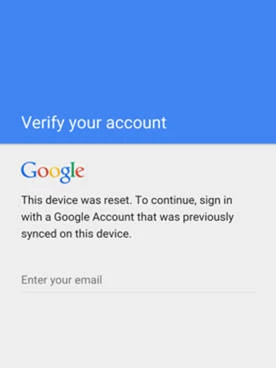
However, this security feature can occasionally become a hurdle for legitimate device owners. If you factory reset the tablet but can't remember the previous configured Google account information, you will be stuck and locked out by a "Verify your account" FRP screen.
This comprehensive guide breaks down exactly what Factory Reset Protection is, how it works, and the official route to successfully verify your identity that it wasn't stolen and regain full access to your Android tablet. If you really don't know the original credentials, you can even use the dedicated tool like Higospot Android Unlocker (Anock) to turn off/ bypass FRP lock on the Android tablet.
What is FRP and How Does It Work?
To effectively bypass an FRP lock on an Android tablet, it is crucial to understand what is happening beneath the user interface. Factory Reset Protection is a built-in security architecture developed by Google. When you set up a new Android tablet and link a Google account to it, FRP is automatically activated.
The primary objective of FRP is to render a stolen or lost device useless to unauthorized individuals. If an Android tablet is reset using hardware keys (Recovery Mode) or via remote wiping tools without the owner's explicit permission, the device requires the user to input the login email and password of the last synchronized Google account before allowing to set it up or have access to the home screen.
Without the correct login credentials, the Android tablet essentially locks you out.
Why Are You Locked Out?
While FRP is highly effective at stopping unauthorized users, legitimate owners frequently find themselves blocked due to several common scenarios, that's why you will want to get past over the FRP lock for an Android tablet:
1. You perform a factory reset on the Android tablet because it was running slowly, only to realize that you cannot remember the password to the secondary or older Google account linked to that specific device.
2. You buy a used Android tablet from an online marketplace or a third-party reseller. The previous owner reset the tablet via recovery mode before shipping it but failed to remove their Google account first.
3. An employee leaves a company and returns their corporate Android tablet. If the IT department attempts a hard reset without the original user's credentials or without using an Enterprise Mobility Management (EMM) bypass token, the device locks up.
4. If you reset your Google account password and then immediately perform a factory reset on your tablet within 24 to 72 hours, Google's security protocols may trigger a temporary FRP lock duration for security purposes, rejecting the new password during setup.
Pre-Requisites Before Attempting FRP bypass
Before proceeding with any account verification or recovery methods, ensure you have the following prerequisites ready to streamline the process:
1. A Stable Wi-Fi Connection: The tablet must communicate directly with Google's authentication servers to verify account credentials. A weak or intermittent connection can result in false login failures.
2. Access to a Secondary Device: Keep a smartphone, laptop, or desktop computer nearby. If you need to perform account recovery or password resets to bypass tablet lock FRP later, doing so on a secondary device is much easier than trying to navigate web forms on a locked tablet.
3. Original Proof of Purchase: If Google recovery methods fail, having your original receipt, invoice, or carrier agreement will be mandatory if you need to seek assistance from the manufacturer.
The Official Account Recovery Path to Bypass Tablet Factory Reset Protection (FRP)
The most direct, secure, and reliable way to bypass the FRP screen on an Android tablet is to use Google's official recovery page. If you know the username but cannot remember the password, attempting to guess it repeatedly on the tablet can sometimes cause temporary IP or device blocks. Instead, follow this structured approach to reset your password.
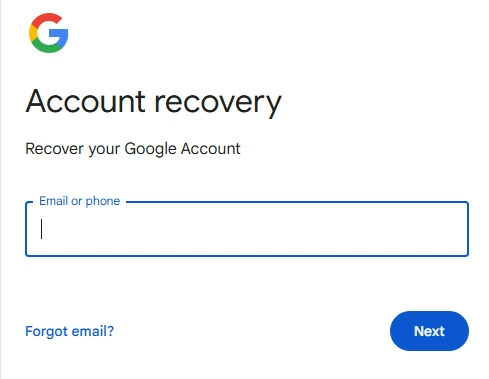
1. Open a web browser on your computer or phone and navigate to the official Google Account Recovery portal.
2. Enter the Gmail address associated with the locked tablet.
If you cannot remember the exact email address, click on "Forgot email?" or "Find your email" and input the recovery phone number or secondary recovery email address associated with the account.
3. Google will present several verification options based on how your account security was originally configured, including Two-Factor Authentication (2FA), Security Questions, or Recovery Email.
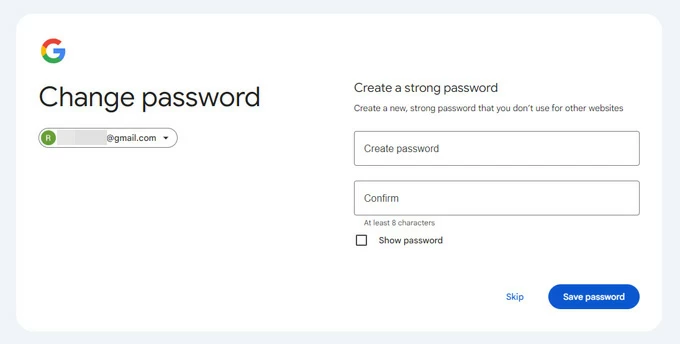
4. Once you successfully change your password through the recovery portal, do not attempt to log into the locked tablet immediately. Google implements a strict security cooling-off period (historically known as the 24-hour rule, though it can vary between 24 to 72 hours depending on your device manufacturer and security policy).
If you attempt to get past the FRP locked tablet with a freshly changed password too quickly, the device may reject it as a suspected unauthorized access attempt. Allow the security window to pass, then power on the tablet, connect to Wi-Fi, and enter the new credentials.
See also: How to bypass iPhone unavailable screen
Utilizing OEM-Specific Device Verification Tools
Many prominent Android tablet manufacturers (such as Samsung and Lenovo) implement their own layers of cloud-based security alongside Google's default Factory Reset Protection. If your device is bound to an official manufacturer account, you may have alternative verification options.
Samsung Tablets (SmartThings Find / Samsung Account)
If you own a Samsung Galaxy Tab, the device is likely linked to both a Google account and a Samsung Account. Do the following to bypass your tablet FRP lock.
1. If you previously enabled Remote Unlock inside the tablet's biometrics and security settings, navigate to the SmartThings Find website on a computer.
2. Log in with your Samsung Account credentials.
3. Select your locked Galaxy Tab from the device list.
4. If the device is turned on and connected to a cellular or Wi-Fi network, click the Unlock icon. This will remotely clear all screen lock and account verification states on the tablet.
Lenovo and Other Major Vendors
For other manufacturers, software suites like the Rescue and Smart Assistant (RSA) tool for Lenovo devices can help clear, diagnose, or cleanly reflash authorized firmware on tablets when configuration conflicts arise. Download the official tool from the vendor's support site to a Windows PC, connect your tablet via an official USB cable, and follow the guided prompts to authenticate device ownership, bypass the FRP screen on tablet, and recover system functionality safely.
Official Manufacturer Support and Proof of Purchase
If you have completely lost access to your Google account, cannot recover the credentials via web forms, and possess no alternative cloud management options, the final legitimate path is to leverage manufacturer intervention.
Because FRP is designed to prevent theft, manufacturers will not bypass this FRP without ironclad documentation. You must present:
1. The physical tablet displaying the blocked screen.
2. The original retail receipt or carrier contract clearly displaying the device's unique IMEI or Serial Number.
3. A valid government-issued photo ID matching the name on the receipt (if applicable).
If you can provide this documentation, authorized service centers or corporate support teams can utilize proprietary service tools to clear the hardware-backed secure storage partition containing the FRP cryptographic key. After the FRP lock is bypassed on your Android tablet, you then can use it as normal.
Third-party Android FRP Bypass Tool
If everything above doesn't help you bypass the FRP screen, you will want to use a third-party tablet FRP bypass tool. When searching the internet for solutions to an FRP lock, you will encounter hundreds of video tutorials, and forum posts promoting third-party utility software or complex button-pressing sequences designed to bypass the Android FRP lock screen.
Our favorite is Higospot Android Unlocker. It is a powerful desktop utility designed to remove any format of screen lock—including Face ID, fingerprints, password, PINs, and patterns—across thousands of Android models. Better yet, it features automated system detection to safeguard your device from bricking during the process, and smoothly bypasses a stubborn Google Account Verification (FRP) after a factory reset.
It's one of the safest, most efficient self-help tools to rescue your Android phone and tablet and start fresh in minutes.
Win Download
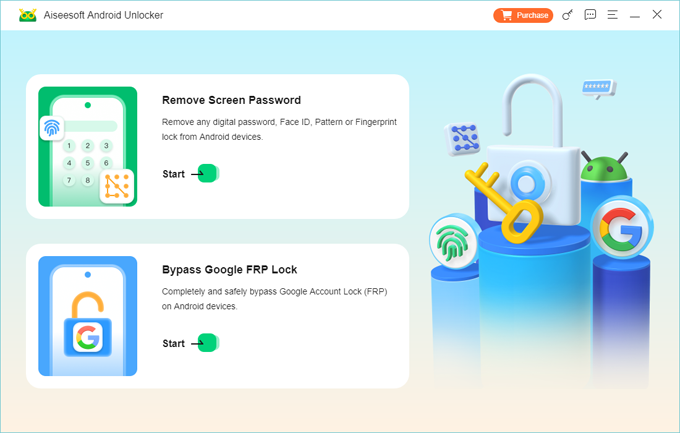
Step 1. Launch Android Unlocker
Launch Android Unlocker on your computer. Choose the "Remove Google FRP Lock" option on the main interface, then connect your locked Android tablet to the computer using a reliable USB cable.
Step 2. Select brand
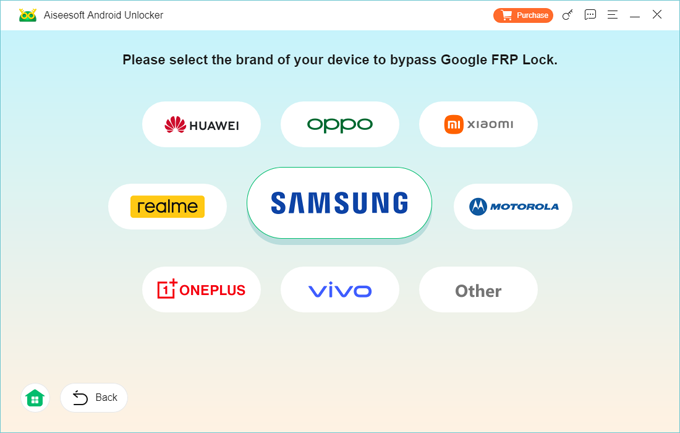
The software will attempt to auto-detect your device brand. If prompted, manually select your brand (e.g., Samsung, Xiaomi, Oppo). For example, if you're bypassing FRP lock on a Samsung Galaxy Tab S11, here pick Samsung.
Step 3. Trigger the exploit mode
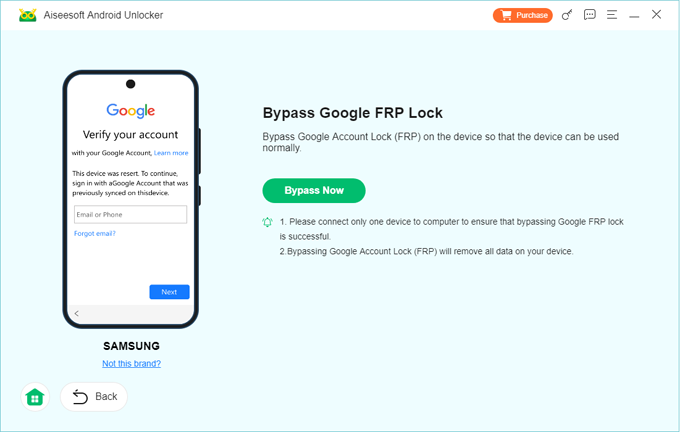
Click "Bypass Now" button on the screen.
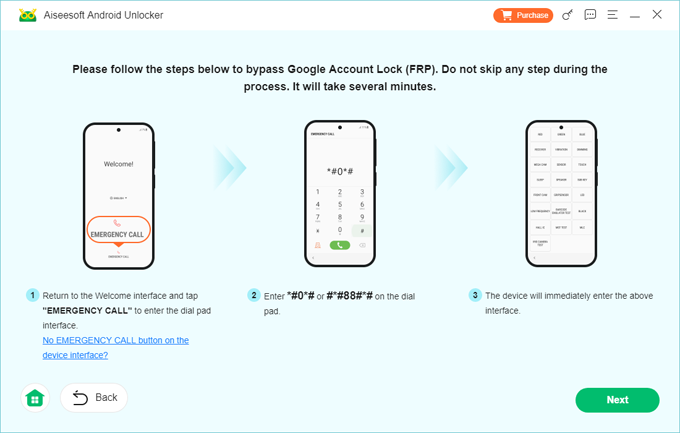
Next, follow the onscreen prompts and use your device's dialer to enter a specific service code (like *#0*# for Samsung diagnostics mode) to allow the tool to interface with the operating system.
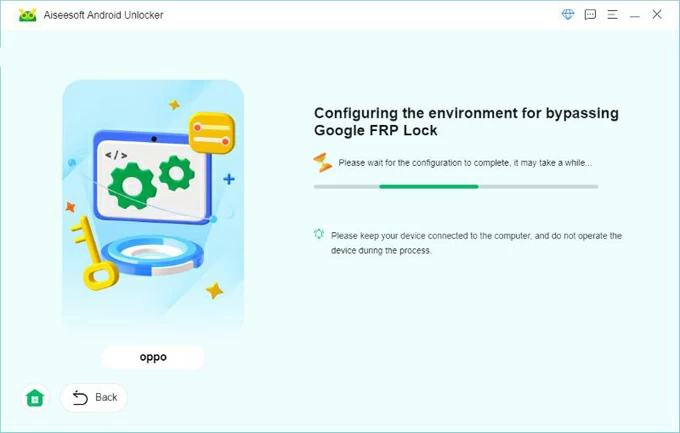
Wait for the Android tablet unlocker tool to configure the necessary environment.
Step 4. Bypass FRP lock tablet
The software will execute the script and display a progress bar. Your tablet may automatically restart during this process.
Once the tool displays the "Successfully Bypassed Google Account Lock (FRP)" message, disconnect the device and proceed through the initial setup wizard, sign in with your new account when you reach the Google login screen.
See also: How to unlock Android without password
How to Properly Disable FRP Before Resetting Your Tablet
The most effective strategy against FRP complications is proactive management. If you plan to sell, gift, trade in, or perform a troubleshooting reset on your Android tablet, you must ensure that Factory Reset Protection is completely disabled beforehand.
To do this, you must explicitly remove all linked Google accounts from the operating system while the device is fully unlocked and functional. Follow these steps:
1. Open the Settings app on your tablet.
2. Scroll down and select "Accounts and Backup" (or "Passwords & Accounts," depending on your vendor's software skin).
3. Tap on "Manage Accounts."
4. Locate the primary Google account (and any secondary Google accounts) listed. Tap on the account name.
5. Tap the "Remove Account" button. Confirm the choice when prompted.
6. If prompted, enter your current lock screen PIN, password, or biometric pattern to authorize the removal.
Once the account is removed, your will no longer encounter FRP lock that's needed to bypass on the Android tablet after reset. You can now safely navigate to System > Reset > Factory Data Reset to wipe the tablet cleanly. When the tablet reboots, it will boot directly into a fresh setup wizard without asking for previous account credentials.
Conclusion
Factory Reset Protection is an invaluable security asset that ensures your private data remains protected should your Android tablet ever fall into the wrong hands. While encountering the lock screen unexpectedly can be inconvenient, resolving it safely relies entirely on utilizing Google's official account recovery path, manufacturer remote access options, authorized support channels or third-party tablet FRP bypass app. By ensuring you remove accounts before performing maintenance resets and keeping your recovery information updated, you can benefit from robust security without the risk of accidental lockouts.
FAQs
- Can I bypass FRP by wiping the device via Recovery Mode?
- No. Wiping user data via the recovery menu (using the hardware Power and Volume buttons) is precisely the action that triggers FRP. The protection mechanism is designed to remain intact across hardware-initiated resets.
- Will installing a new ROM or firmware clear the lock?
- Flashing official firmware will generally not remove the FRP lock because the block resides in a separate, dedicated persistent storage partition that is untouched during standard OS re-flashes. Attempting to flash unofficial or modified ROMs on a locked bootloader can result in a permanently bricked device.
- Can I bypass tablet FRP without using a computer?
- On older operating systems, manual bypasses using system glitches—such as using TalkBack shortcuts, accessibility menus, or tapping shared links to force open a web browser—were common. However, on tablets running modern versions of Android, these software loopholes have been patched. Present-day lock removal usually requires an external PC connection via ADB command sequences or specialized utility software.
- Does a factory reset delete all my data if FRP is active?
- Yes. The data partition containing your photos, apps, and personal documents is erased during the factory reset. The FRP lock simply prevents you from using the freshly wiped device until proper account ownership is verified.
About Mark Anderson
Mark is a passionate content creator with years of experience in technical field. He has written a variety of niches and always shares a unique insight into the world of Internet & technology.

 iPhone UnlockerRemove iPhone & iPad lock screen
 iPhone Data TransferTransfer and manage your iPhone & iPad data
 Android UnlockerRemove Google FRP lock and bypass screen locks
 iPhone Data RecoveryRecover deleted files from iPhone, iPad
 Location ChangerFake a GPS location easily
 Video DownloaderDownload videos from 1000+ sites