How to Put Music onto iPhone Without iTunes: Drag-n-Drop Supported
iTunes' complexity, slow speed, and restrictive ecosystem make it a poor choice for transferring music to iPhone. Thankfully, alternatives exist that are faster, simpler, and far more flexible.

Katrin Gray
Updated on Mar 4, 2026
iTunes once ruled the music transfer world when it comes to transferring music to an iPhone, but today it's more of a burden than a blessing. While it served its purpose in the early days, many users now find iTunes outdated, restrictive, and overly complicated. If you have thousands of songs stored on the PC and want to copy to your new iPhone without using iTunes to be able to have them on your playlist, you've come to the right place.
This article will walk you through why iTunes is no longer the best option, and show you how modern alternatives make transferring music to an iPhone effortless.
If you're looking for a way that's reliable and efficient, go with Higospot iPhone Data Transfer. Apart from traditional click-to-add functionality to import your music to iPhone, the tool supports drag-n-drop feature — helping you simply drag what tracks you want and drop them to your device. Best of all, the tool allows bidirectional transfer your songs, photos, videos and other media files. It also includes options to manage your personal information (messages, contacts, notes, etc.), making it a comprehensive iOS management tool.
The drawback of adding music to iPhone with iTunes
Before diving into alternatives, it's important to understand why you want to put music to iPhone without using iTunes:
- iTunes requires syncing your music between your iPhone and local library (all-or-nothing process), account verification, and multiple steps just to add a single song, creating a frustrating and unnecessarily drawn-out experience for the user.
- Syncing a large library of songs to iPhone can take a long time, and one mistake can wipe your existing playlists.
- You need to convert your incompatible music files into an iPhone's readable format before importing into iTunes
- Compared to modern apps, iTunes feels clunky and unintuitive.
- iTunes only allows one-way syncing (computer to iPhone). You need to resort to other services to transfer music from iPhone back to PC or Mac.
Unlike iTunes, which forces you to sync, modern tools give you more flexibility to accomplish the tasks. Below are alternatives to help you put music on iPhone without iTunes.
All-in-one file transfer software tool
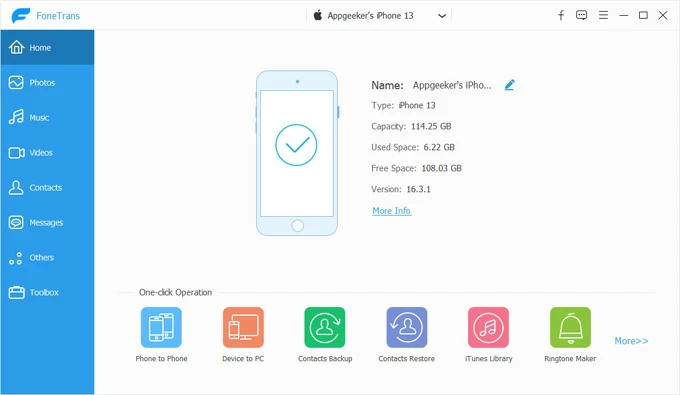
The first excellent iTunes alternative we will introduce is Higospot iPhone Data Transfer. It's an all-in-one data management solution designed to make transferring files between iOS, iPadOS, and computers seamless, and comes with a set of tools manage your media library of your device. Here're main features you may be interested:
- Eliminates the limitations of iTunes, avoiding the risk of losing playlists during sync
- Selectively transfer specific files to and from iPhone (bidirectional), such as music, photos, videos, podcasts, ringtones, etc.
- Simply drag and drop music files from your computer to your iPhone, or use traditional click-to-add button
- Integrates with iCloud, allowing users to manage cloud data
- Add music from any format, automatically convert incompatible files while transferring
- Optimized for speed, handling large libraries
- Designed with simplicity in mind—no hidden menus or confusing sync options.
- Back up messages, contacts, notes and other files locally
- Create, rename, or delete music albums/playlists, edit ID3 tags
- Move songs between albums or playlists, de-duplicate tracks
- Create custom ringtones from iPhone
- Works on both Mac and PC platforms
Adding music to iPhone without iTunes through Higospot iPhone Data Transfer is pretty simple and quick. Before doing the actual transfer, download the software on your either PC or Mac machine.
Win Download Mac Download
Here, we take a PC for example. Follow these steps to transfer music from pc to iPhone without iTunes.
Step 1. Run the software, then use a USB cable to connect the iPhone to your computer. Wait for it to detect your device.
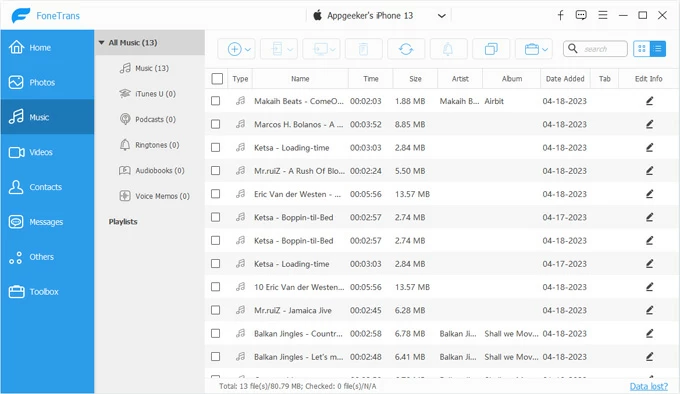
Step 2. Choose "Music" mode (see above) on the left sidebar. This will open your phone's music library, allowing you to manage and transfer files directly to and from your iPhone.
Step 3. To transfer music to iPhone without iTunes, browse your PC for the folder where are stored songs, select individual items and drag them to the specific album on your device.
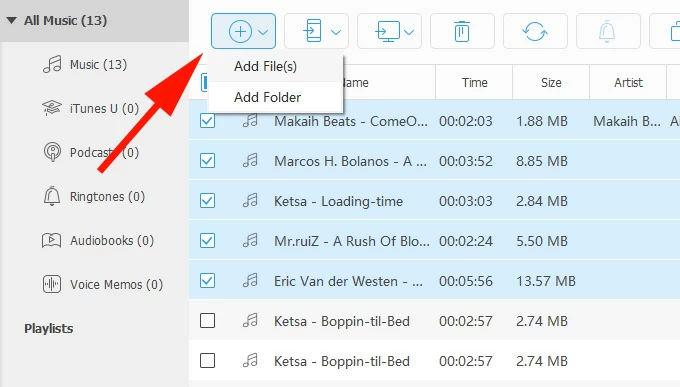
Alternatively, head to + > Add File(s)/ Add Folder at the top menu. You will then be prompted to import your music files from computer. Press OK.
That's it! Even non-technical users can add songs to their iPhones without stress. Unlike iTunes, you save time and avoid the frustration of losing existing playlists and songs. Adding songs becomes as easy as moving files one place to another.
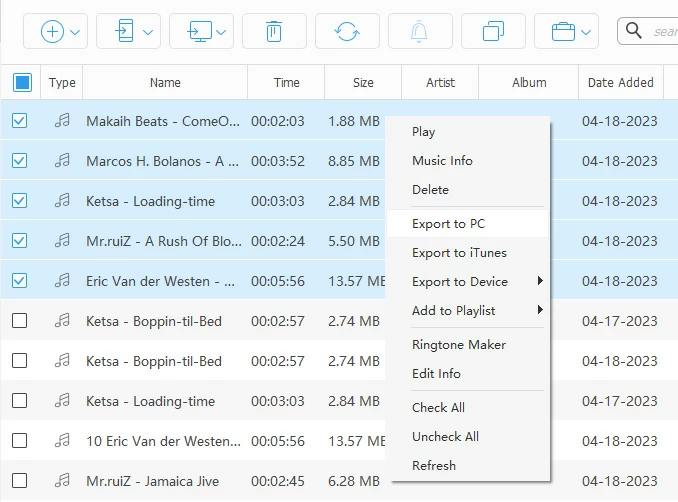
One of great thing of this software is that you can make use of its right-click context menu to manage and transfer your music.
Related: How to Transfer Videos from iPhone to PC
Cloud storage apps
This is the no-brainer choice if you regularly work in online cloud storage service. Many of them (Google Drive, Dropbox, OneDrive, etc.) let you upload your music to cloud. You simply install the corresponding app on your iPhone. Download or stream your songs directly. No iTunes involved. Even better, while iTunes is picky about file formats, online cloud services support MP3, FLAC, AAC, WAV, and more.
Here's how to transfer music from computer to iPhone without iTunes using cloud service.
1. Open Google Drive or any other popular similar app in your computer's browser.
2. Sign in with your Google account.
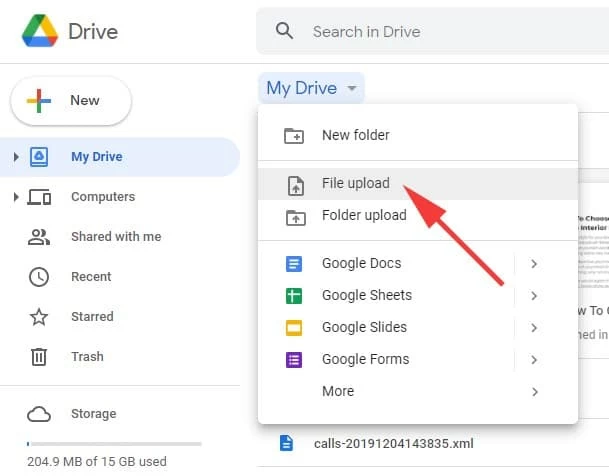
3. Click New > File Upload (or Folder Upload if you want to upload multiple songs).
4. Select the music files (MP3, FLAC, WAV, etc.) from your computer. Wait for the upload to finish.
5. Open Google Drive app on your iPhone. You may need to install it from the App Store if you haven't.
6. Sign in with the same Google account you used on your PC.
7. Open the app and navigate to the folder where you uploaded your music.
8. Tap on a song to play it directly in Google Drive.
If you want the songs available in your iPhone's Music app (not just in Google Drive), you may use a file manager or a third-party app like Documents by Readdle that can download from Google Drive and then save to your music library on the phone.
For those who want to add music to iPhone without iTunes wirelessly, cloud services would be a nice way to go. Instead, if you have a computer nearby, and want to drag and drop music to iPhone without iTunes, go with Higospot iPhone Data Transfer outlined above.
Related: Factory Reset iPhone without Password
Streaming apps with offline mode
Services like Spotify, YouTube Music, or Apple Music allow you to download tracks for offline listening on iPhone. While not technically transferring songs, this method ensures you have access to your favorite music files without iTunes.
1. Install the streaming app (Spotify, Amazon Music, Tidal, etc.) from the App Store.
2. Sign in with your subscription account.
3. Search for music you want to keep offline.
4. Tap the Download/Offline toggle. It is usually a downward arrow icon.
5. Your songs will be stored inside the app and available even without Wi-Fi or data.
Done! Instead of transferring songs to iPhone (without iTunes) manually, these apps let you download tracks directly within the app for offline listening.
Email or Messaging apps
This may be not a commonly used workaround, but if you just want to copy a handful of songs to your iPhone without using iTunes, you can take advantage of Email or Messaging app's transfer feature to send yourself the music files.
Use Email to add songs to iPhone without iTunes:
1. Open your email client (e.g., Gmail, Outlook, Hotmail).
2. Compose a new email to yourself, attach the music files (MP3, AAC, etc.). Make sure the total file size doesn't exceed your email provider's attachment limit (usually 20–25 MB per email).
3. Send the email to your own address.
4. Open Email on iPhone.
5. Open the email you sent to yourself, and open the attachment on your iPhone and save it. Songs will be stored in the Files app. One thing to be noted, songs can be played offline, but they won't appear in the native Music app.
Related: How to Recover iMessages on iPhone
Use Messaging app to put music on iPhone without iTunes:
1. Open the messaging app on your computer.
2. Start a chat with yourself.
3. Attach the music files and send them.
4. Install the same app on your iPhone, then open the chat where you sent the music files.
5. Download the songs to your iPhone.
FAQs
- Can I transfer music from PC to iPhone without iTunes?
- Yes. If you have a working cable, use third-party software such as Higospot iPhone Data Transfer; or upload music to cloud storage from your PC and access it on your iPhone.
- What is the easiest way to transfer music to iPhone without iTunes?
- It depends. Popular alternatives include Higospot iPhone Data Transfer, which supports drag-and-drop music transfer. If you want a wireless transfer, you can stick with Google Drive, Dropbox or other cloud services. Streaming apps also come with offline mode to playback music on the go.
- Can I use Apple Music to add songs without iTunes?
- Yes. If you subscribe to Apple Music, you can upload songs to your iCloud Music Library and access them directly on your iPhone without needing iTunes.
- Can I transfer music directly from iPhone to iPhone without iTunes?
- Yes. third-party transfer tools like Higospot iPhone Data Transfer allow phone-to-phone transfer. Simply connect two devices into computer, open the source phone's music library, select items, then export to another target device.
- Do I need to jailbreak my iPhone to copy music without iTunes?
- No. Jailbreaking is not required. Modern transfer tools and cloud services work seamlessly with standard iOS devices.
About Katrin Gray
Katrin Gray is the Junior Editor at HigoSpot. With a bachelor's degree in Computer Applications, he has been covering Microsoft Windows, Apple macOS, iOS, Android, Social Media, Gaming, and more as a professional writer for over 5 years.

 iPhone UnlockerRemove iPhone & iPad lock screen
 iPhone Data TransferTransfer and manage your iPhone & iPad data
 Android UnlockerRemove Google FRP lock and bypass screen locks
 iPhone Data RecoveryRecover deleted files from iPhone, iPad
 Location ChangerFake a GPS location easily
 Video DownloaderDownload videos from 1000+ sites