How to Bypass Unavailable iPhone
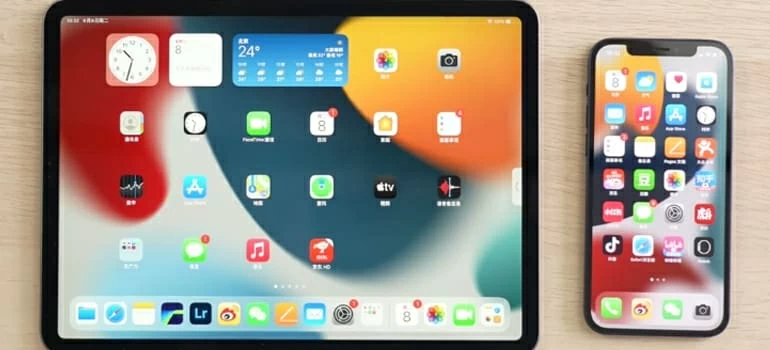
Forgot passcode for iPhone and now find yourself locked out of the device with iPhone Unavailable screen? We have details for bypassing unavailable iPhone screen using different options.

Katrin Gray
Updated on Mar 4, 2026
The "iPhone Unavailable" screen is one of the most jarring sights a modern Apple user can encounter. To understand how to bypass the iPhone Unavailable screen, one must first understand the state of iOS security.
When you set a passcode, you aren't just locking the screen; you are generating a unique cryptographic key. Every time you enter your passcode, the Secure Enclave verifies it. Because this happens at a hardware level, it is nearly impossible for hackers to brute-force their way in
The complication arises when the "unauthorized person" is actually you. The bad news is, if you forget your password and want to bypass an iPhone Unavailable screen, you must erase the device to reset the passcode, which wipes your local data totally.
Apple provides three official routes to bypass this lockout, depending on your iOS version and available hardware. There are third-party solutions available to use, something like the reputable Higospot iPhone Unlocker tool. Keep on reading.
The on-screen "Forgot Passcode?" feature (iOS 17+)
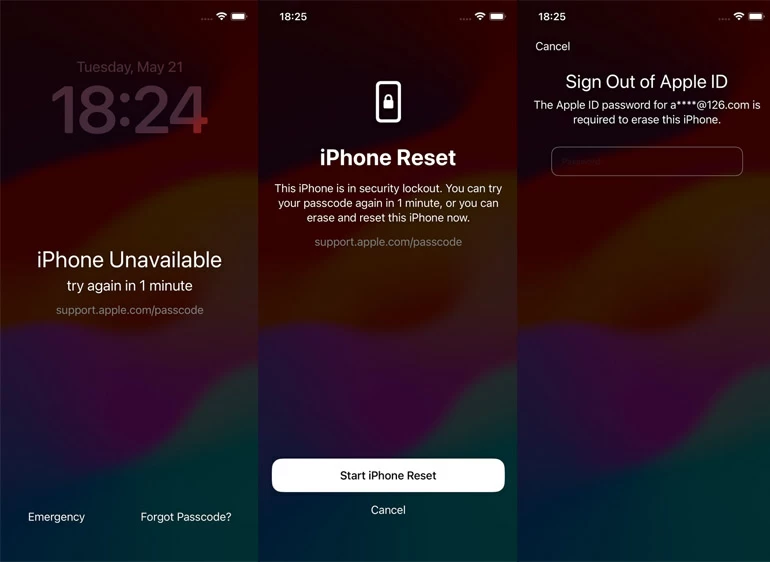
Since the release of iOS 15.2, Apple has provided a self-service way to reset a locked iPhone directly from the lock screen, provided the device is connected to a cellular or Wi-Fi network. While you see an "Erase iPhone" button on the black screen in iOS 15.2 to iOS 16, it has changed to "Forgot Passcode?" when iOS 17 released. Both do the same job.
Before diving into the process of bypassing iPhone unavailable, make sure:
- The device must be running iOS 15.2 or later.
- The device must have an active network connection.
- You must know your Apple Account and Password.
Steps to bypass "iPhone Unavailable" screen on iPhone:
1. Continue entering the wrong passcode until the "iPhone Unavailable" or "Security Lockout" screen appears.
2. On newer versions (iOS 17+), you will see Forgot Passcode? at the bottom corner. On older versions, it may say Erase iPhone.
3. ap the option. You will be warned that this will erase all content and settings.
4. Tap Start iPhone Reset to confirm.
5. Enter your Apple Account password to sign out of your account on the device.
6. The device will automatically erase itself completely and restart as a brand-new iPhone.
If you are running iOS 17 or later and you changed your passcode within the last 72 hours, Apple provides a "Passcode Reset" option that allows you to use your previous passcode to get back in. This is the only way to bypass the iPhone unavailable screen without a full wipe of your data.
See also: iPad Passcode Not Working
Using iCloud Find My feature
If the "Forgot Passcode?" button doesn't appear—which can happen if you aren't connected to the internet or if a specific software bug is present—you can trigger the wipe remotely using another device to bypass an iPhone Unavailable screen. This involves signing into iCloud and using its "Erase iPhone" feature.
You can do this from a PC, an Android phone, or an iPad:
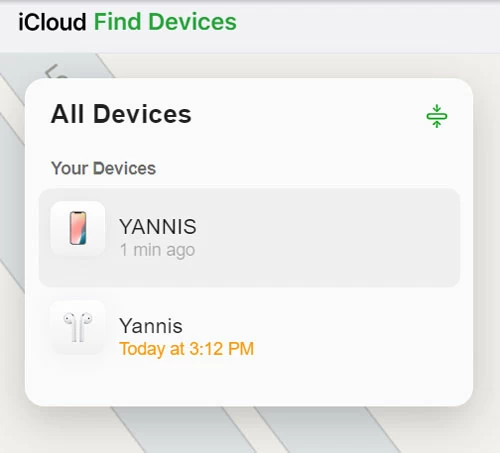
1. Go to iiCloud Find My page and sign in with your Apple Account and password.
2. Click on All Devices at the top of the screen.
3. Choose the specific iPhone you want to erase from the list.
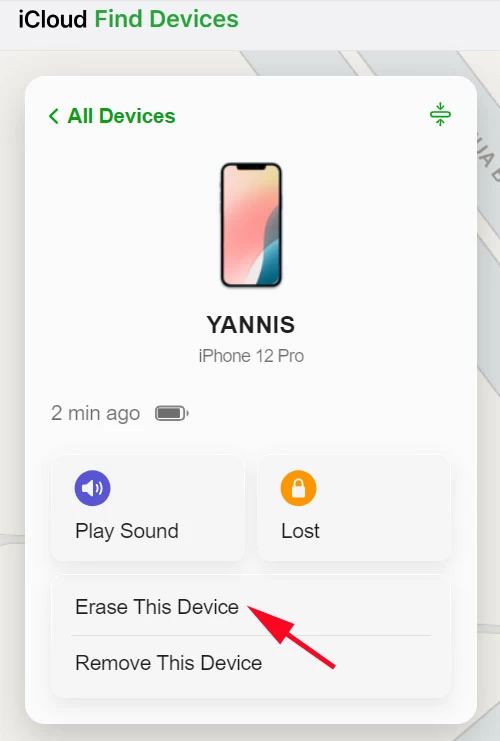
4. A window will pop up with a few options. Click Erase This Device.
5. You'll be asked to enter your Apple Account password again to verify it's really you. If the phone is lost, you can enter a phone number or message to be displayed on the screen after it's wiped. If you're just selling it, skip this.
6. If the unavailable iPhone is online, the erasure begins immediately.
Please note that erasing the iPhone to bypass unavailable screen does not remove Activation Lock from your Apple Account. It still stays on, meaning you have to enter your right password to set it up.
For devices running iOS 15 or later, you can actually still track the iPhone using the Find My network even after it has been erased.
See also: How to Transfer Photos from iPhone to Laptop
Reset with Higospot iPhone Unlocker
As the name implies, Higospot iPhone Unlocker is a comprehensive unlocking utility designed to help users regain access to their iPhones, iPads, or iPods when they are locked out due to a forgotten passcode, disabled screen, or the "iPhone Unavailable" message.
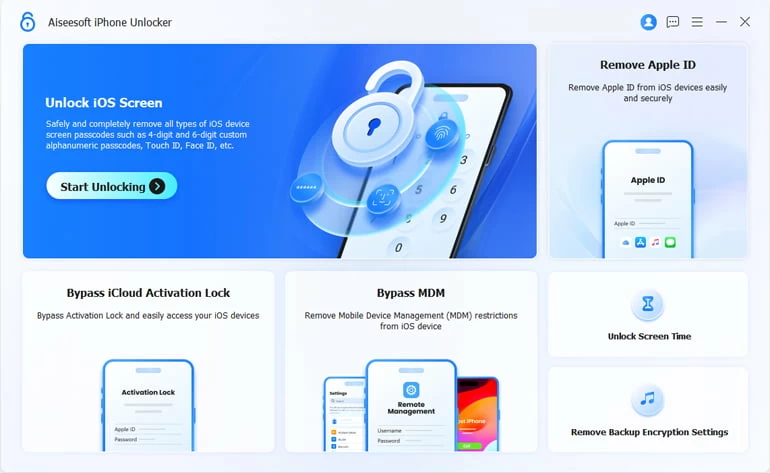
The software functions as a user-friendly alternative to manual Recovery Mode, allowing you to remove 4-digit or 6-digit passcodes, Touch ID, and Face ID with just a few clicks from a Windows or Mac computer. Beyond simple screen locks, Higospot iPhone Unlocker can also remove an Apple ID without a password, bypass MDM (Mobile Device Management) profiles, get rid of SIM card lock, and reset Screen Time passcodes without losing data.
Win Download Mac Download
However, it is important to note that while it provides a streamlined interface for bypassing iPhone unavailable screen, the process inherently involves a factory reset, resulting in the complete erasure of all local data unless a prior backup is available.
Here's how to bypass iPhone unavailable try again screen using Higospot iPhone Unlocker.
1. Open the software on your computer. From the main dashboard, select the big blue Unlock iOS Screen section.
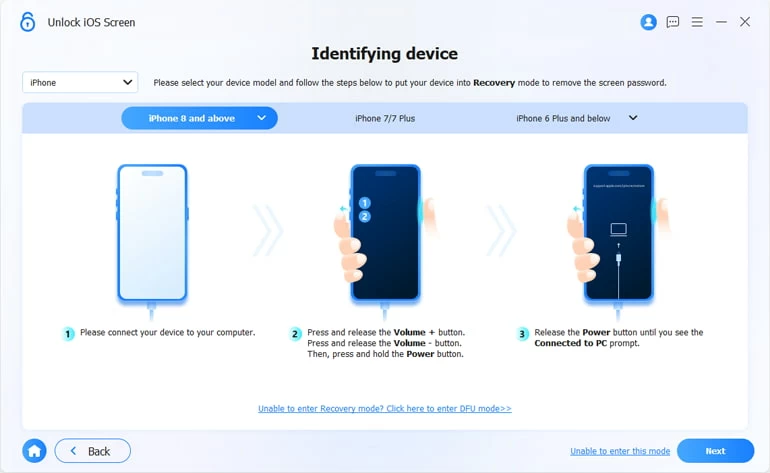
2. Connect your unavailable into the machine using your USB cable. Because your iPhone is on the "Unavailable" or "Security Lockout" state, the software might not detect it immediately. You will need to follow the onscreen prompts to let it identify the device manually.
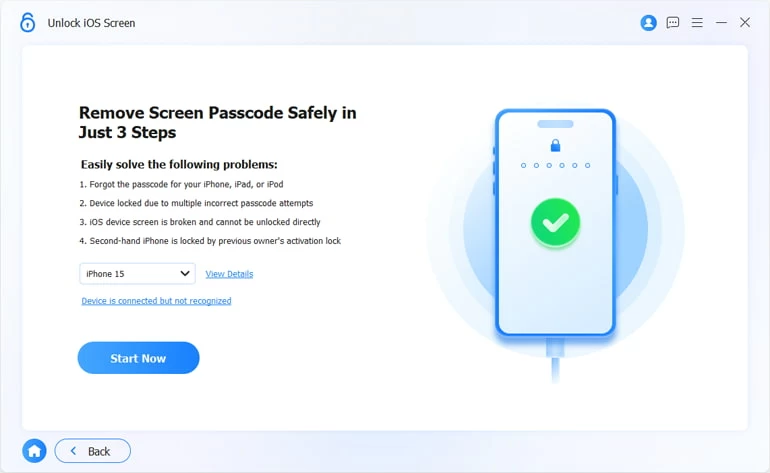
3. Once detected, it will show your device information and the matching firmware version.
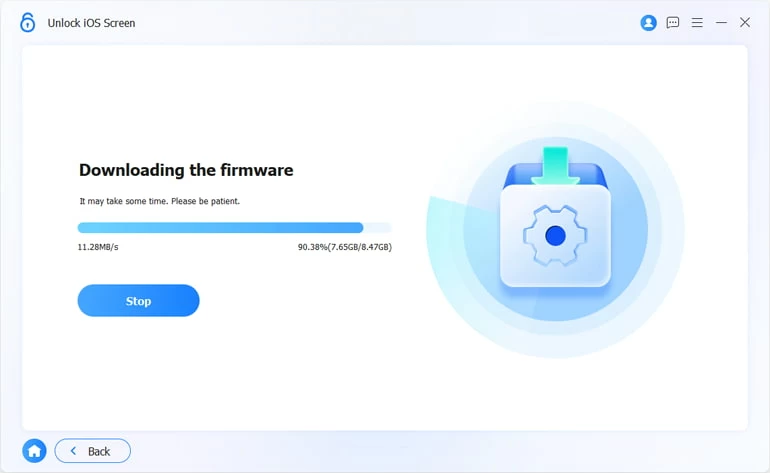
4. Click Start Now button to download the latest iOS firmware to reflash your device and remove the lockout screen. This may take some time depending on your internet speed as it is downloading the entire operating system.
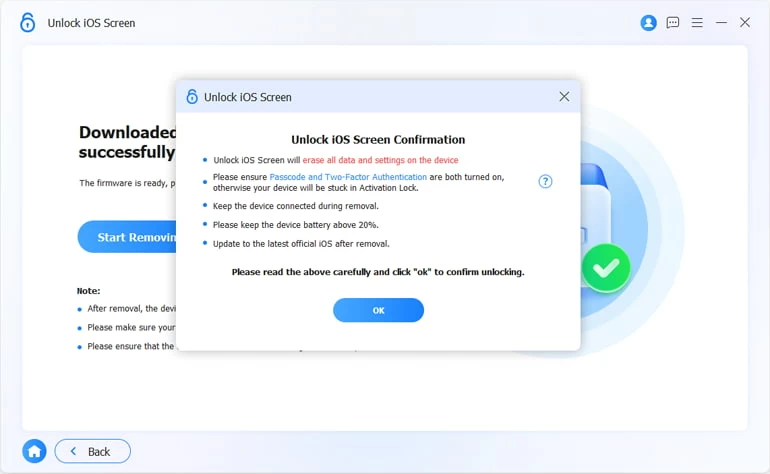
5. Once the download is complete, click Start Removing. After a confirmation of the warning message, the software will begin the process of wiping the iPhone and bypassing the screen lock.
After a few minutes, the software will display "Screen Lock Removed Successfully." Your iPhone will reboot to the Hello setup screen, allowing you to set it up again. During setup, choose "Restore from iCloud Backup" or "Restore from Mac/PC" to get your data back. If you do not have a backup, the phone will be as empty as the day you bought it.
See also: Messages Disappeared from iPhone
The nuclear option – Recovery Mode
Your last path to bypass iPhone unavailable try again screen is Recovery Mode. This requires a physical connection to a Mac (Finder) or a Windows PC (Apple Devices app/iTunes).
Note: This process will erase all data on the iPhone, but you can restore your data afterward from an iCloud or computer backup.
1. Powered down the iPhone completely.
- iPhone 8 and later, SE (2nd/3rd gen): Press and hold the Side button and the Volume Down button until the power-off slider appears. Slide to turn it off.
- iPhone 7 and 7 Plus: Press and hold the Side button until the power-off slider appears.
2. Hold the specific button for your model listed below.
- iPhone 8 or later (including SE 2 & 3): Side button
- iPhone 7 and 7 Plus: Volume Down button
3. Immediately plug the iPhone into the computer while still holding that button.
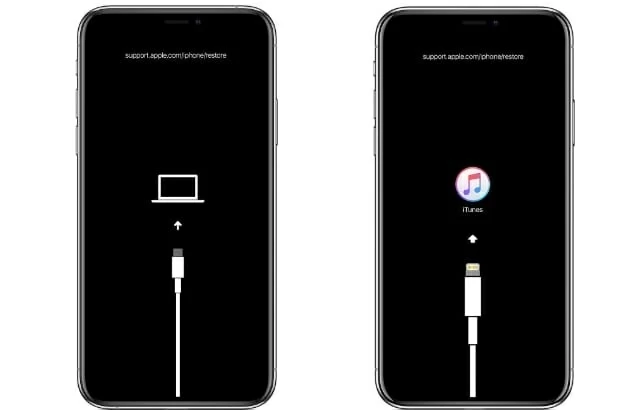
4. Keep holding until you see the Recovery Mode screen (a picture of a cable pointing toward a computer or a laptop icon)
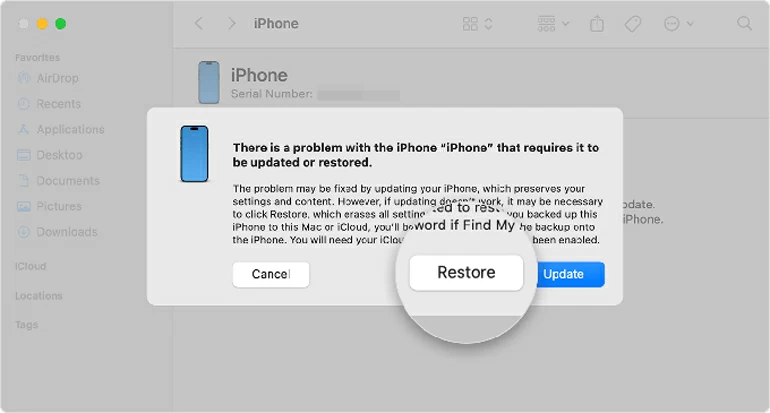
5. Now, look at your computer screen. A pop-up should appear in Finder or iTunes saying, "There is a problem with the iPhone that requires it to be updated or restored."
6. Select Restore. (Do not choose Update, as that won't bypass unavailable screen).
7. The computer will download the software for your iPhone and reset it automatically, wiping the lock screen in the process.
8. Once the process finishes, the iPhone will restart and show the Hello setup screen. Do the usual setup process and restore your data from iCloud backup or computer.
About Katrin Gray
Katrin Gray is the Junior Editor at HigoSpot. With a bachelor's degree in Computer Applications, he has been covering Microsoft Windows, Apple macOS, iOS, Android, Social Media, Gaming, and more as a professional writer for over 5 years.

 iPhone UnlockerRemove iPhone & iPad lock screen
 iPhone Data TransferTransfer and manage your iPhone & iPad data
 Android UnlockerRemove Google FRP lock and bypass screen locks
 iPhone Data RecoveryRecover deleted files from iPhone, iPad
 Location ChangerFake a GPS location easily
 Video DownloaderDownload videos from 1000+ sites