How to Fix iPhone Passcode Not Working
Your iPhone passcode won't work, or you bought a second-hand device and don't know what the screen lock passcode is? Here are fixes to restore the phone to working.

Katrin Gray
Updated on Jun 5, 2026
Imagine this: you pick up your iPhone, muscle memory kicks in, you tap out those four or six digits, and... nothing. The screen shakes. "Incorrect Passcode." You try again, slower this time. Still nothing. By the third or fourth attempt, the dread sets in. Your digital life—photos, messages, banking, and that one specific meme you saved for a rainy day—is sitting behind a glass wall that suddenly refuses to let you in.
f your iPhone passcode is not working, you aren't just dealing with a minor tech glitch; you're facing off against one of the most robust mobile security systems on the planet. Now, Let's break down exactly why this happens and, more importantly, how you can get back into your device when the passcode on iPhone won't work.
For those who are looking for a quick way to unlock the iPhone when you really forgot the passcode, check out Higospot iPhone Unlocker. It's a desktop based tool that's specifically designed for removing all screen locks, Apple accounts, bypass MDM and more.
How the Passcode Works
When you enter your passcode, it isn't simply checked against a file stored on the phone. Instead, it is used to derive a cryptographic key. If that key matches the one needed to decrypt your data, the phone unlocks. This is why, after a restart or a certain amount of time, Face ID won't work—the phone literally needs your passcode to re-unlock the encryption keys for your files.
Normally, this process is invisible and instantaneous. You tap, it opens. You go about your day. However, security protocols are designed to be fail-closed. This means if anything—software or hardware—goes slightly askew, the system defaults to "Locked" to protect your privacy from potential bad actors.
Why is my passcode not working on my iPhone
It's incredibly frustrating when you're certain of your passcode but the phone just won't accept. There are a few specific reasons why is your iPhone passcode not working that range from simple glitches to complex hardware bugs.
Software Glitches: Sometimes, the authentication service in iOS simply crashes. This is especially common after a software update.
"Ghost Touch" or Screen Sensitivity: Even a tiny smudge of oil or moisture can cause the phone to register a "double tap" on a number you only pressed once.
The Apple Pay / Wallet Reset: In recent iOS versions, setting up a new Apple Card or a transit card sometimes triggers a security refresh.
Corrupted Security File: If your iPhone was low on storage when it last backed up or updated, the file that stores your encrypted passcode may have become corrupted.
We will tackle this problem in four distinct stages. Start at the simplest restart and move down the list only if the previous step fails.
See also: How to Transfer Photos from iPhone to Laptop
The Soft Fix – Force Restart
Sometimes, when you find the iPhone passcode is not working, the issue isn't your passcode; it can be caused by a software bug following an update or a failing digitizer. A force restart clears the temporary memory (RAM) and resets the hardware controllers without deleting any of your data.
If you are 100% certain you are entering the right code, but the iPhone refuses it, do a force restart:
Force Restart iPhone 8 and Later
1. Press and quickly release the Volume Up button.
2. Press and quickly release the Volume Down button.
3. Press and hold the Side button (the power button).
4. Keep holding even when the "Slide to Power Off" slider appears. Only let go when you see the Apple Logo.
If the screen's touch sensitivity was lagging or a background process was hanging the security check, a force restart resets that process. Once the phone reboots, try your passcode again to see if it works.
Use "Forgot Passcode?" feature (iOS 15.2+)
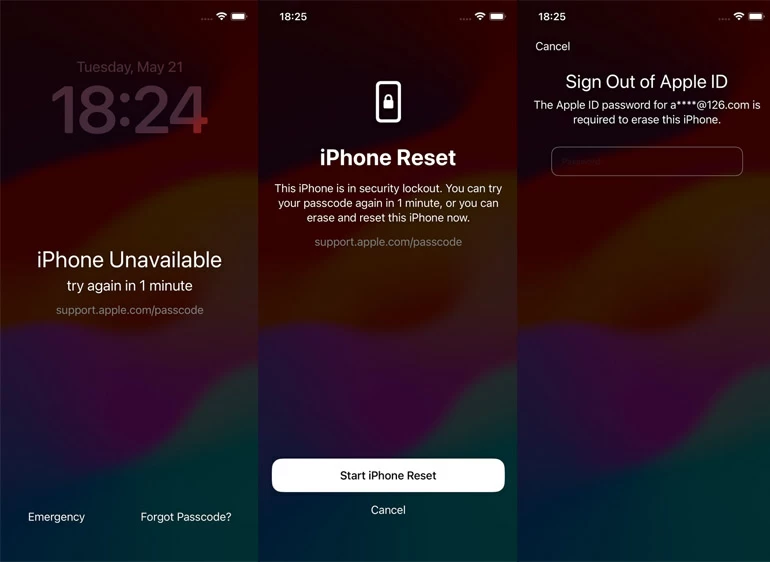
If you see iPhone Unavailable or Security Lockout screen after several incorrect attempts, Apple has introduced a much more user-friendly way to handle lockouts that doesn't require a computer. Keep in mind that the process will solve the "passcode not working on iPhone" but also reset your iPhone and erase all your data.
The Requirements:
- Your device must be connected to a cellular or Wi-Fi network.
- You must know your Apple ID and password.
How to fix iPhone passcode not working:
1. Keep entering the wrong passcode until the "iPhone Unavailable" or "Security Lockout" screen appears.
2. Tap Forgot Passcode? (or "Erase iPhone" in some versions) at the bottom of the screen.
3. The device will warn you about data loss. Tap Start iPhone Reset to confirm that you want to reset the device.
4. Enter your Apple ID password to sign out of your account on the device.
The iPhone will begin erasing itself. Once finished, it will restart as a brand-new device, allowing you to restore your data from an iCloud backup.
See also: How to Recover Deleted Messages on iPhone
Use Recovery Mode
Even if "Forgot Passcode?" option isn't appearing when your iPhone passcode not working suddenly, you can bring in the reinforcements: a computer (Mac or PC) to reset your iPhone. Here's how to do.
Tip: If you're running a PC, install iTunes or Apple Devices app firstly.
1. Power the phone down completely.
2. Enter Recovery Mode: This requires a specific button combination while plugging the phone into the computer.
- iPhone 8 and newer: Press and hold the Side button while immediately connecting your phone to the computer. Don't let go!
- Keep holding until you see the Recovery Mode screen (an image of a computer and a cable).
3. Open Finder (Mac) or the Apple Devices app/iTunes (PC). Select your iPhone.
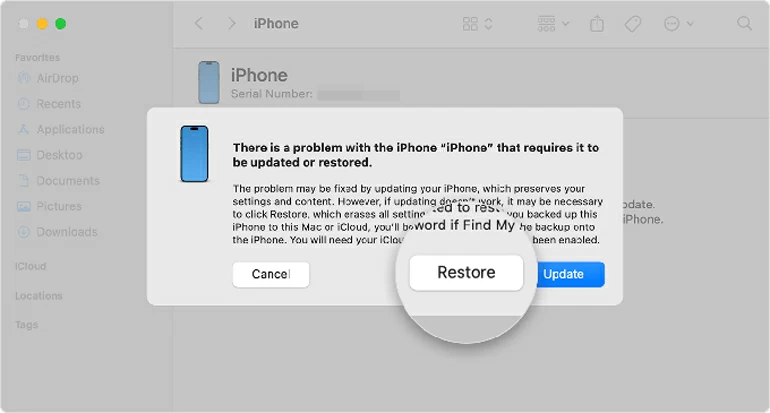
4. A window will pop up asking if you want to Update or Restore. Select Restore. This will download the latest iOS and wipe the device clean.
After the restore, your iPhone should open without any passcode. You can now follow the prompts on the screen to set it up again and, restore data if you have a backup either on iCloud or iTunes.
Use iPhone Unlocker software
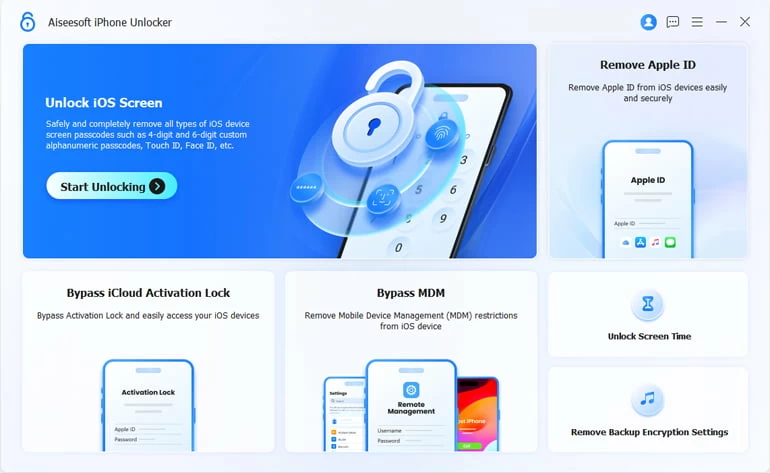
If all fail, you can resort to a dedicated third-party screen unlocking software application to help you out. Here we take a reputable tool called Higospot iPhone Unlocker as an example. It can get rid of different of screen locks on both iPhone and iPad devices.
Install the software on your PC or Mac.
Win Download Mac Download
Follow these steps to unlock your iPhone when your passcode is not working on the iPhone.
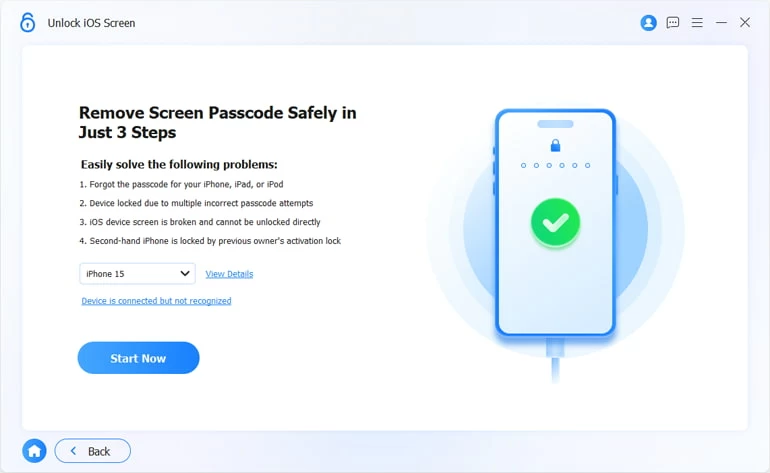
1. Once opened, you'll see several options; select the primary feature: Unlock iOS Screen.
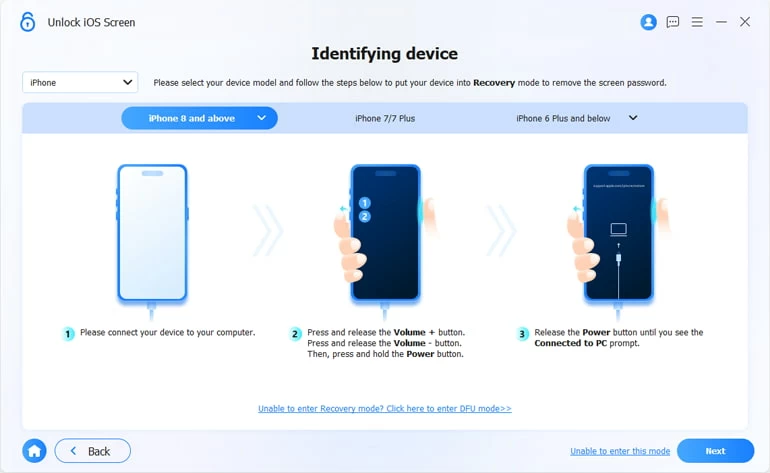
2. If the software doesn't detect your device immediately, you may need to follow the onscreen instructions to put the iPhone into recovery mode, followed by Next.
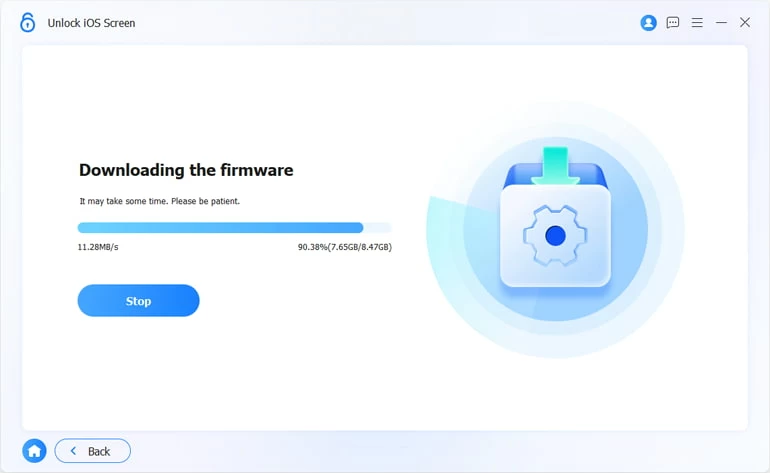
3. The software will automatically identify your iPhone model and the required iOS version. Click Start Now to download the firmware package. Ensure you have a stable internet connection, as these files are typically several gigabytes in size.
You can monitor the firmware download process.
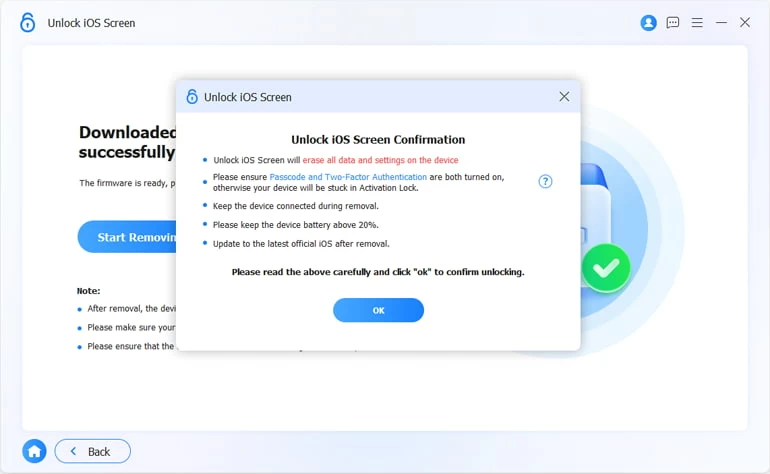
4. After the download is complete, click Start Removing. Confirm when a warning dialog box opens.
Do not disconnect your iPhone during this stage. Your iPhone will likely show a progress bar or the Apple logo while the software works its magic.
Once the screen says "Removed Successfully," your iPhone will reboot to the "Hello" setup screen. Follow the on-screen instructions on your iPhone to set it up. When you reach the Transfer Your Apps & Data screen, you can choose to "From iCloud Backup" or "From Mac/PC" to get your files back.
See also: iPad Security Lockout
Conclusion
Finding that enter iPhone passcode is not working is a stressful, high-stakes situation. However, the system is working exactly as designed—it is protecting your data from unauthorized access, even if that "unauthorized" person happens to be you.
By starting with a Force Restart, moving to the "Forgot Passcode?" on-screen prompt, and finally utilizing Recovery Mode, you can almost always regain access to the hardware. The key takeaway, however, is the vital importance of the "Data Loss" warning. In the world of high-level encryption, a backup isn't just a luxury; it's your only safety net.
About Katrin Gray
Katrin Gray is the Junior Editor at HigoSpot. With a bachelor's degree in Computer Applications, he has been covering Microsoft Windows, Apple macOS, iOS, Android, Social Media, Gaming, and more as a professional writer for over 5 years.

 iPhone UnlockerRemove iPhone & iPad lock screen
 iPhone Data TransferTransfer and manage your iPhone & iPad data
 Android UnlockerRemove Google FRP lock and bypass screen locks
 iPhone Data RecoveryRecover deleted files from iPhone, iPad
 Location ChangerFake a GPS location easily
 Video DownloaderDownload videos from 1000+ sites