iPad Passcode Not Working? Here're Fixes
Your iPad is not accepting the passcode after restart or update? You're not alone. This post lists some of the tried and tested things you can do when you find your iPad passcode won't work.

Katrin Gray
Updated on Jan 19, 2026
Few things are frustrating as trying to log into your iPad with the passcode, only to find that it's not accepting. This problem can stem from a few issues, ranging from simple wrong input to hardware failures. Identifying the source of a problem is the essential prerequisite for any effective solution
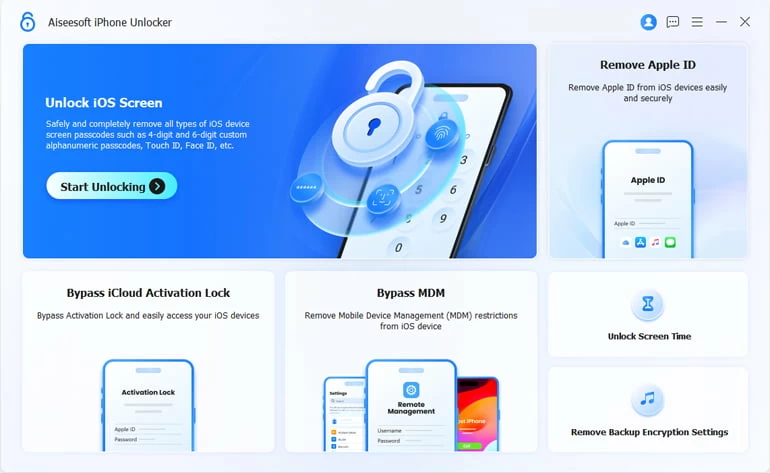
This guide will walk you through the reasons your iPad password is not working and provide clear, actionable fixes to regain access to your device. If you just forgot your passcode and are locked out of the iPad, you may use Higospot iPhone Unlocker to quickly unlock the device. This tool also works when the passcode doesn't working on iPad after a software update or restart.
Before You Start
To resolve the issue efficiently, you must first distinguish between physical hardware defects and logical software conflicts.
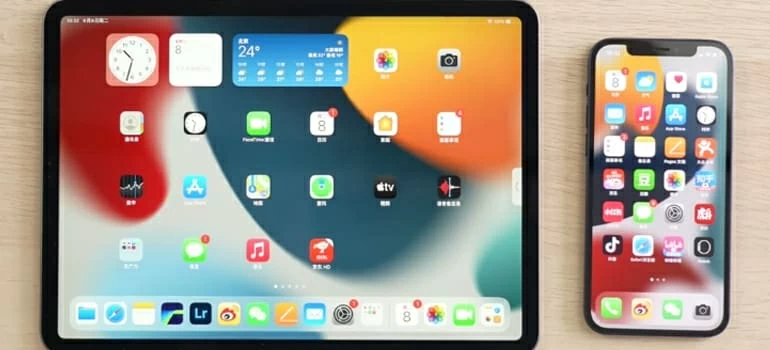
Try force-restart
Begin by checking if the iPad is completely unresponsive to input - or that the iPad won't accept your Passcode? If your iPad fails to respond, connect it to the power adapter and allow it to charge. While maintaining the power connection, initiate a forced restart
If your iPad passcode isn't working, force-restarting always fixes temporary glitches.
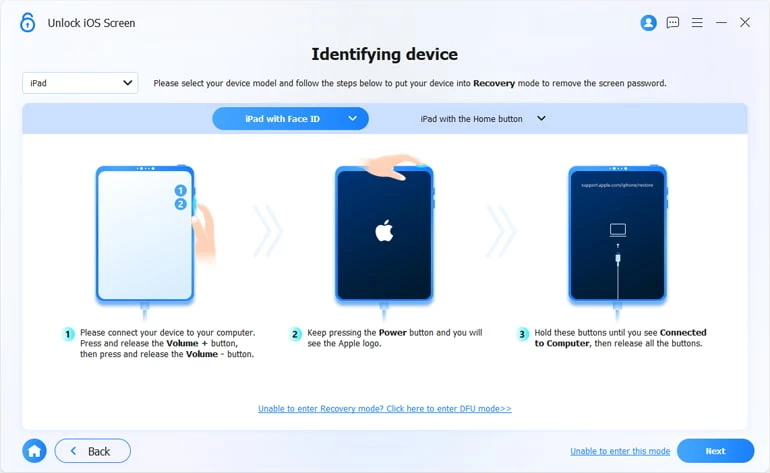
For an iPad with Face ID: Quickly press and release Volume Up, quickly press and release Volume Down, then press and hold the Top Button until the Apple logo appears.
For an iPad with Home button: Simply press and hold the Side and Home buttons at the same time until you see the Apple logo on the screen.
If your iPad passcode still doesn't work after restart, continue the investigation.
Check passcode
Make sure that you are entering the correct passcode to unlock the iPad.
Check for lockout
If your iPad is not working because the device indicates that it is unavailable or security lockout, it may be a result of the wrong passcode entered too many times. You can wait and enter the correct passcode when an associated waiting period with a countdown on the screen expires, Otherwise, you need to erase and restore the iPad, which results in data loss but allows setup with a new passcode. There is no way to recover your data unless a backup is available.
Related: How to Unlock Android without Password
Erase iPad with Recovery mode
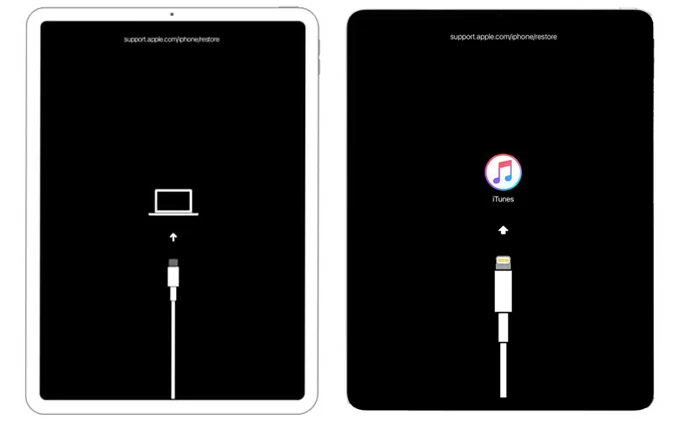
This is necessary if your iPad says unavailable or security lockout and passcode is not working. Recovery mode is built in all iPadOS versions, allowing you to restore the iPad and erase all data, including the passcode.
First of all, plug your iPad into a Mac or PC, then follow the steps to solve the "iPad won't accept passcode" problem.
1. For an iPad with Face ID, quickly press and release Volume Up, quickly press and release Volume Down, then press and hold the Top Button a few seconds until you see Apple logo on the screen; for an older iPad with Home button, press and hold the Side and Home buttons simultaneously instead.
2. When recovery mode screen appears – a computer/cable icon, release the button.
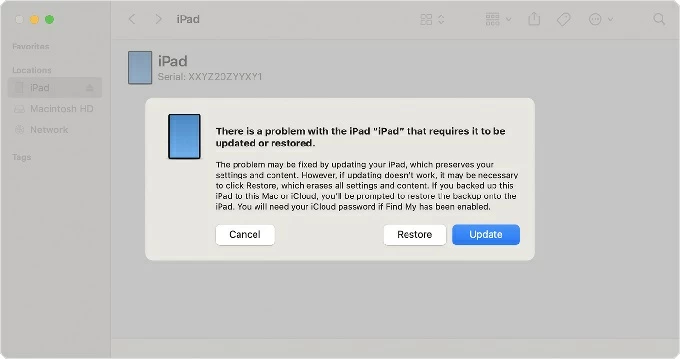
3. Launch Finder app on your Mac (or iTunes on PC), select Restore iPad. This will initial a process of erasing the device and restore it to factory defaults.
4. Follow prompts to set up the iPad as new or restore from a backup.
5. If necessary, set a new passcode to protect the device.
Related: How to Bypass iPhone Passcode
Erase from Lock Screen (iPadOS 17+)
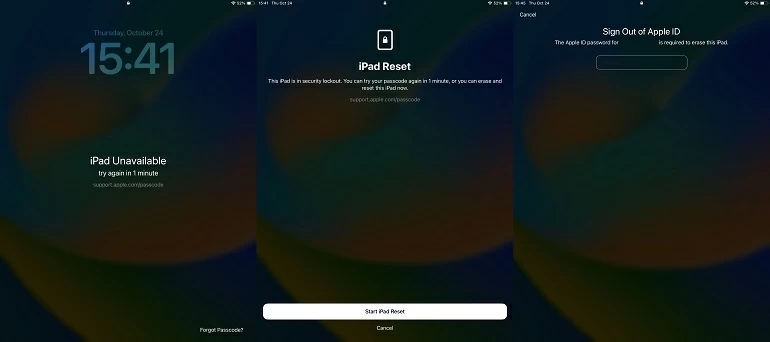
A new iPadOS update enables a direct reset path: if your iPad doesn't unlock with the passcode, you can now bypass the traditional recovery mode by authenticating with your Apple ID. On iPadOS 17 and newer, Apple introduces "Forgot Passcode?" option on the lockout screen to factory reset the iPad.
Make sure your iPad is connected to Wi-Fi or cellular data.
1. Enter incorrect passcodes until you reach Security Lockout screen.
2. Tap Forgot Passcode? when it appears at the bottom. If you don't see it, or it doesn't respond, try the next method.
3. Select Start iPad Reset.
4. Enter your Apple ID password to confirm your identity. This will also sign out of your account.
5. Wait for it to erase the iPad and delete data and settings.
Erase with the third-party tool
Third-party tools, like Higospot iPhone Unlocker, are essential for unlocking your iPad when the device won't let you enter passcode, especially if your iPad isn't connecting to a network or has an old software version.
Despite the name, iPhone Unlocker works for removing lock screen on both Apple iPhones and iPads, regardless of the version of model. With its easy-to-use user interface, you can erase the iPad that's not accept passcode easily. The product is packed full of other features to take care of your device, including Apple ID removal, Screen Time passcode reset, MDM bypass, and much more.
Free Download Free Download
Here are steps to erase an iPad when passcode is not working.
1. Open the software and select the "Unlock iOS Screen" tool.
2. Connect your iPad to the computer via USB and follow the on-screen guide to put your iPad into Recovery or DFU mode. This usually involves a specific combination of the Power and Volume/Home buttons.
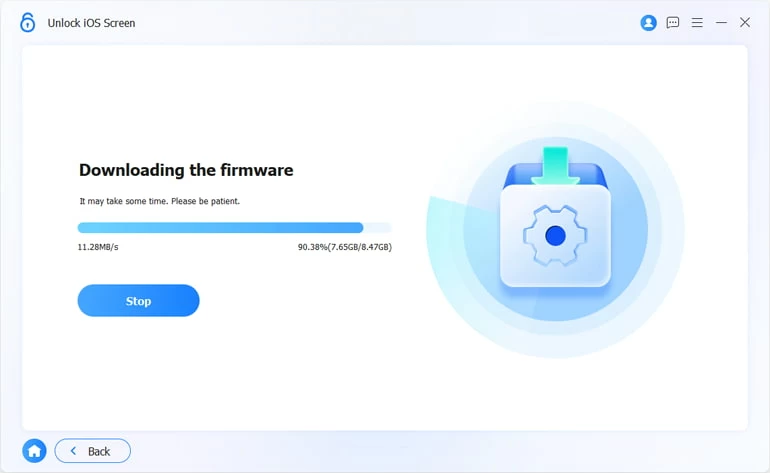
3. Once detected, the software will prompt you to download the firmware for your specific iPad model. Click "Next."
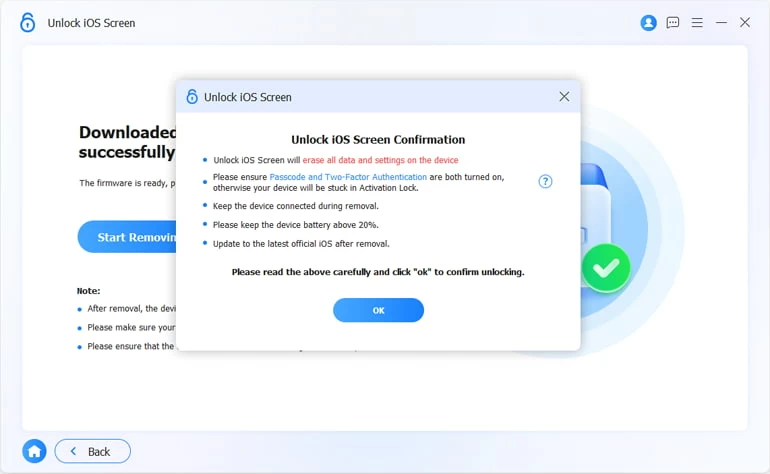
4. After the download, it will display a warning that removing the lock screen may erase data on most devices. Click OK to proceed. This step ensures the user understands the impact before continuing.
5. The software will wipe the iPad and remove the passcode.
If "Find My iPad" was active, you may encounter an Activation Lock screen after the reset. You will need the original Apple ID and password to bypass this and reactivate the iPad.
FAQs
- Why is my iPad passcode suddenly not working?
- Several issues can cause this, including: typing errors, a recent iPadOS update causing temporary glitches, touchscreen mis‑taps or unresponsive screen areas, a child or someone else entering the wrong passcode repeatedly, software corruption or system bugs.
- What should I do first if my iPad won't accept the passcode?
- Try these quick checks: Confirm you're using the correct passcode; restart the iPad; clean the screen to avoid ghost touches; try a different finger or angle when typing. If it still fails, you'll need to reset the device.
- How do I reset my iPad if it doesn't recognize my passcode?
- You can connect the iPad to a Mac or Windows PC and boot it into recovery mode to reset it or, tap the Forgot Passcode option on the lockout screen and follow the prompts to erase it completely.
- Why does my iPad keep saying the passcode is wrong after an update?
- Possible causes: Keyboard layout changes, touchscreen sensitivity issues, or software bugs. A forced restart often helps. If not, a full restore may be required.
- Can Apple unlock my iPad passcode?
- No. Apple cannot bypass or remove a passcode. They can only help you erase and restore the device.
About Katrin Gray
Katrin Gray is the Junior Editor at HigoSpot. With a bachelor's degree in Computer Applications, he has been covering Microsoft Windows, Apple macOS, iOS, Android, Social Media, Gaming, and more as a professional writer for over 5 years.

 iPhone UnlockerRemove iPhone & iPad lock screen
 iPhone Data TransferTransfer and manage your iPhone & iPad data
 Android UnlockerRemove Google FRP lock and bypass screen locks
 iPhone Data RecoveryRecover deleted files from iPhone, iPad
 Location ChangerFake a GPS location easily
 Video DownloaderDownload videos from 1000+ sites