How to Transfer Music from Windows 10 to iPhone: A Full Guide
Apple includes helpful tools like Apple Devices app, iTunes, or iCloud to help you move songs from Windows 10 to iPhone. There are a lot of dedicated tools for file transfers. Here's how.

Katrin Gray
Updated on Feb 3, 2026
Transferring music from a Windows 10 PC to an iPhone is a rite of passage for any music lover who refuses to let their carefully curated local library be swallowed by the ephemeral nature of streaming services. Whether you have rare live bootlegs, high-fidelity FLAC files converted to Apple Lossless, or just a decade's worth of MP3s, the bridge between Windows and iOS has evolved significantly.
For nearly two decades, iTunes was the only bridge. It was the gatekeeper for backups, music, movies, and podcasts. But now Apple has transitioned Windows users toward a "trio" of dedicated apps: Apple Music, Apple TV, Apple Devices. If you install the new Apple Music or Apple Devices apps, iTunes essentially "breaks" its music-syncing capabilities, forcing you into the new ecosystem.
In this article, we will walk you through the ways you can take to move music from a Windows 10 PC to an iPhone, ranging from the modern Apple Devices app or the classic iTunes, reputable third-party tools like Higospot iPhone Data Transfer, and to Apple's iCloud.
Using Apple Devices app or iTunes
Depending on your preference for modern modularity or classic familiarity, there are two primary paths to help transfer music from a Windows 10 PC to an iPhone.
Via Apple Devices app
This is the recommended path for Windows 10 users today. It utilizes the Apple Devices app, which is faster and more lightweight than its predecessor.
Steps to transfer music to iPhone with Apple Devices app:
1. Install Apple Music and Apple Devices apps on your Windows 10 machine if you haven't. Apple Music is used for managing the exist music folder, while Apple Devices app is responsible for syncing with iPhone.
2. Connect your iPhone to your PC.
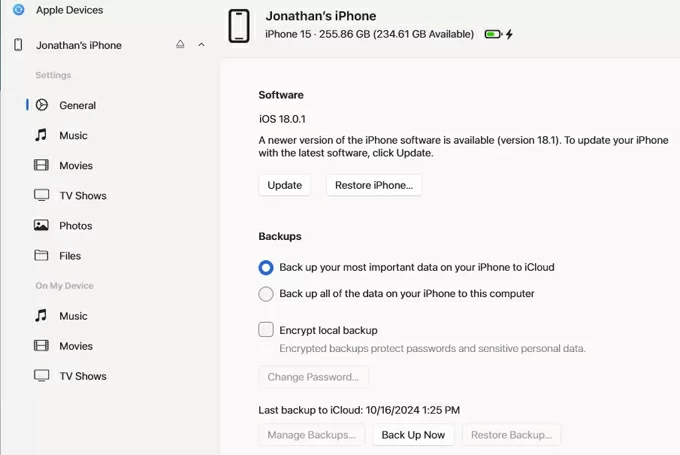
3. Open the Apple Devices app, and select your iPhone from the sidebar.
4. Click on the Music tab in the left sidebar of the main window.
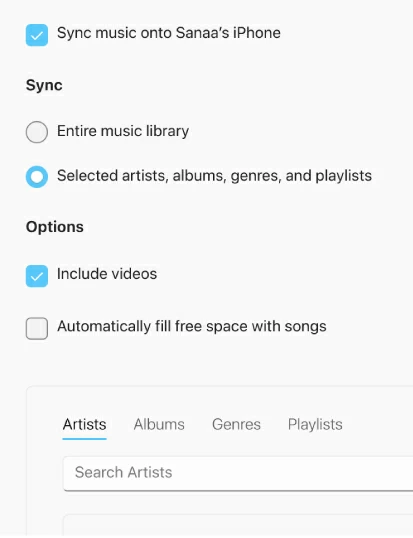
5. Check the box that says Sync music onto [Your iPhone's Name].
6. Choose from Entire music library or Selected artists, albums, and playlists.
7. Click Apply in the bottom right corner to begin transferring songs from Windows 10 to iPhone.
Tip: If your album art is missing after a sync, right-click the album in the Apple Music app and select "Get Album Track Info" or "Add Artwork." Ensure that the "Album Artist" field is filled out; Windows sometimes splits a single album into ten different "artists" if there are guest features, leading to a cluttered iPhone library.
Related: How to Factory Reset iPhone When Locked
Via iTunes (the classic approach)
If you prefer the "all-in-one" feel or have an older library setup that you are afraid to mess with, iTunes is still an option—provided you haven't installed the new Apple Music/Devices apps.
1. Open iTunes and connect your iPhone.
2. Go to File > Add Folder to Library to import your music.
3. Click the Device icon near the top left.
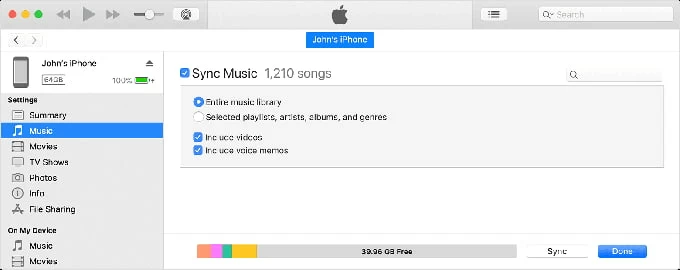
4. In the left-hand sidebar under Settings, click Music.
5. Check the box for Sync Music, then choose from Entire music library or Selected playlists, artists, albums, and genres.
6. Click Apply (or Sync) in the bottom-right corner.
Note, If you use Apple Music, ensure "Sync Library" is turned OFF in your iPhone settings if you want to manually move files from your PC. You cannot easily do both simultaneously.
Using third-party tool - drag & drop, no iTunes overwrite, full device management
If you're looking for a more straightforward and easy way, obviously, third-party tools like Higospot iPhone Data Transfer offer more flexible options. Unlike iTunes, which syncs music to your iPhone and replaces the existing library, instead, these tools treat your iPhone like a USB drive. You can directly drag music, photos, and videos onto your iPhone or through "Add" feature without restrictions. What's more, They help you pull songs (photos, or videos) off your iPhone back onto a computer.
Win Download Mac Download
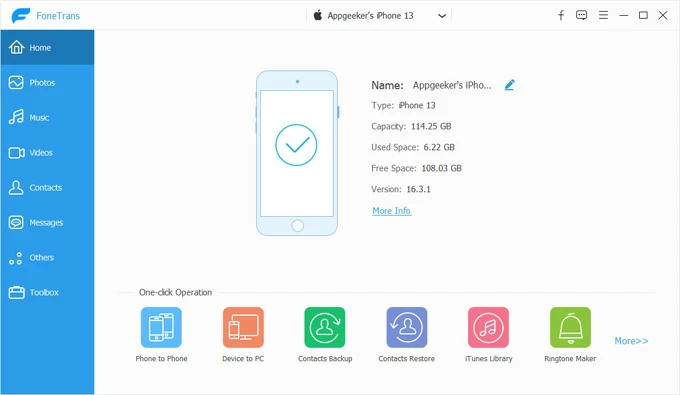
Here is the step-by-step guide to moving your music from Windows 10 to your iPhone. First of all, Install iPhone Data Transfer on your Windows 10 PC or Mac, then connect your iPhone.
1. Launch the tool. You should see your iPhone's name and storage info on the dashboard.
2. Click Music on the left sidebar to open your phone's music library.
3. Open folder where contains songs you want to transfer to your iPhone on your Windows 10 PC, then drag songs to the tool's window. It allows for simple drag-and-drop.
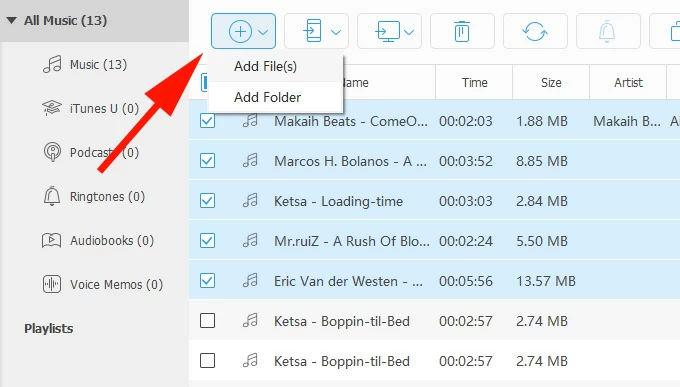
Alternatively, click the large "Add" icon in the top of the window. A File Explorer window will pop up. Browse to your music folder, select the songs or folders you want, and click Open.
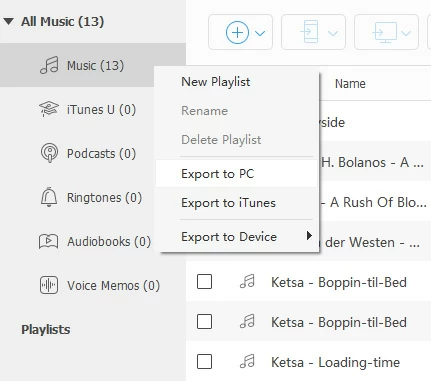
Tip: you can even create a new playlist to store those new imported songs by right-click on the album list in the left side pane.
Wait for the transfer to finish. Once done, open the Music app on your iPhone to find your tracks.
Benefits of using iPhone Data Transfer
- No library overwrite
- Transfer media files to and from iPhone
- You can edit metadata and playlists.
- Works across multiple computers without forcing a single library.
Related: How to Transfer Photos from iPhone to External Hard Drive
Using iCloud
Transferring music to iPhone from your Windows 10 via iCloud can mean two different things depending on whether you want the songs to appear in your native Music app or if you just want to access the Files on your phone.
To get your MP3s appeared in the iPhone Music app alongside your other albums, follow these steps:
1. On your Windows 10 PC, open Apple Music App.
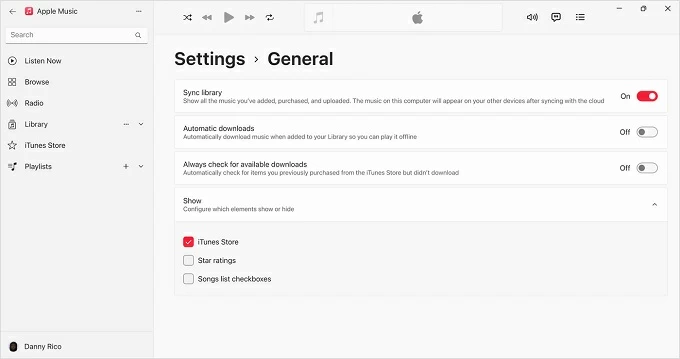
2. Click your name at the bottom of the sidebar, go to Settings, and toggle on Sync Library. Make sure you're an Apple Music subscriber.
3. Wait for the Updating Cloud Music Library progress bar to finish. This uploads your unique songs to Apple's servers.
4. On your iPhone, go to Settings > Music.
5. Turn on Sync Library.
6. Open the Music app. Your songs will start appearing in your Library. Tap the Cloud icon next to a song to download it for offline listening.
Related: iMessages disappeared from iPhone
You can also use iCloud to transfer your music from Windows 10 to iPhone. Note that these songs will live in the Files app, not the Music app.
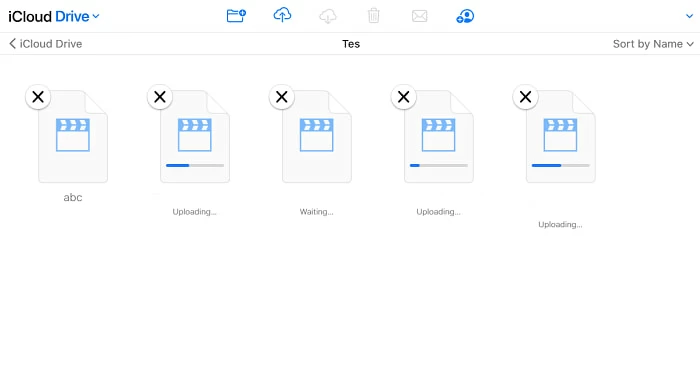
1. On your Windows 10 PC, open a browser and go to iCloud.com, then sign in with your Apple account.
2. Click on the iCloud Drive icon.
3. Drag and drop your music files from your computer folder directly into the browser window.
Alternatively, if you have the iCloud for Windows app installed, simply copy-paste your music into the "iCloud Drive" folder in your File Explorer.
4. On your iPhone, Open the Files app.
5. Tap Browse at the bottom, then select iCloud Drive.
6. Find your music. You can tap a song to play it directly.
If you want a better experience, download a free 3rd-party player like VLC. It can detect your iCloud Drive folder and play the music with better controls (playlists, EQ, etc.) than the basic Files app.
Conclusion: your Music, your Way
Whether you embrace the new Apple Devices app, cling to the reliable iTunes, resort to a third-party tool, or using Apple's cloud service, the process of transferring music from a Windows 10 to an iPhone is about taking ownership of your digital media.
By choosing the right method, you ensure that your commute is always soundtracked by exactly what you want to hear, not just what an algorithm suggests.
About Katrin Gray
Katrin Gray is the Junior Editor at HigoSpot. With a bachelor's degree in Computer Applications, he has been covering Microsoft Windows, Apple macOS, iOS, Android, Social Media, Gaming, and more as a professional writer for over 5 years.

 iPhone UnlockerRemove iPhone & iPad lock screen
 iPhone Data TransferTransfer and manage your iPhone & iPad data
 Android UnlockerRemove Google FRP lock and bypass screen locks
 iPhone Data RecoveryRecover deleted files from iPhone, iPad
 Location ChangerFake a GPS location easily
 Video DownloaderDownload videos from 1000+ sites