Forgot iPhone 17 Passcode? Here's How to Reset iPhone 17 to Regain Access
Forgot the passcode on iPhone 17 and being locked out? Discover official and secure methods to reset and unlock your iPhone 17 (Pro, Pro Max, Air) without the passcode you've forgotten.

Ajay Walmsley
Updated on Jan 5, 2026
Forgetting your iPhone 17 passcode can feel like a nightmare—especially in the situation where entering the wrong passcode too many times leaves the iPhone unavailable or security lockout. The good news?
A forgotten passcode on an iPhone 17 does not mean your device is permanently inaccessible or useless. Whether you simply can't remember the password you recently changed to, you're locked out due to too many failed attempts, or Face ID stopped working, the golden rule from Apple's latest security upgrades to unlock your iPhone 17 after you forget the passcode is to reset the device entirely, which erases all current data to be able to set up the phone again and create a new lock code.
Depending on whether you remember your Apple Account & Password, have access to a computer, or prefer a third-party tool - something like Higospot iPhone Unlocker, this guide will walk you through different ways to effectively handle a forgotten lock screen passcode and unlock iPhone 17, 17 Air, 17 Pro, or 17 Pro Max.
Table of Contents
What happens when you forget your iPhone 17 passcode?
When you set up your iPhone 17, you've enabled Face ID for convenience, but the passcode remains the ultimate fail-safe. It is required after every restart, after 48 hours of inactivity, or after five failed Face ID attempts. However, what if you're locked out and the 4-or 6-digit passcode for unlocking an iPhone 17 has been forgotten completely?
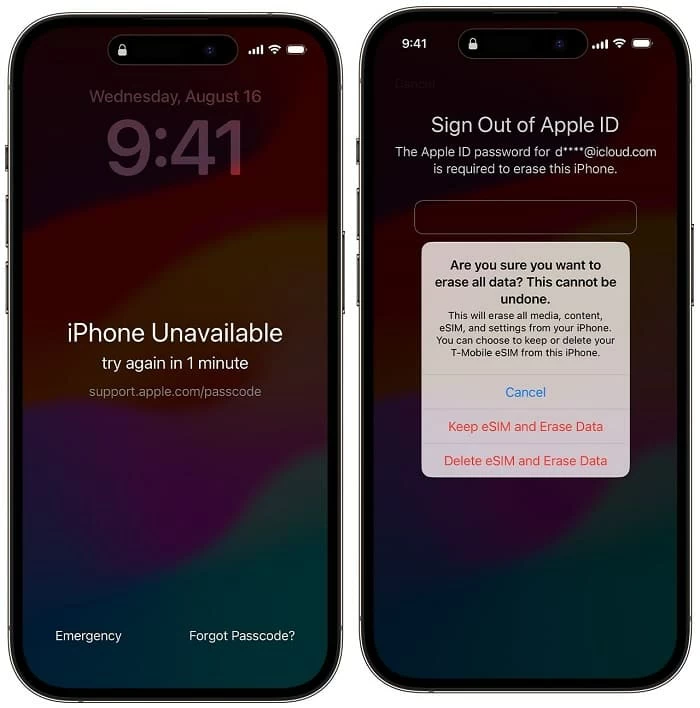
Don't worry. Apple's security protocols understand the pain of forgetting iPhone passcode, and has introduced a temporary lockout system presented as "iPhone Unavailable" or "Security Lockout" with Try again in [X] minutes on the locked screen (The lockout time will increase after each failed attempt, from 1 minute, 5 minutes, 15 minutes, 1 hour, 3 hours, and up to 8 hours.) This lets you access the iPhone 17 with the correct passcode if you still remember it - without needing to factory reset the device.
In case you completely forgetting your iPhone 17's screen password, or attempt the code incorrectly ten times, the device becomes permanently locked. There's no way to recover the forgotten passcode itself, but to fully erase the iOS device before it can be used again then restore data from a backup if you have one.
Proven ways to fix forgotten passcode and unlock iPhone 17
Can't remember your passcode on iPhone 17 Lock Screen? The goal is simple: fix "I forgot my iPhone passcode" issue and get back into your Apple iPhone 17. While a passcode reset involves wiping the device to its factory settings to ensure security, the best hope here is to unlock iPhone 17 safely, quickly, and with the best chance of data recovery.
If you have a recent iCloud Backup or a Mac/PC backup, you have nothing to worry about. You'll be back to your home screen with all your data and settings restored in no time. Below are the four most effective solutions to bypass the "forgot iPhone 17 passcode" hurdle.
Your secure, hassle-free solutions for a reset of iPhone 17 forgotten password will start with the Forgot Passcode option on the Lock Screen, recovery mode, iCloud, or third-party iPhone passcode unlocker. Let's dive in!
Solution 1- Reset iPhone 17 forgotten passcode using recovery mode
This is the official Apple-recommended method when you forget your passcode, or in the event that your iPhone 17 isn't connecting to Wi-Fi or the on-screen reset option aren't appearing. You can use a computer to enter recovery mode so you can restore the locked iPhone 17 to start over and remove the password you do not remember or not know at all.
To kick off the process of resetting your iPhone without a passcode, all you need is a Mac or Windows PC, latest version of Finder or iTunes or Apple Devices app, a USB-C for cable connection, as well as your Apple Account credentials after the reset. Here's how to reset an iPhone 17 and forgotten passcode with a computer via recovery mode.
1. Turn off iPhone 17 completely.
2. Connect one port of the data cable to the computer.
3. Put iPhone 17 into recovery mode.
- Press and hold the Side button.
- While holding the Side button, connect another port of the cable to your iPhone. This builds the connection between your iPhone 17 and the computer.
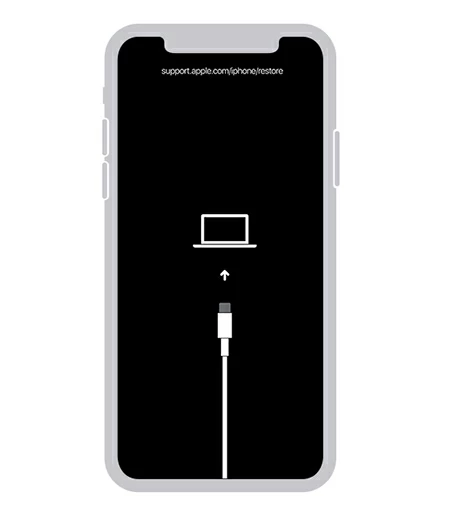
- Keeping holding the button until you see the recovery mode screen (a cable pointing toward a computer).
4. Once your iPhone is recognized by the computer, iTunes or Finder or Apple Devices app should open. If not, open the app manually.
5. Locate your iPhone 17.
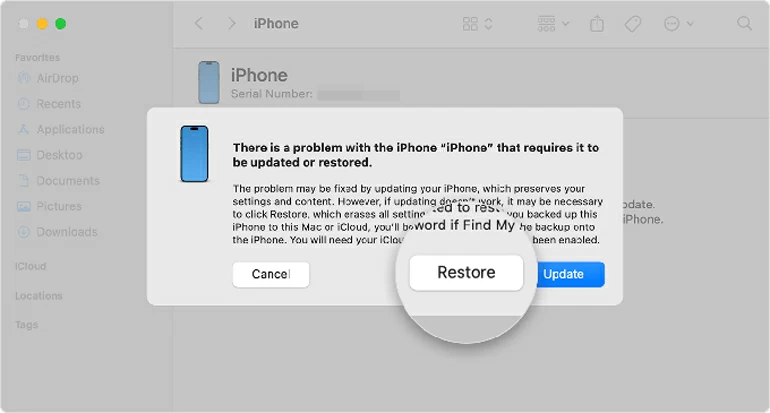
6. When you're asked to update to restore your iPhone, choose Restore button, followed by Update and Restore button.
Your computer will download the latest software for your iPhone 17 and then erase the device including the lock passcode. If the download takes longer than 15 minutes, your phone might exit recovery mode—just repeat the steps.
After iPhone 17 is restored, you can set it up from the scratch. During the setup, you can set up a new passcode, enable Face ID, as well as restore an available iCloud or computer backup to get your data back. "iPhone forgot passcode" problem has been solved.
Tip: Even Recovery Mode approach allows for resetting a forgotten iPhone passcode without Apple ID, you will have to log into the account that's associated to your iPhone 17 to fully access the device's functionalities.
Solution 2- Unlock iPhone 17 passcode after forgetting with Higospot iPhone Unlocker
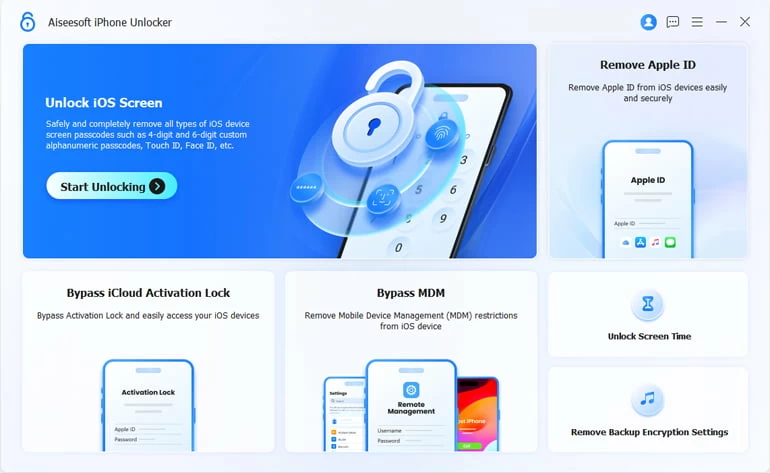
In case you have trouble of using Finder or iTunes's recovery mode, it's time to consider using Higospot iPhone Unlocker - an excellent alternative designed to unlock iPhone and bypass various kind of screen locks, including lock screen passcode, Touch ID, Face ID, Apple ID, iCloud Activation lock, screen password, MDM restrictions, and more.
The software simplifies the forgotten passcode removal iPhone 17 and other models. With its native "Remove iOS Screen" function, you can quickly reset the passcode when you forget it without needing your Apple Account, the internet connection and pre-enabled Find My iPhone feature, in an effort to open the locked device again.
Win Download Mac Download
Follow the step-by-step guide to use Higospot iPhone Unlocker tool on your computer and have your forgotten iPhone 17 lock screen password fixed.
Step 1. Launch iPhone Unlocker on your PC or Mac machine.
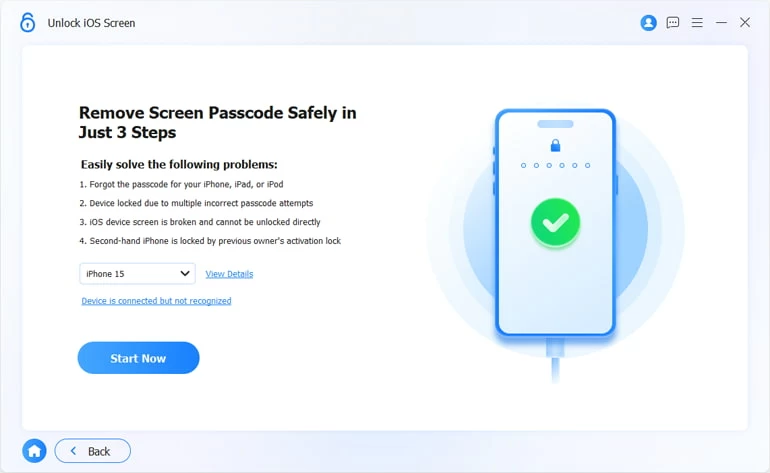
Step 2. On its main interface, choose Unlock iOS Screen mode.
Step 3. Plug your iPhone 17 into your computer using the lightning cable.
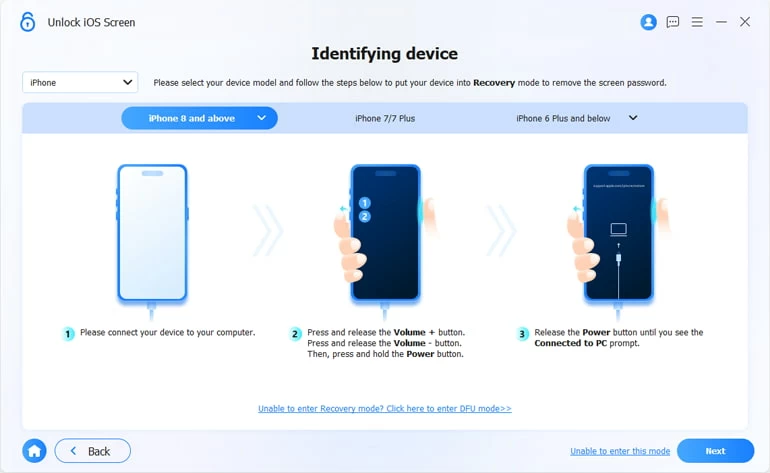
Since your iPhone 17 is locked down due to forgotten or unknown passcode, you'll be promoted to place your phone into recovery mode for a factory reset.
Step 4. When your phone is detected, click Start Now button.
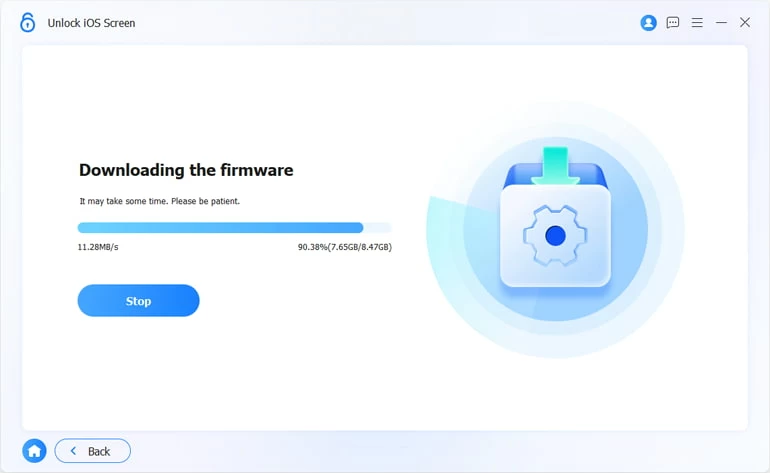
Similar to Apple's recovery mode, the utility starts downloading the most recent iOS software to unlock your iPhone 17 without passcode. This may take for a couple of minutes.
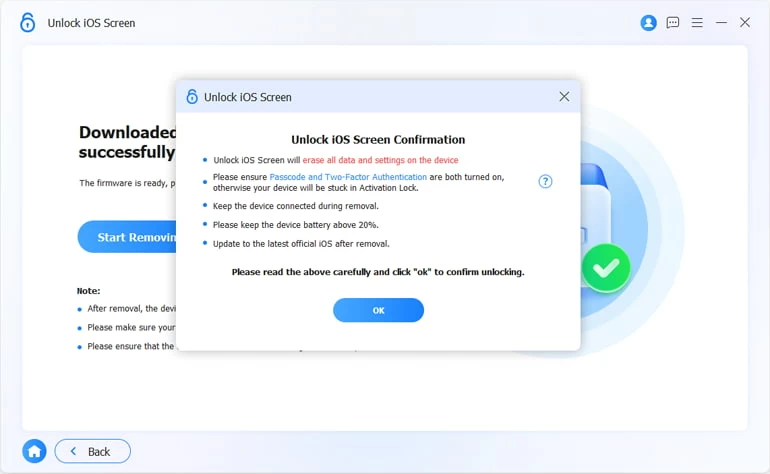
Step 5. After download, "Unlock iOS Screen Confirmation" notification pops up. Read the warning carefully and to confirm erasing your iPhone 17's passcode, click OK button, followed by Confirm Again button.
Your iPhone 17 will now go through a factory reset, erasing all content and settings including the passcode that you cannot remember and returning to an out-of-box state.
This way, you managed to get into your locked iPhone 17 even when you forgot the passcode without using iTunes. Continue to set up the device as new or restore from a backup and access iOS Home screen.
Related: Messages disappeared from iPhone. How to get back
Solution 3- Reset iPhone 17 if you forgot passcode via Forgot Passcode? option
If you forgot the device passcode to an iPhone 17 and the screen displays iPhone Unavailable or Security Lockout message along with Forgot Passcode? option at the bottom, Apple allows you to get back in by using the associated Apple Account and Password for an on-device reset. The only caveat is that, this only works if your iDevice is connected to Wi-Fi or mobile data connection, and Find My feature was enabled prior to forgetting the passcode.
To reset your iPhone's passcode without a computer and directly from the lock screen, follow these steps:
1- On the passcode lock screen, repeatedly enter the code until the "iPhone Unavailable try again" alert appears.
2- Tap Forgot Passcode? option at the lower right corner of the unavailable screen.
3- Tap on Start iPhone Reset button.
4- On the next screen, enter the password linked to your Apple Account for a reset to work.
5- Tap Erase iPhone to let your iPhone 17 erase the forgotten passcode as well as any other data & settings. This action cannot be undone.
Once the device restarts, follow the "Hello" screen prompts to complete the iOS initial setup process. When you reach the "Transfer Your Apps and Data" screen, you can choose the option to restore from iCloud backup, or from Mac or PC. If you never backed up your iPhone, you will suffer from data loss after the passcode is forgotten.
In generally, the lock screen's Forgot Passcode option is the fastest way for a forgotten passcode on the iPhone 17 (Air, Pro, Pro Max) - no computer or iTunes required. Apple ID credentials are mandatory, though.
Solution 4- Erase forgotten passcode on an iPhone 17 remotely via iCloud Find My
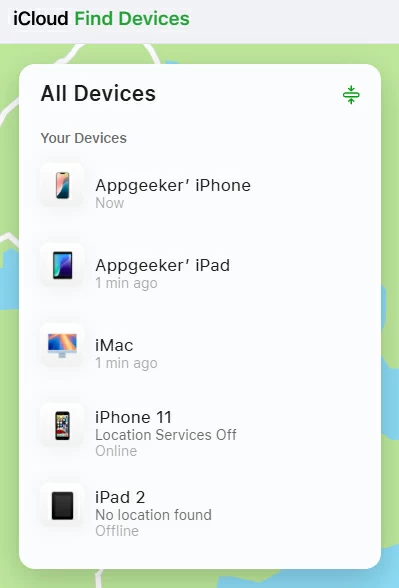
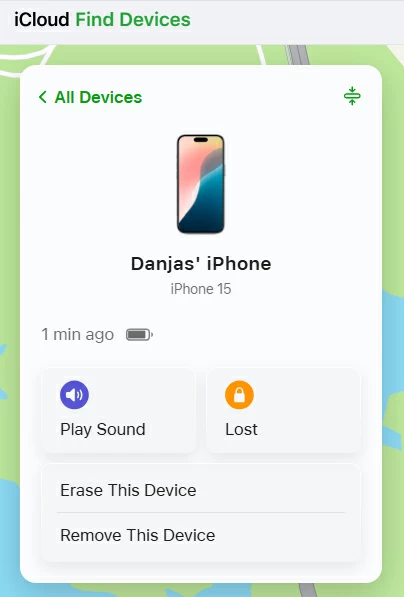
If Find My iPhone was enabled before you forgot the passcode for your iPhone 17, removing the lock screen is pretty straightforward. iCloud Find My website offers an Erase iPhone option letting you remotely reset an iPhone 17 when you do not remember the password. This remote wipe can be done on a computer (PC or Mac), or another available mobile phone (iOS, iPadOS, or Android).
To bypass the "I forgot my iPhone password" barrier by resetting the whole iPhone 17 with Apple ID in iCloud Find My, do the following:
- Log into icloud.com/find with your Apple Account that's registered on the locked iPhone 17.
- From the All Devices pane, choose [your iPhone 17] that you forget the passcode to.
- Click Erase This Device.
- Confirm that you're sure to delete all of your data and settings permanently.
- Enter your Apple Account password to fire up a remote reset to have your forgotten password and lock screen removed.
Make sure your iOS device is connected to an internet network to be reset. If it's offline, this won't work. Once the iPhone is erased, the passcode is gone, and you can set it up as new or restore a backup.
Forgot iPhone 17 passcode without restore. Is this possible?
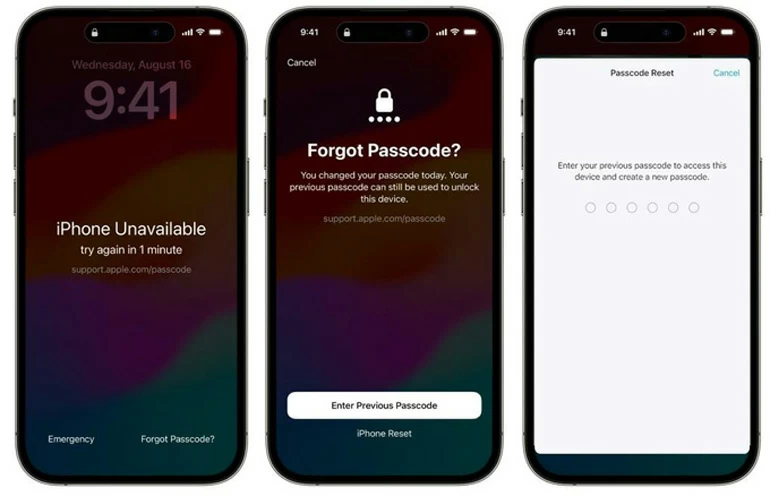
When you fix a forgotten passcode, you aren't actually find the old code—you are essentially wiping the encryption key and starting over. Luckily, thanks to the Passcode Reset feature introduced since iOS 17, forgot iPhone passcode without erasing is possible. You can reset your new passcode by using the older one to regain access.
Say on your iPhone 17, you change your passcode but soon after you can't remember what you change it to. After you fail to unlock your iPhone, iOS Passcode Reset trick triggers, letting you use your previous passcode to unlock the screen and reset the new passcode to something you could remember. Here's how you can reset a forgotten passcode without erasing iPhone 17 and bypass the lock screen:
- On the lock screen, input the wrong passcode five times until the iPhone Unavailable message shows up.
- Tap Forgot Passcode option at the bottom.
- Tap Enter Previous Passcode. This option only visible if you've forgotten your device's new passcode and it's been less than 3 days.
- Enter the old passcode you used to unlock your iPhone 17.
- Enter a new passcode to reset the forgotten one instantly.
Wait for a while, and you'll be taken to the Home screen. No data is lost.
Remember that Passcode Reset is only available for 72 hours since after changing the code; when this grace period expires, you have to wipe the whole device clean to reset your iPhone passcode you forget.
Can you recover data after unlocking your iPhone 17 forgotten passcode?
One of the biggest concerns after forgetting an iPhone 17 passcode is: Will I lose my data like your photos, messages, contacts, notes or whatever? The short answer is Yes—unless you have a backup.
Once your iPhone 17 is wiped and out of the forgotten passcode loop, it's a blank slate. To get your data back, you have three options during the "Transfer your Apps & Data" stage of the setup:
Option 1- Restore from iCloud Backup
If iCloud Backup was enabled,
- Choose From iCloud Backup.
- Sign into iCloud account with Apple ID & password.
- Select the most recent backup to restore your data.
Option 2- Restore from Computer Backup
If you previously backed up to a Mac or PC,
- Select From Mac or PC.
- Connect iPhone 17 to the computer where you create the backup.
- Open Finder or iTunes, then locate your phone.
- Choose Restore from Backup.
- Select the latest backup file to have anything back to your iPhone.
Option 3- No Backup? Set up as new
Apple's encryption prevents data recovery without a backup to protect your privacy. With no backup made in advanced, photos, messages, and files cannot be recovered after reset.
Preventing a "forgot iPhone 17 passcode" incident in the future
Once your iPhone 17 is unlocked, the best way to handle a passcode lockout is to ensure it never happens again. Here are a few pro-tips for iPhone 17 owners.
1. Take advantage of the Passcode Reset feature after you're forgetting the password
This is a lifesaver for those who frequently change their passcode on the lock screen, and the only option to reset iPhone passcode when forgotten without restoring or erasing the whole device.
2. Enable Face ID to unlock your iPhone
Biometric authentication reduces reliance on passcodes.
3. Use a memorable yet secure passcode
Avoid random numbers you won't remember.
4. Turn on regular iCloud backups
Enable automatic backup with iCloud in Settings > [Your name] > iCloud > iCloud Backup > Back Up This iPhone.
5. Store your iPhone passcode and Apple Account & password securely
While it seems redundant, having a digital record can prevent you from completely forgetting the lock code.
Summary
Forgetting your passcode to your iPhone 17 is a stressful experience, but it isn't the end of the world. By using the Apple's recovery paths such as on-device erase, recovery mode reset, iCloud remote erase, iOS 17 Passcode Reset, or a professional unlock tool, you can bypass the forgotten passcode and regain access to your iOS device safely and legally.
FAQs
- What to do if I forgot my passcode and can't unlock iPhone 17?
- If you can't remember your iPhone 17 passcode, you need to erase the iPhone to remove the code and get access back.
- I just changed my passcode and forgot the new one. Is there a way to get back in iPhone 17 without erasing everything?
- Yes! If you are running iOS 17 or later, there is a 72-hour grace period of using Passcode Reset option to reset the passcode with the old code without the need to wipe your device.
- Can I unlock my iPhone 17 using Face ID if I forgot the passcode?
- Face ID can work for unlock, but iOS requires a passcode every 48 hours of inactivity, after a restart, or after five failed Face ID matches.
- How do I erase my iPhone 17 Pro if "Forgot Passcode?" button doesn't appear?
- If your iPhone 17 Pro isn't connected to a network or Find My isn't activated, the on-screen Forgot Passcode? button may not show up. In this case, you could use recovery mode or Higospot iPhone Unlocker to erase and unlock your locked iPhone 17 Pro.
- How to change passcode on iPhone 17?
- Changing your iPhone 17 passcode to something new is pretty easy. You just open Settings app, and then tap Face ID & Passcode > Change Passcode. You'll need to enter your current passcode before making a change.
About Ajay Walmsley
Ajay Walmsley has 6 years of experience writing and editing for tech publications, as well as in the tech startup world. She loves to help more users solve various types of issues related to iOS, Android, Windows, macOS.

 iPhone UnlockerRemove iPhone & iPad lock screen
 iPhone Data TransferTransfer and manage your iPhone & iPad data
 Android UnlockerRemove Google FRP lock and bypass screen locks
 iPhone Data RecoveryRecover deleted files from iPhone, iPad
 Location ChangerFake a GPS location easily
 Video DownloaderDownload videos from 1000+ sites