Forgot Pattern on Samsung Phone or Tablet? Here's How to Unlock It
Here's everything you need to do to unlock your Samsung device when you have forgotten pattern lock before you take it to a local repair center, along with tips to prevent future lockouts.

Katrin Gray
Updated on Jun 26, 2026
Samsung Galaxy phones and tablets are known for their strong security features—pattern lock, PIN, password, fingerprint, and Face Unlock. These layers protect your data from unauthorized access, but they can also become a barrier when you forget your pattern on Samsung. It's a common scenario: you set a pattern you think you'll remember forever, only to find yourself locked out after a stressful day, a long break from using the device, or an accidental change you don't recall making.
When this happens, panic usually follows. Your photos, videos, documents, and app data are all trapped behind a screen you can't get past. And unlike older Android versions, Samsung no longer offers a simple "Forgot Pattern?" button on the lock screen. That means you need a clear, reliable plan to regain access—without making the situation worse.
This article walks you through exactly the approaches you can take when you've forgotten pattern on Samsung phone or tablet. If you're urgent to ragain access to the device, check out Higospot Android Unlocker. Its intuitive interface has wizard available to get you started on your screen unlocking journey.
Table of Contents
After you forgot pattern lock on Samsung
The challenge is that modern Samsung devices enforce strict security rules. After several failed attempts, the device may:
- Increase the waiting time between unlock attempts
- Disable biometric unlock temporarily
- Require your Samsung account credentials
- Block access entirely until you perform a factory reset
And, if you don't have a Smart Lock unavailable to use, most unlock methods erase your data and reset the device to its default state.
But before you jump into resets, there are ways to recover your data or unlock the device safely—if you follow the right sequence.
Here is how you can unlock a Samsung Galaxy phone or tablet after forgetting the pattern—while maximizing your chances of recovering or backing up your data.
Try Biometric Unlock First (Face ID or Fingerprint)
Before attempting any reset, check whether Face Unlock or fingerprint unlock is still active. Samsung devices often allow biometric unlock even when the pattern is forgotten—unless the device has been restarted or too many failed attempts have occurred.
How to try Face Unlock:
1. Hold the device at eye level
2. Ensure good lighting
3. Let the front camera scan your face
Related: Android Forgot PIN
Try Smart Lock when forgot Samsung pattern
Samsung phones include a feature called Smart Lock, which lets your device stay unlocked automatically in certain trusted situations so you don't have to enter your PIN, pattern, or password every time.
Smart Lock offers several modes:
Trusted Places: Your phone stays unlocked in specific locations you set (e.g., home or office)
On-Body Detection: Your phone stays unlocked while you're holding or carrying it, and locks again when you put it down
Trusted Devices: Your phone stays unlocked when connected to a trusted Bluetooth device (e.g., smartwatch, earbuds, car system)
If it was enabled before you forgot your unlock pattern in a Samsung phone, you can unlock the device instantly—no reset required.
If it works, you'll immediately regain access. You then can back up your data to Samsung Cloud, Google Drive, or a computer, export photos and videos to an external drive or flash drive using OTG. This is the only method that guarantees no data loss.
Be noted, even you can unlock the Samsung device after forgetting pattern lock with Smart Lock, you can't reset or change a new pattern. You still need to reset the device to erase all security settings.
Related: How to Bypass Google Lock
Unlock Using Recovery Mode (Factory Reset)
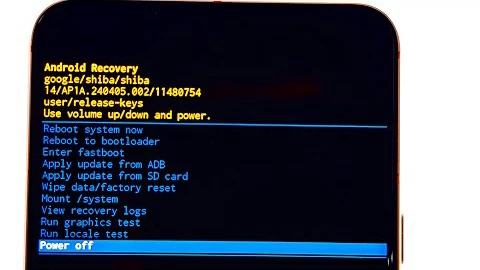
If Smart Lock is unavailable, Recovery Mode becomes your next option. This method works on all Samsung Galaxy phones and tablets, regardless of model or Android version. However, it resets the device and erases all data, including forgotten pattern, allowing you to set it up again.
How to Enter Recovery Mode on Samsung:
The exact key combination varies slightly by model, but the general method is:
1. Turn off the device, and then connect it to a computer. For many recent models (like S21 series and newer), the USB connection to a PC is crucial for the button combo to work.
2. Press and hold Volume Up + Power. For older models, you may try pressing and holding Volume Up + Bixby + Power.
3. Release the buttons when the Samsung logo appears.
4. The device enters Android Recovery Mode.
Performing the Factory Reset
Once you're in recovery mode:
1. Use the Volume Up and Volume Down buttons to move up and down the recovery menu.
2. Highlight Wipe data/factory reset. It means that the process will erase all data and reset the phone to factory settings.
3. Press Power to confirm.
4. Select Factory data reset.
5. Wait for the process to complete.
6. Choose Reboot system now. Your Samsung device will restart as if brand new.
What Happens After Reset
After the forgotten pattern on Samsung is removed, you will need to set the device up again: Connect to Wi-Fi, sign in with your Google account or Samsung account, and restore your data from backups if available.
Keep in mind, if you had Samsung's Reactivation Lock enabled, you must enter your Samsung account credentials to proceed.
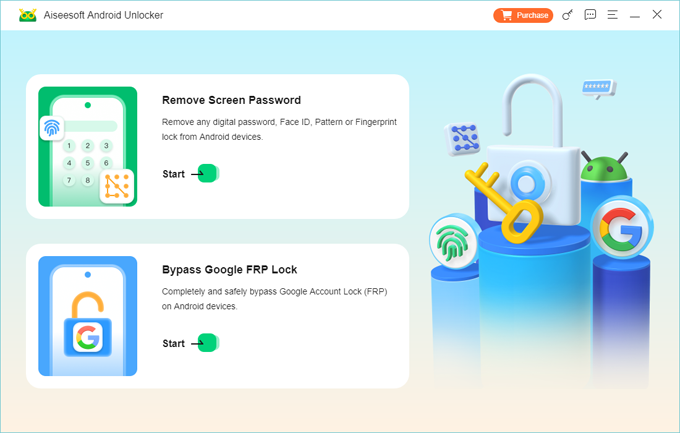
Another way that can help you unlock the Samsung phone or tablet when you forgot the pattern is use a dedicated tool like Higospot Android Unlocker, a reputable desktop-based tool used for unlocking Android's screen locks, as well as bypassing FRP lock. It is widely used when users forget their password, pattern, or PIN lock, buy a second-hand locked phone, or get stuck on Google verification.
Win Download
Here's what to do when you face "Samsung forgot pattern" issue.
First of all, install the program on your Windows computer.
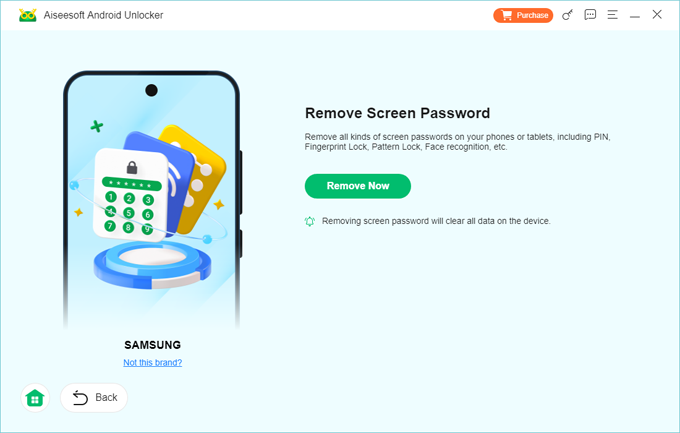
Step 1. Open Android Unlocker and choose Remove Screen Password option.
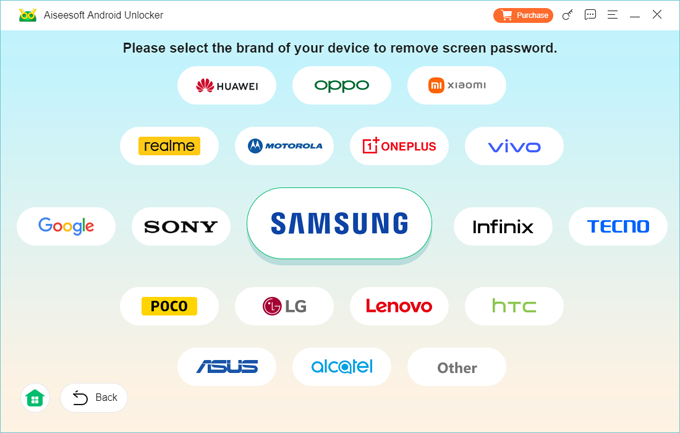
Step 2. It will then ask you to confirm your phone brand. Here pick Samsung from the list.
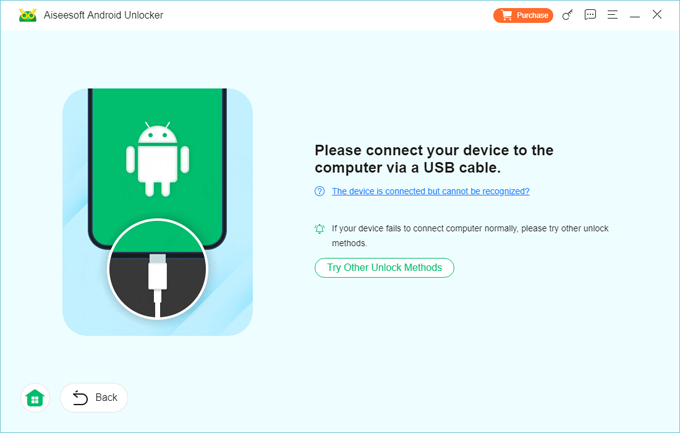
Step 3. Use a USB cable to connect the Samsung phone or tablet to your computer. The program will detect the device automatically. If not, click "The device is connected but cannot be recognized" link on the screen, and follow the onscreen prompts to fix it.
Step 4. Click the green Remove Now button. The Android Unlocker app will prepare the device, download the required configuration package, and begin removing the lock screen and forgotten pattern on your Samsung tablet or phone.
Note that the process will also erase all your photos, contacts, messages, and other personal files and settings.
Related: How to Unlock iPhone without Passcode
Remote Erase (Factory Reset via SmartThings Find)
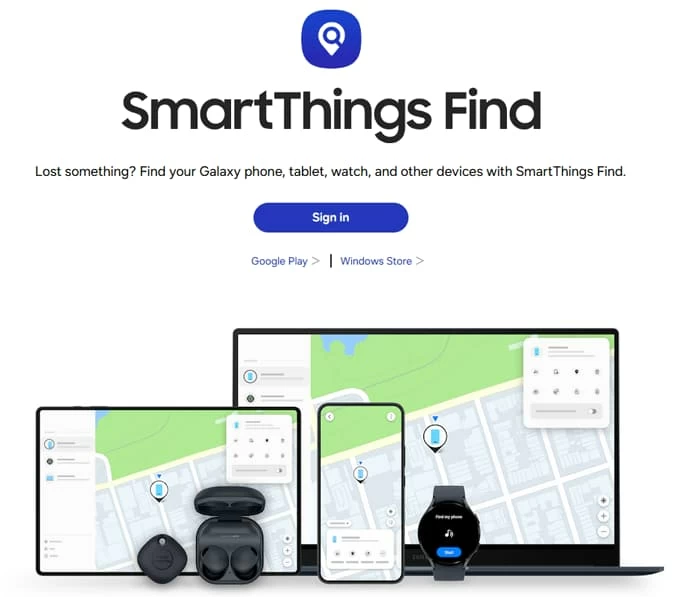
To unlock Samsung phone forgot pattern, Samsung's SmartThings Find service allows you to wipe it clean remotely and start fresh.
When remote erase is available?
- Your Samsung device must be turned on and be connected to the internet (Wi-Fi or mobile data).
- Samsung account must be registered on the device.
- "Find My Mobile" feature is turned on before you forgot pattern.
- You know the Samsung account credentials
Steps to perform a remote reset when forgot Samsung pattern via SmartThings Find:
1. Open your browser and visit SmartThings Find website.
2. Use the same Samsung account logged into the phone to sign into.
3. After login, you'll see a list of devices registered under your Samsung account.
4. Click the Samsung device you've forgotten pattern to.
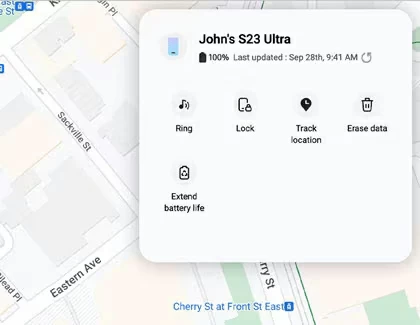
5. SmartThings Find provides several remote actions. Select Erase data.
6. Confirm your action and enter your Samsung account password again when prompted.
Once confirmed, the device will reset remotely: The device will wipe all data, lock screen will be removed, Google/Samsung accounts will be erased, and the phone reboots to the setup screen eventually.
SmartThings Find cannot unlock a phone without resetting it. If the phone is offline, the reset will occur as soon as it reconnects.
Related: How to Factory Reset Google Pixel without Password
Prevent Future Lockouts
Once you regain access, take a few minutes to set up safer unlock and backup strategies.
In case you forgot Samsung phone pattern again and go through a factory reset, you will want to enable multiple unlock methods, including Face recognition, fingerprint, PIN, pattern, or password. Biometrics are especially helpful because they allow access even when you forget your pattern.
Next, turn on Find My Mobile. Head to Settings > Biometrics and security > Find My Mobile, turn on "Send last location" and "Remote erase" options.
Finally, it's highly recommend you set up automatic backups.
Samsung Cloud: Settings > Accounts and backup > Samsung Cloud > Sync and backup.
Google Backup: Settings > Google > Backup.
Smart Switch: Back up to Mac, PC, external hard drive, or flash drive (via OTG).
Conclusion
Forgetting your Samsung tablet pattern lock or forgetting pattern to unlock Samsung phone can feel like a crisis, but with the right approach, you can unlock your device and protect your data.
By trying Smart Lock first, you maximize your chances of saving your data. If that fails, Recovery mode and the third-party tool like Higospot Android Unlocker guarantees access, even if it requires a fresh start. And if all else fails, SmartThings Find offers remote erase tool to wipe it.
FAQs
- What should I do first if I forget the pattern on my Samsung phone?
- Start with the least destructive options. Try Smart if it's previously enabled. This option can instantly unlock your device without losing data.
- How do I use Face Unlock to bypass the forgotten pattern?
- Simply raise the device to your face and allow the front camera to scan you. If Face Unlock is still active and the device hasn't been restarted, it will unlock immediately, allowing you to back up your data.
- Can I unlock Samsung phone forgot pattern if Find My Mobile wasn't enabled?
- You can resort to a factory reset via Recovery Mode or third-party tool like Higospot Android Unlocker. This will erase all data on the device.
- Does Samsung offer a Forgot Pattern button?
- No. Modern Samsung devices no longer include a "Forgot Pattern?" option on the lock screen. If you want to unlock Samsung tablet forgot pattern, biometrics, Samsung account verification, and a factory reset are the ways to go.
About Katrin Gray
Katrin Gray is the Junior Editor at HigoSpot. With a bachelor's degree in Computer Applications, he has been covering Microsoft Windows, Apple macOS, iOS, Android, Social Media, Gaming, and more as a professional writer for over 5 years.

 iPhone UnlockerRemove iPhone & iPad lock screen
 iPhone Data TransferTransfer and manage your iPhone & iPad data
 Android UnlockerRemove Google FRP lock and bypass screen locks
 iPhone Data RecoveryRecover deleted files from iPhone, iPad
 Location ChangerFake a GPS location easily
 Video DownloaderDownload videos from 1000+ sites